Appearance
Focus Charts
Focus charts are a way to enter the Focus data into Lightwright. There is some setup that happens at the start, so let's begin.
Focus Charts Setup
Go to  Settings>Show Preferences.
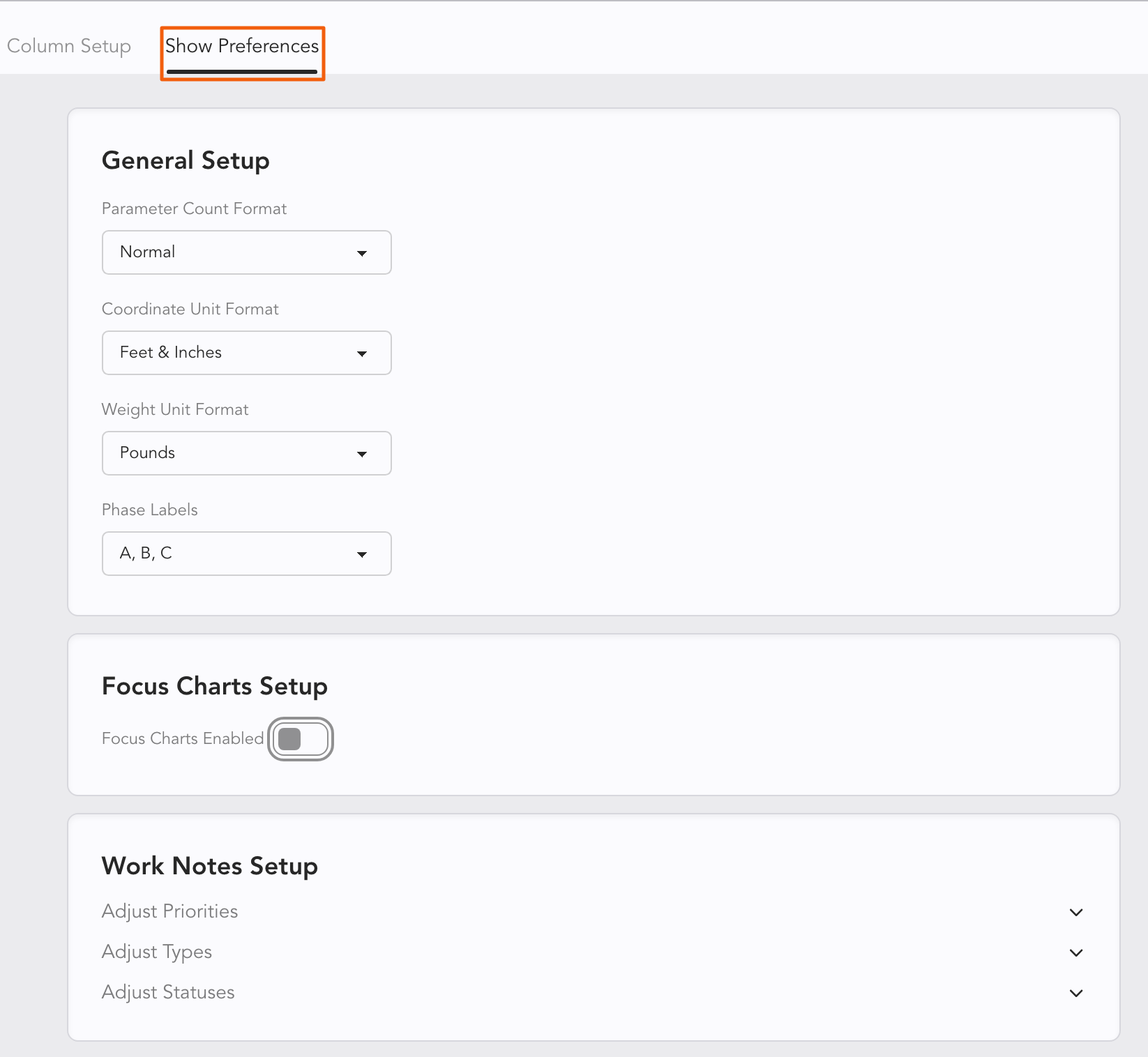
Touch the toggle switch to turn on Focus Charts. It will turn blue when complete.
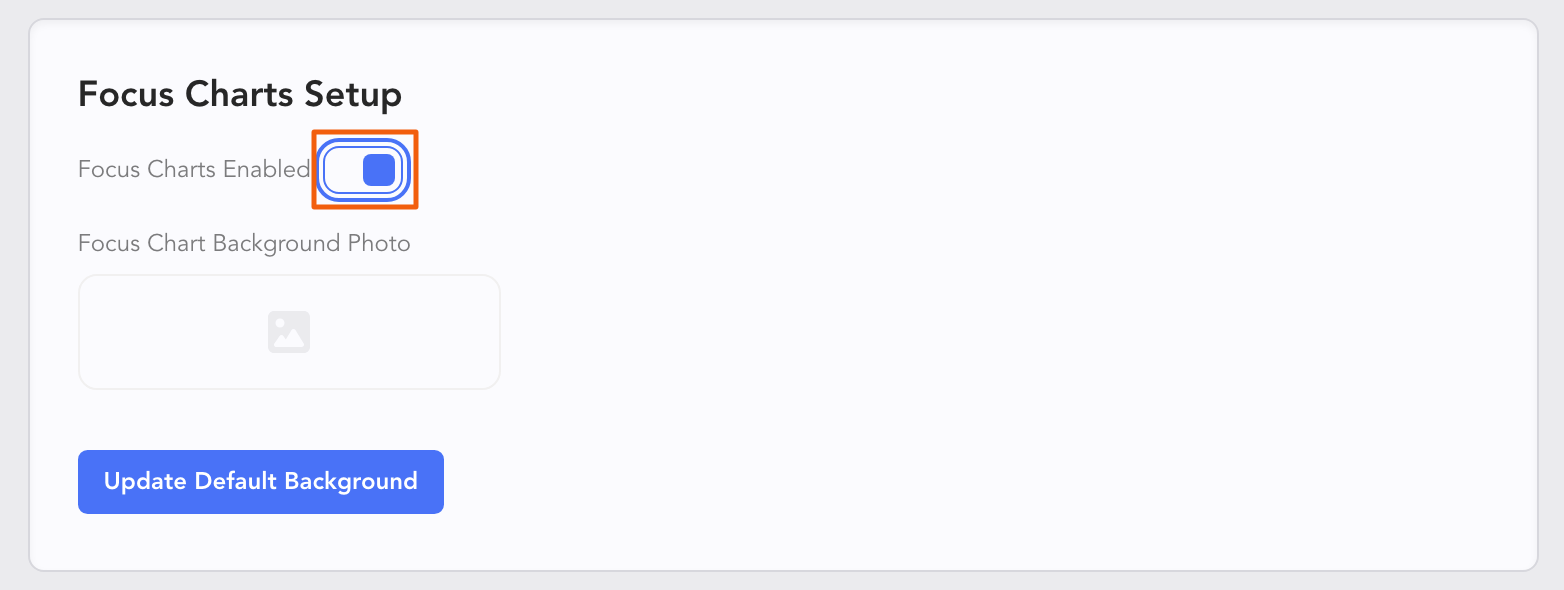
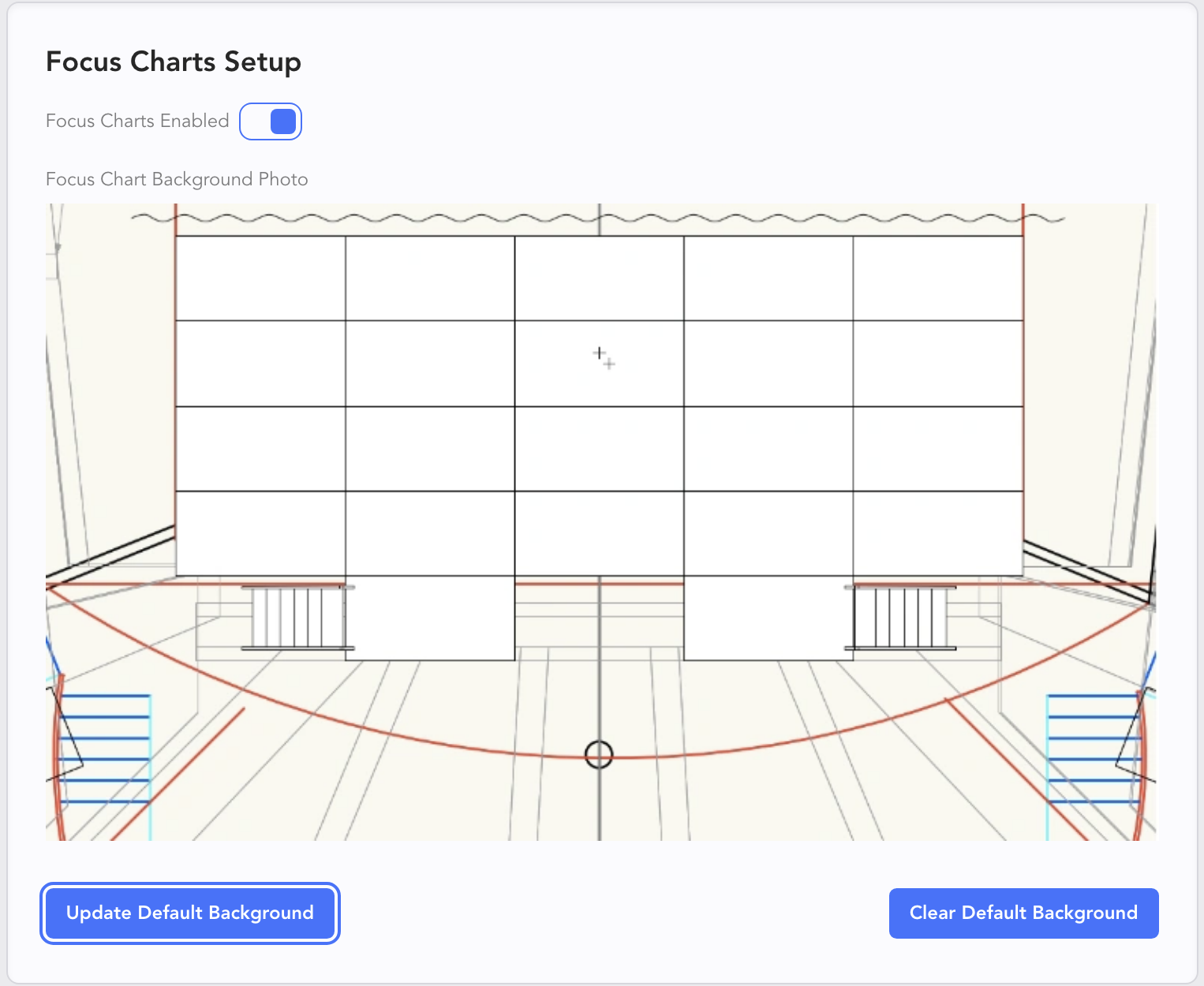
You need to add a Default Background. This most often is a ground plan of your stage. Press Update Default Background.
Now you want to go to Instrument Maintenance.
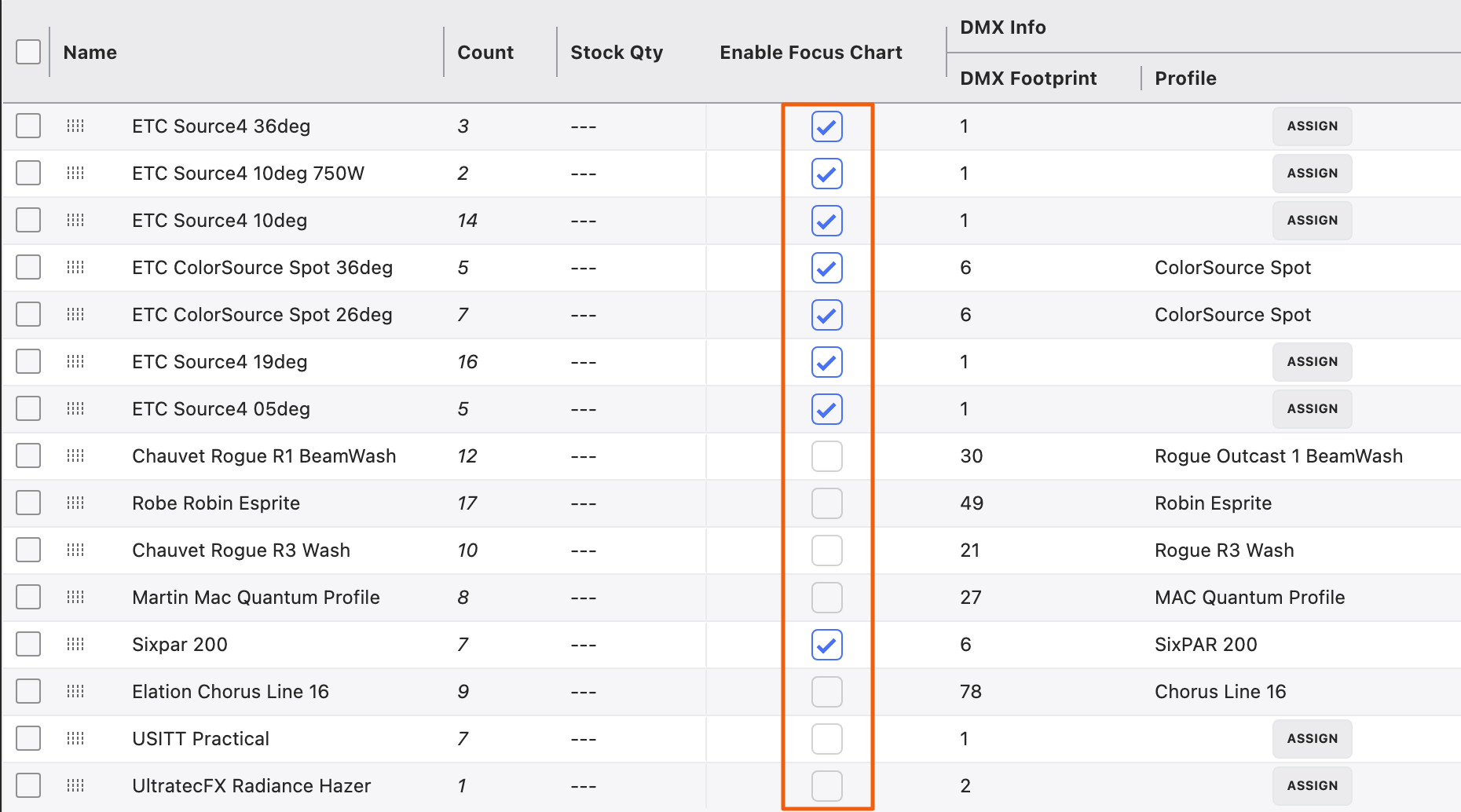
Make sure the Instruments that need to be focused have a check in the Enable Focus Chart Column, but equally important-- make sure the Instruments that don't need to be focused do NOT have a check next to them. When complete, go to your Worksheet.
In the Sidepanel, touch the Worksheet Settings and turn on Show Focus Charts. 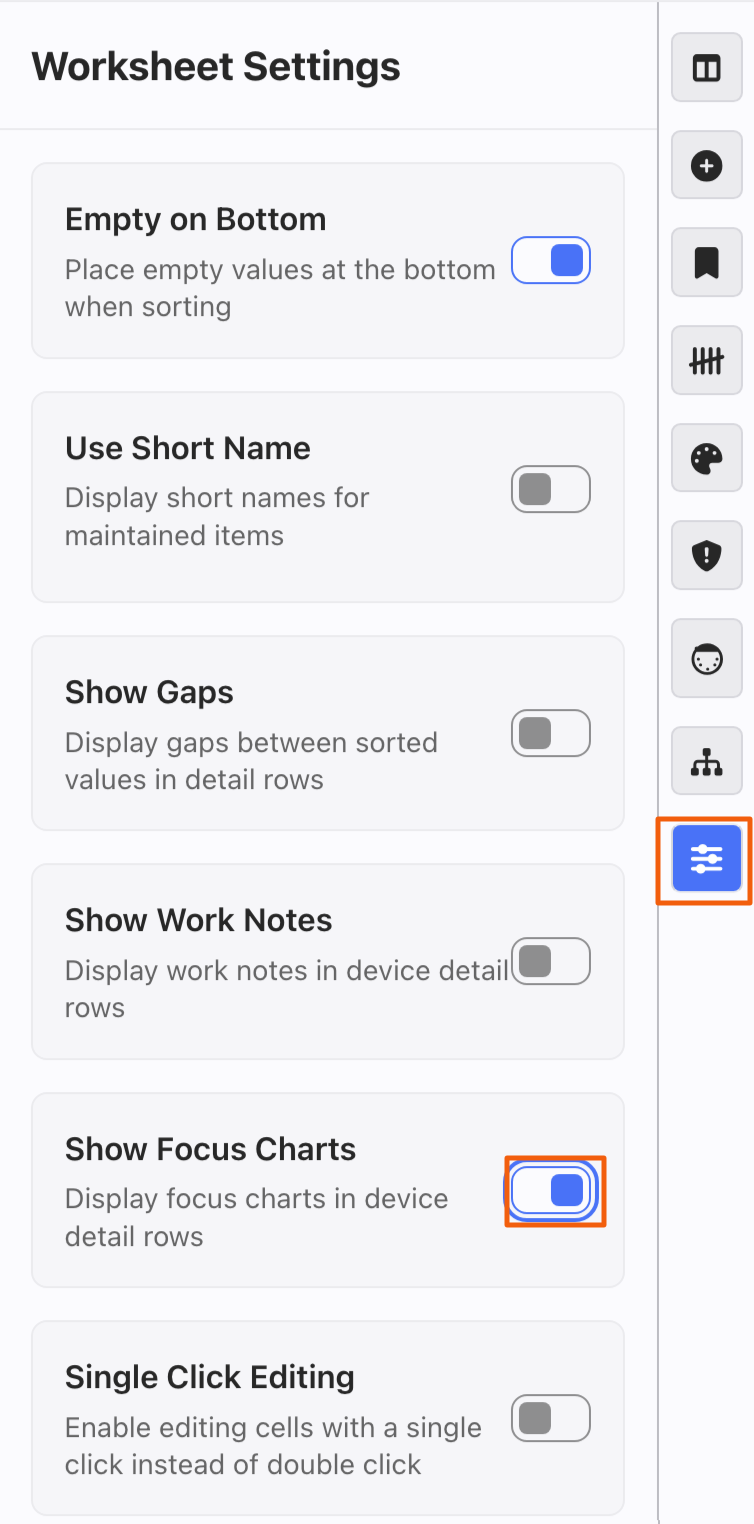 . Your Worksheet adds the Focus Chart options.
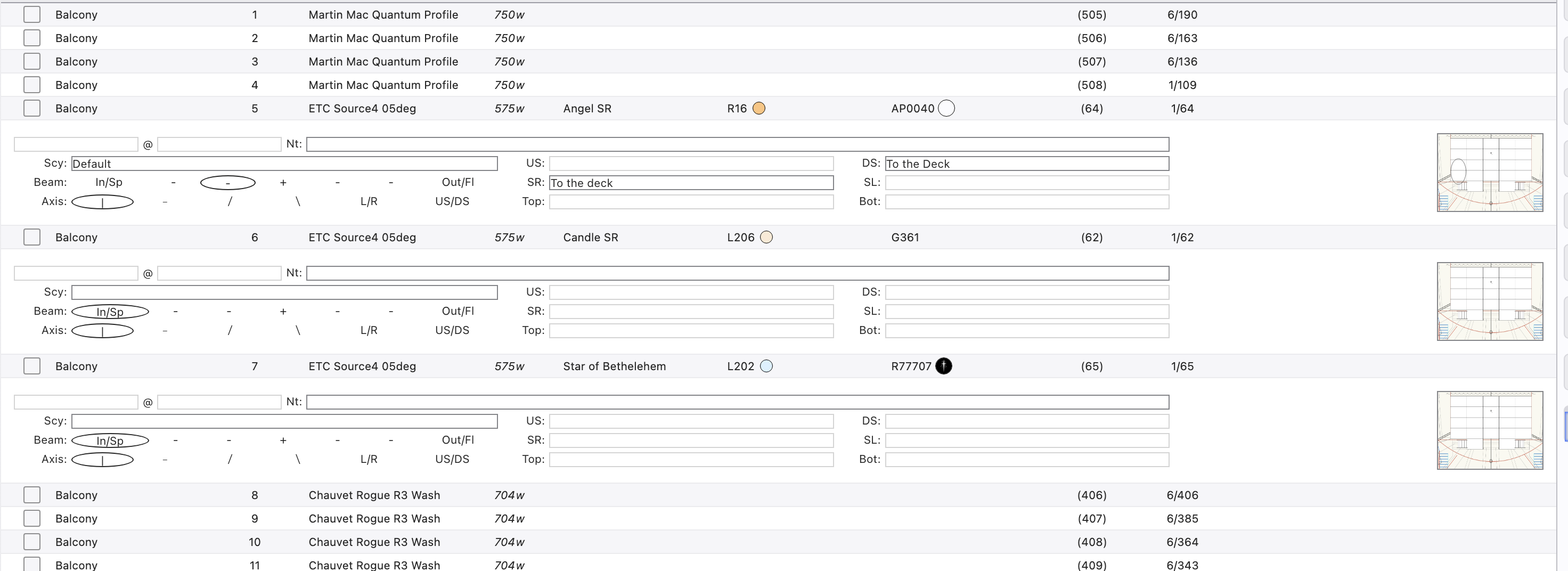
As shown, fixtures that need focusing have Focus Charts attached and those that don't do not.
Entering Focus Chart Notes
Touching the Background image expands the view.
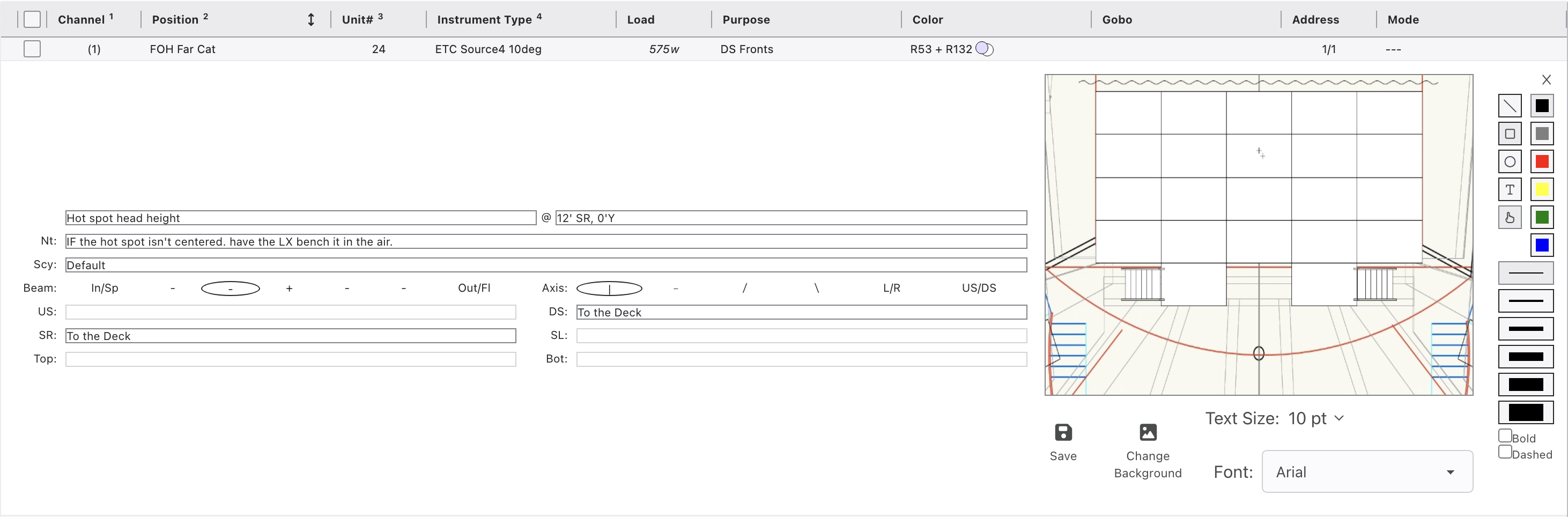
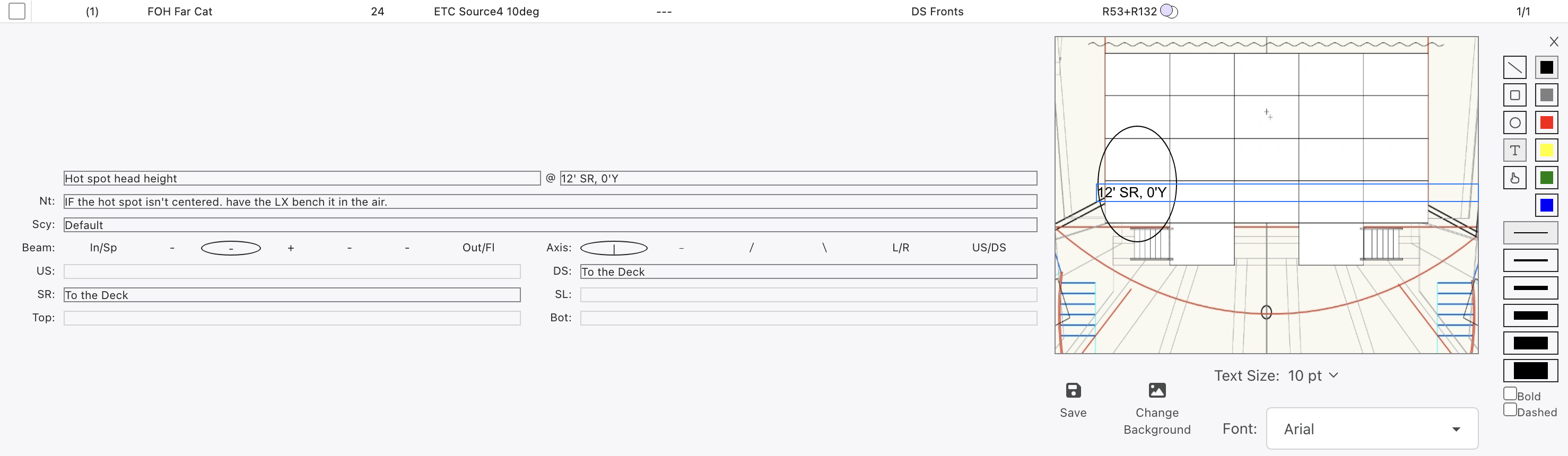
Fill in the fields as you see fit. The focus and Axis options are click-to-select options. The tools for images on the right are for drawing in representation of your beam.
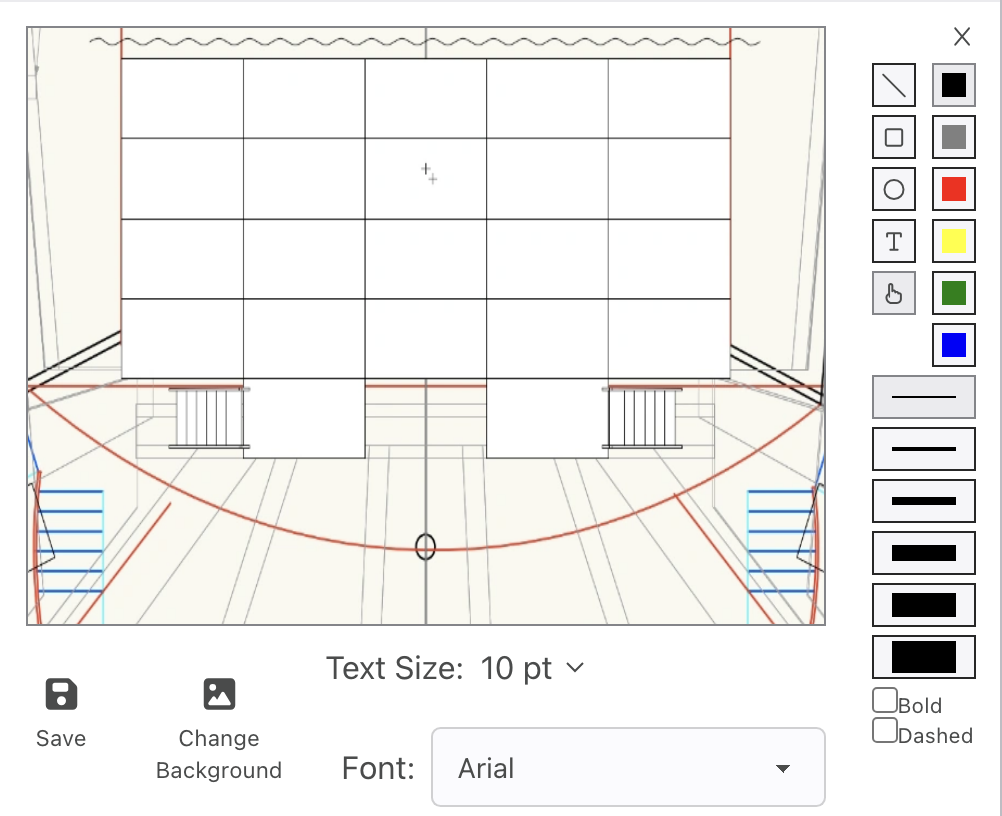
Drawing tools including shapes, color, line width and Bold or Dashed options are on the Right. Font and the option to change your background image and Save are along the bottom.
Here is an example of a filled in Focus Chart for a front light.
TIP
Turning off Focus Charts in Settings doesn't change the data you have.