Appearance
Editing Data
Once you have fixtures in, it's easy to add or edit data quickly. One way is to click on the field you want to edit, type and then press Enter. Range editing is where things get interesting.
Copy Data
To copy any piece of data, you can obviously use copy and paste functions. But Lightwright includes faster ways. When you select any cell, a drag handle appears at the bottom right of the selected cell.
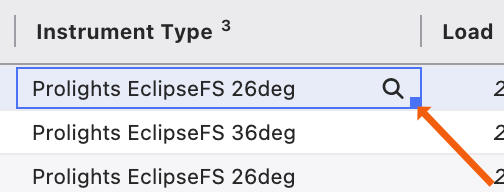
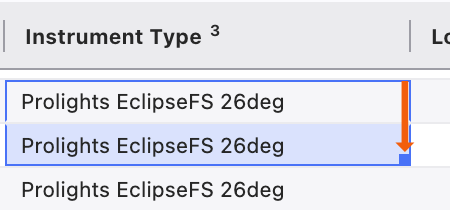
Clicking and dragging up or down copies that cell's data to the new cell(s).
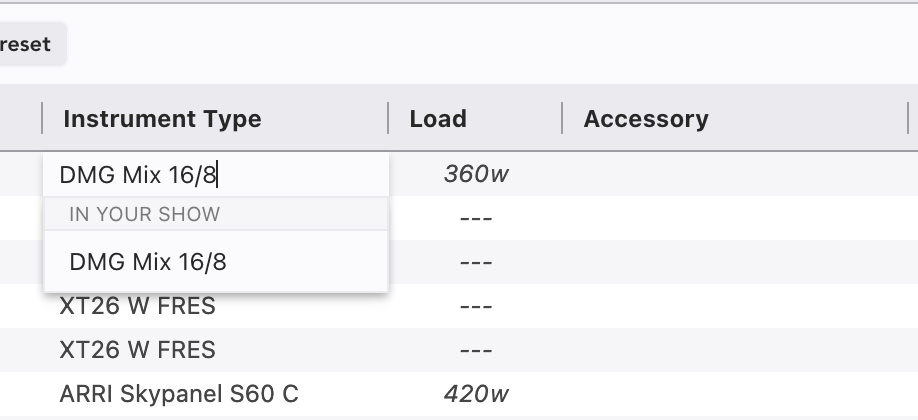
When typing into a field, Lightwright will offer a pull down of pre-existing entries as you type to select from.
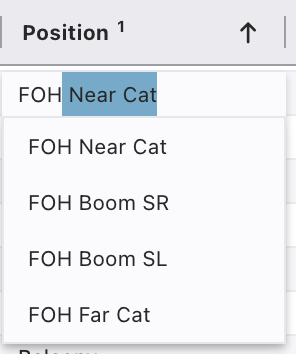
You can continue typing to filter more, or arrow to your selection and press Enter or click with your mouse to choose.
The Instrument category has one more option. You can also specify a fixture from the Library.
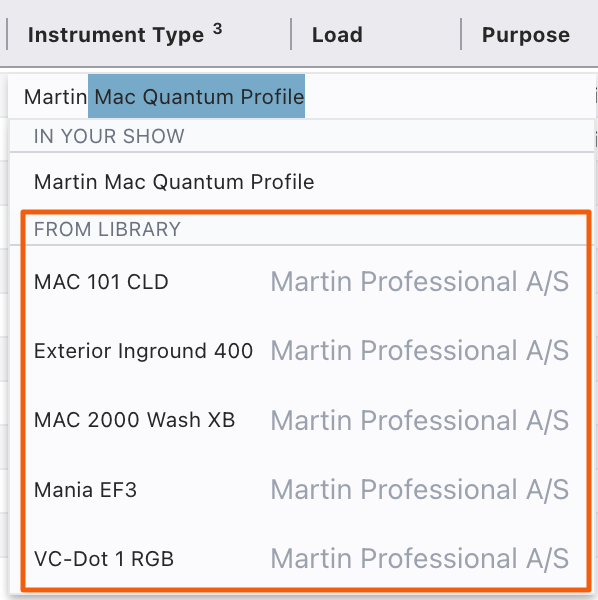
As with items from the show file, the results in the Library are filtered by what you type. Select and press Enter to apply.
Choose List
There are times it's easier and more precise to add or replace data by choosing from items already in your show file. This is easily done with the Choose List option.
Select a field and right click or press Ctrl/Cmd+L. A popup appears.
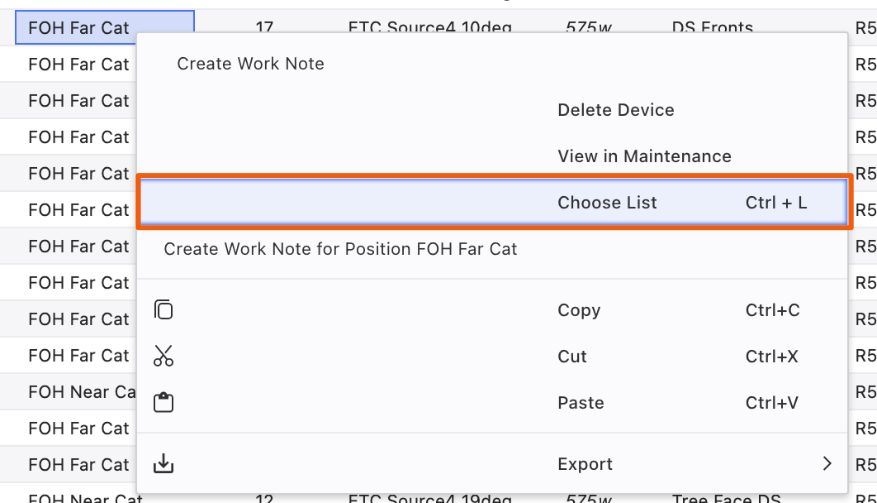
Select Choose List and another popup appears.
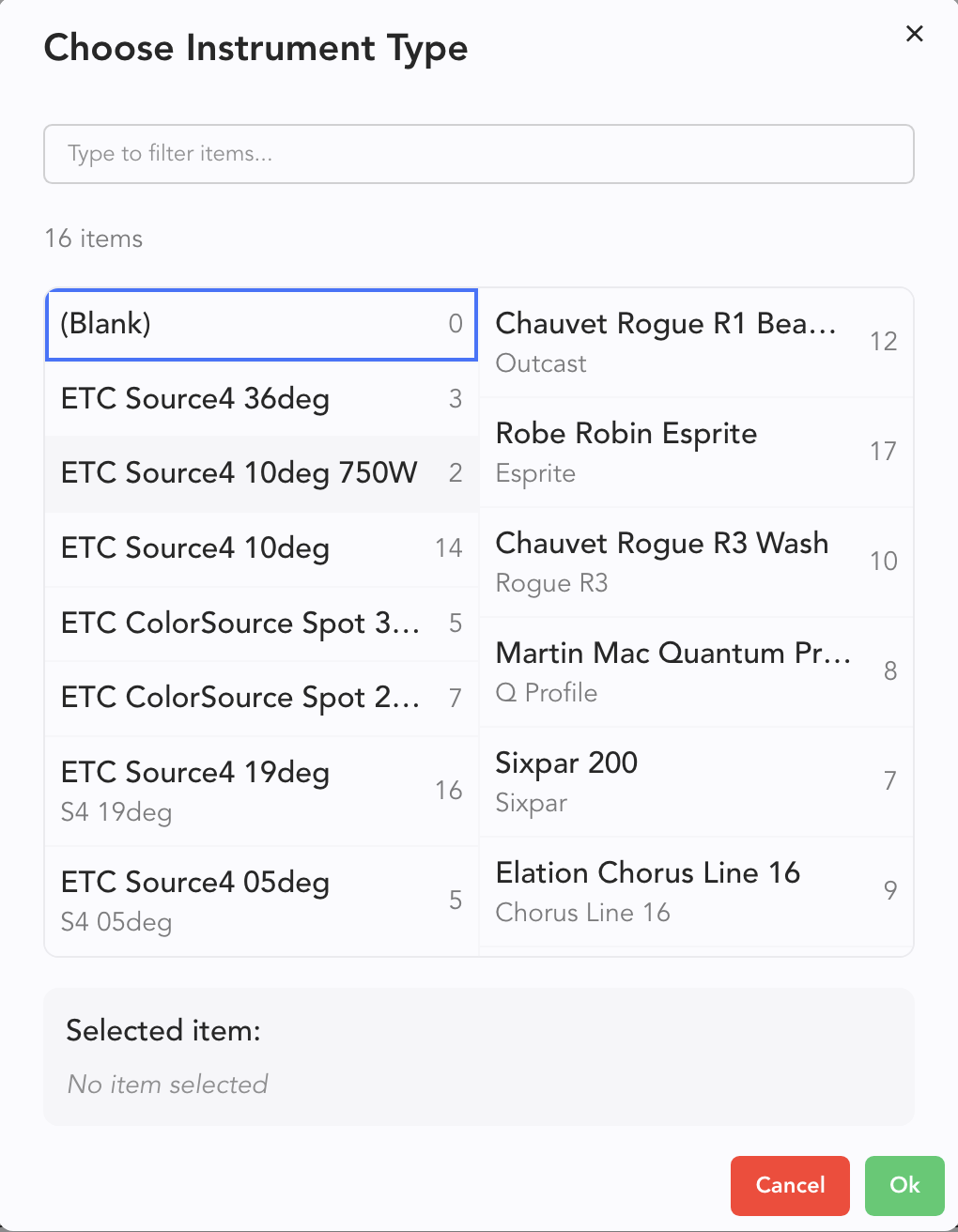
Any item you select here will be applied to your selected fields.
Editing Number Ranges
When editing a range of numbers, there is a terribly helpful offset function. If I want to take channels 1 through 5 and change them to 101 through 105, click and drag to select the range.
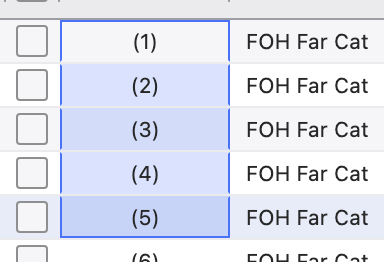
Now type:
101+1 Enter
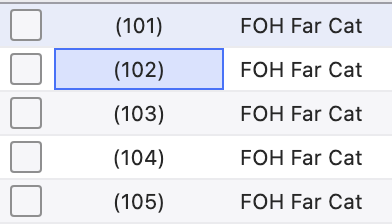
Of course, you can use the same function but with - to lower values.
This approach can be used on Unit numbers, addressing, etc. In addressing, you can include the universe. Example:
Select a range, type 8/1+3 Enter
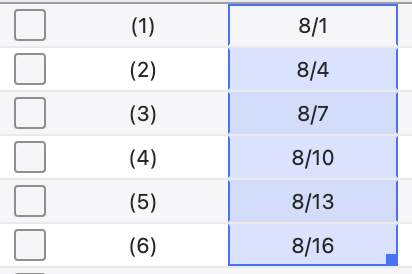
If you have already input the Profiles for your fixture types, specifying an offset isn't necessary, since Lightwright already knows what the offset should be.
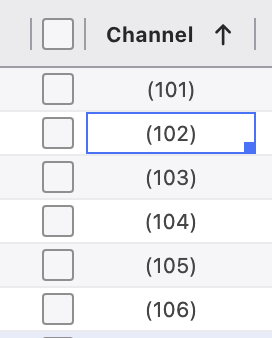
You can also make relative offset edits in the Worksheet with Unit Channel or Address number by selecting the field and typing "+16" for example. Select a range (or individual field) as before. Then type your midifier- in this case, I'll type +100.
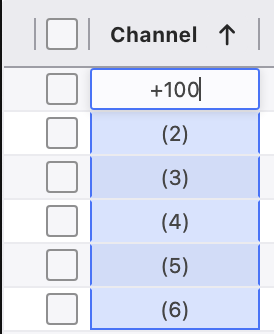
Then press Enter.
Selecting All Column Contents
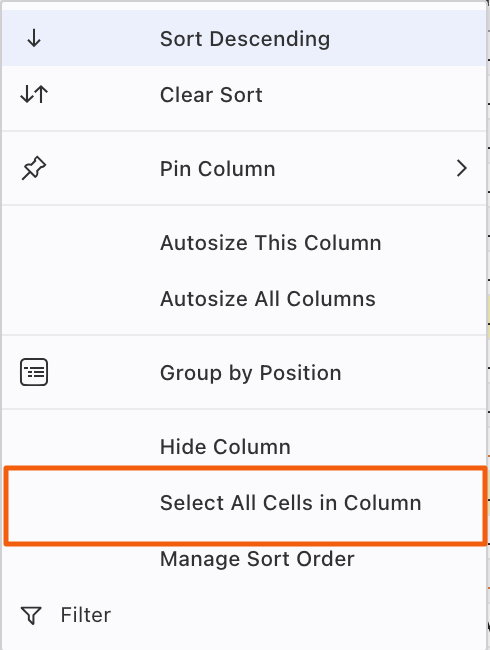
Sometimes it's helpful to select the contents of a column. This is easily done by pressing Alt/Option+ clicking or right-clicking the header and choosing Select All Cells in Column from the popup menu.
Edit any Cell with F2
Pressing F2 (fn+F2 on Mac) will start editing any selected cell in the worksheet.