Appearance
Import from MVR
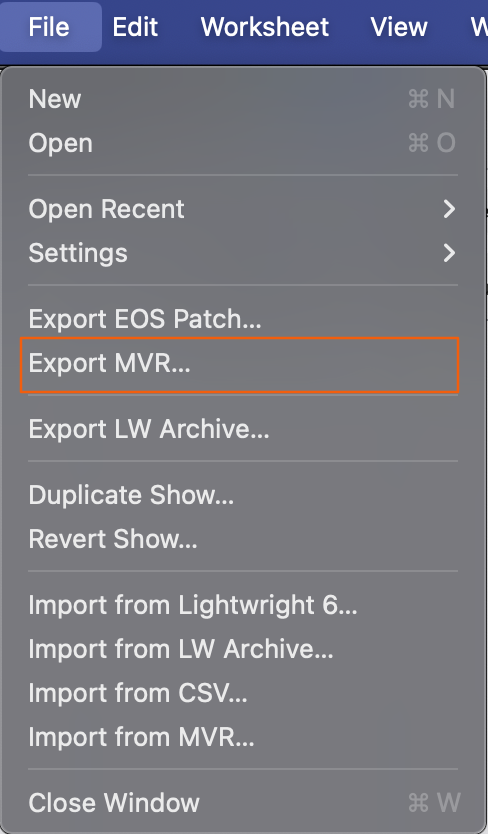
MVR is a significant tool for inter-operability. Lightwright supports both Import From and Export To. Let's Import. Start with your MVR file someplace easy to find like the Desktop of your computer. In a New File, go to File>Import MVR.
Navigate to your file and choose it.
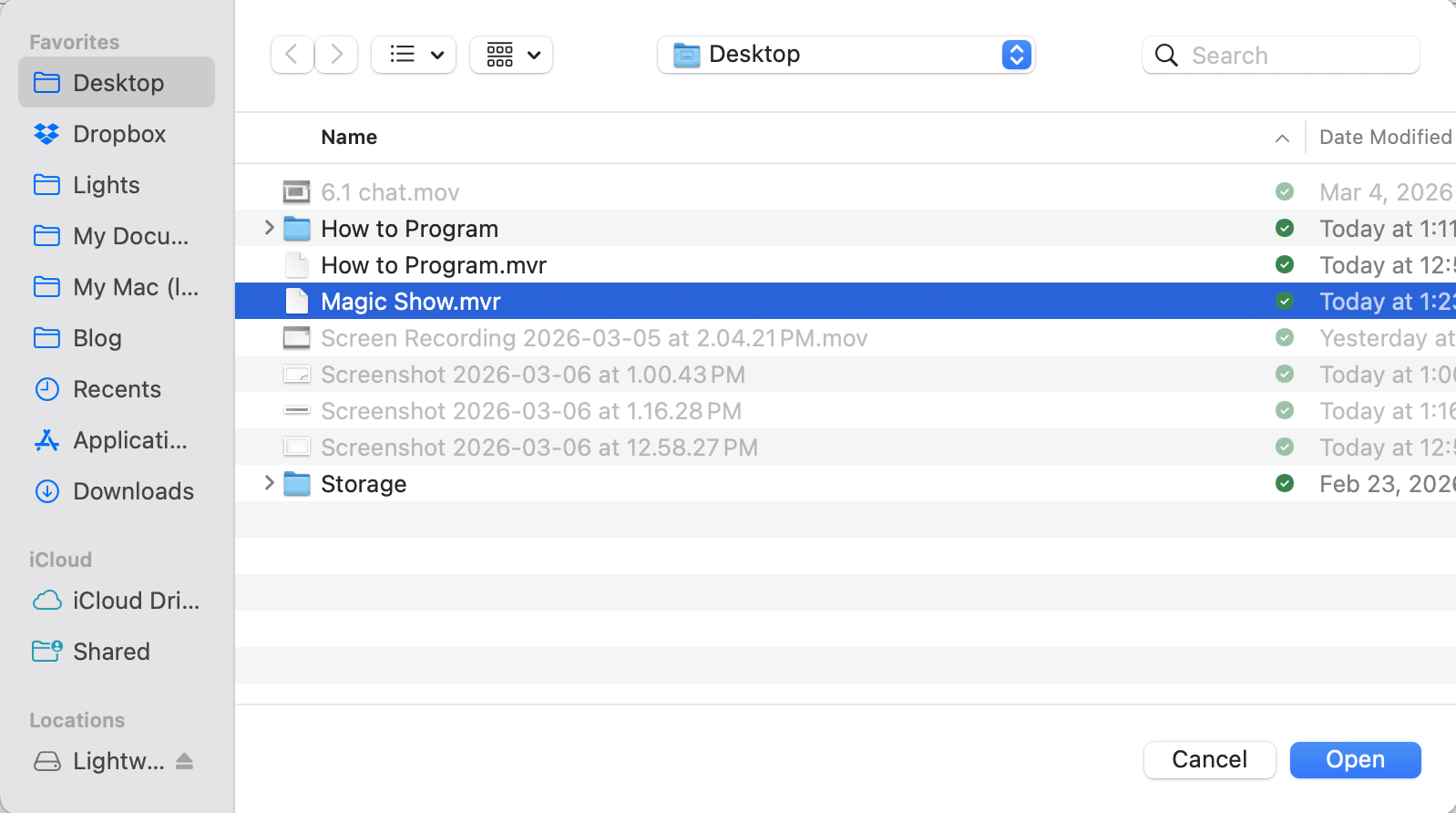
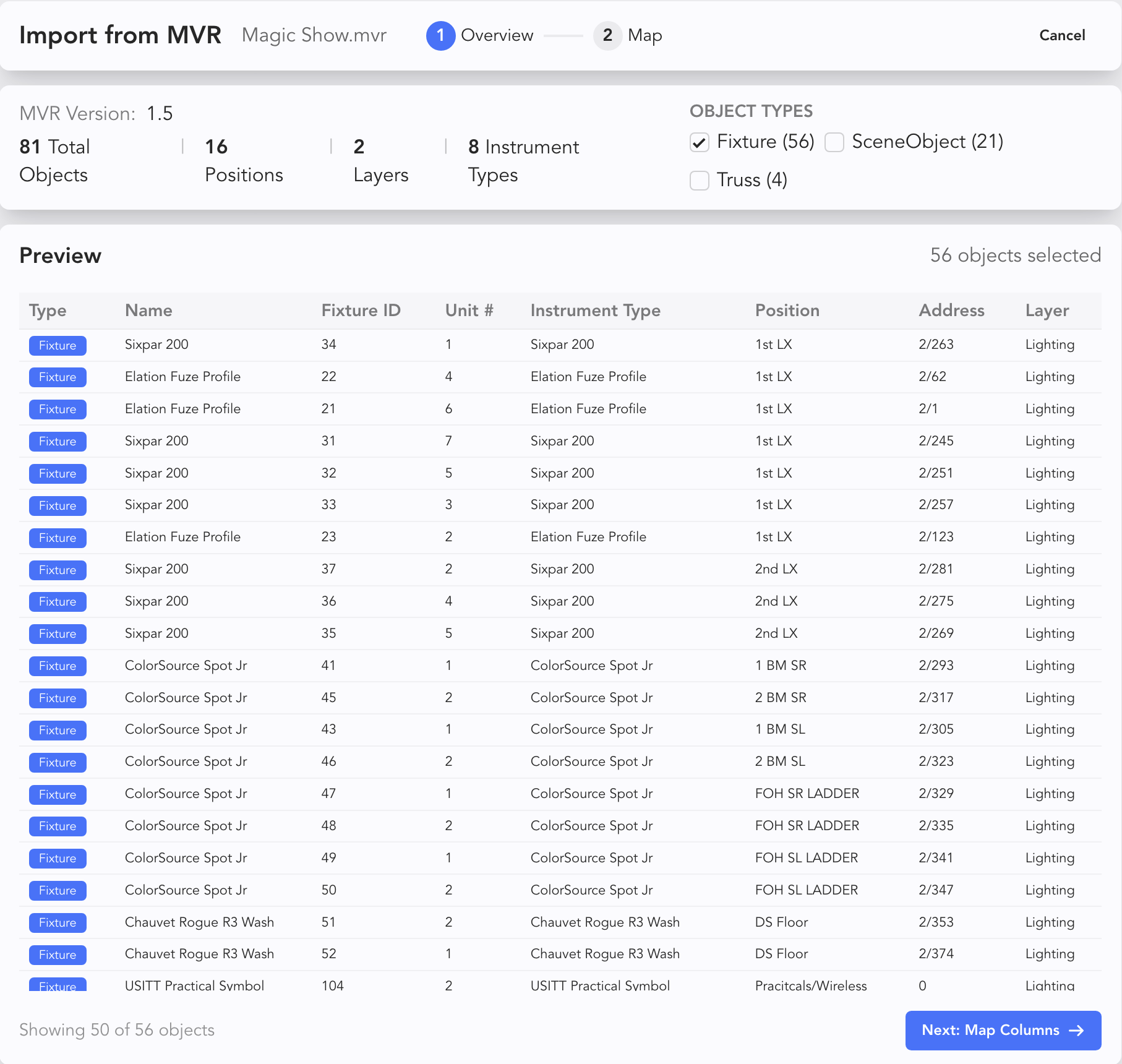
Press Open. A pop-up appears previewing your data.
INFO
Please note the options at top under Object Types (SceneObjects and Truss) currently have no function.
Touch Next: Map Columns to continue.
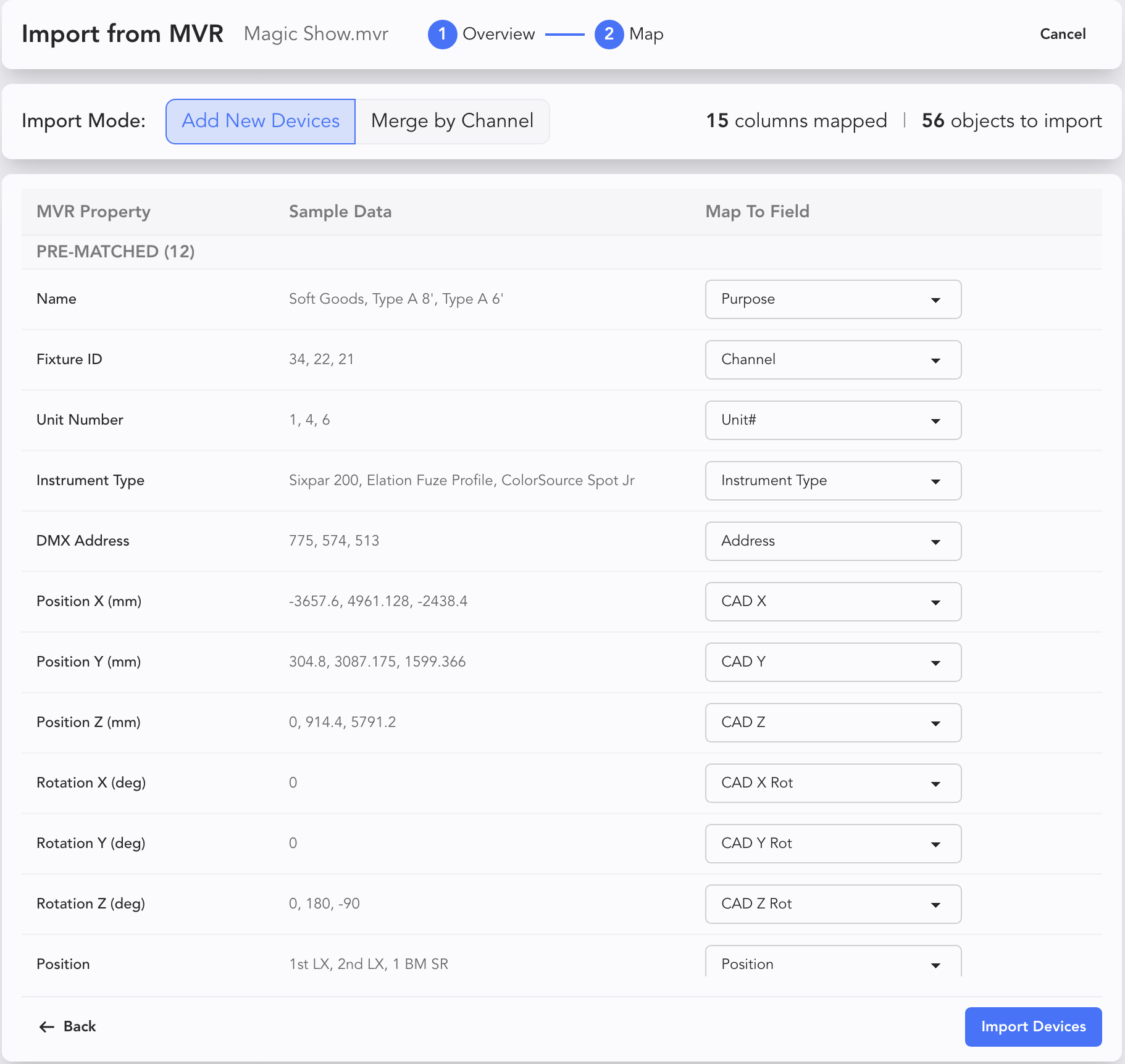
Take a moment here and make sure your incoming data is mapped how you want to the Lightwright fields. Use the pull-down menus to make changes.
INFO
Note the default at top is Add New Devices. You can also merge in data by selecting Merge by Channel.
Touch Import Devices to complete your import.
Lightwright gives you a report of how many items were imported.
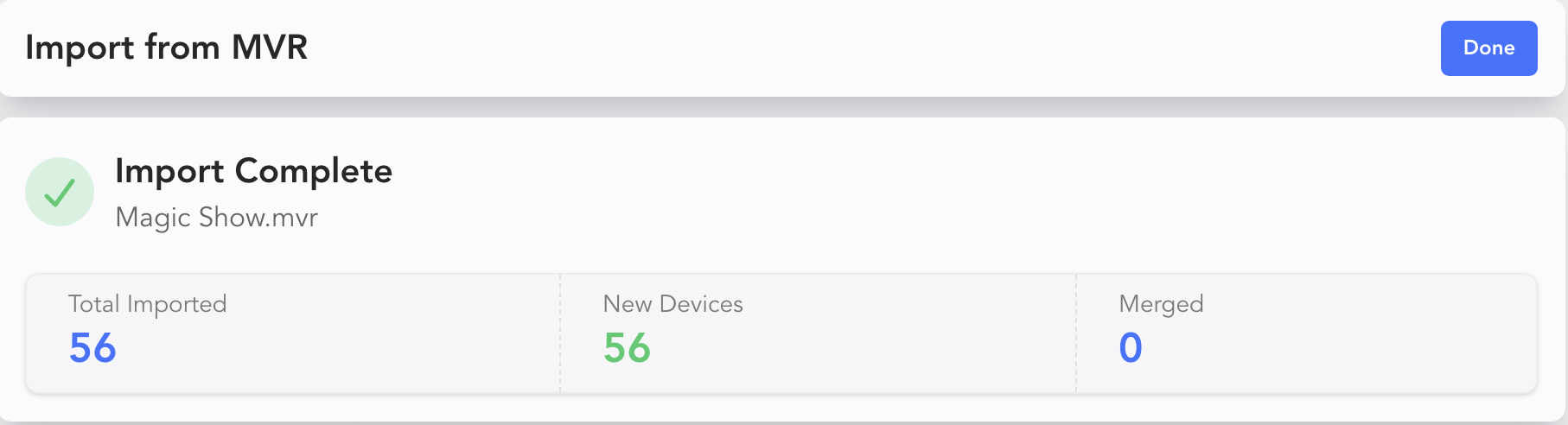
Click Done to return to the Worksheet.
Merge from MVR
You can use the same function to merge in updated info.
WARNING
Lightwright will Merge data by channel number.
Go again to File>Import MVR then choose your revised file and press Open. The preview pop-up appears again.
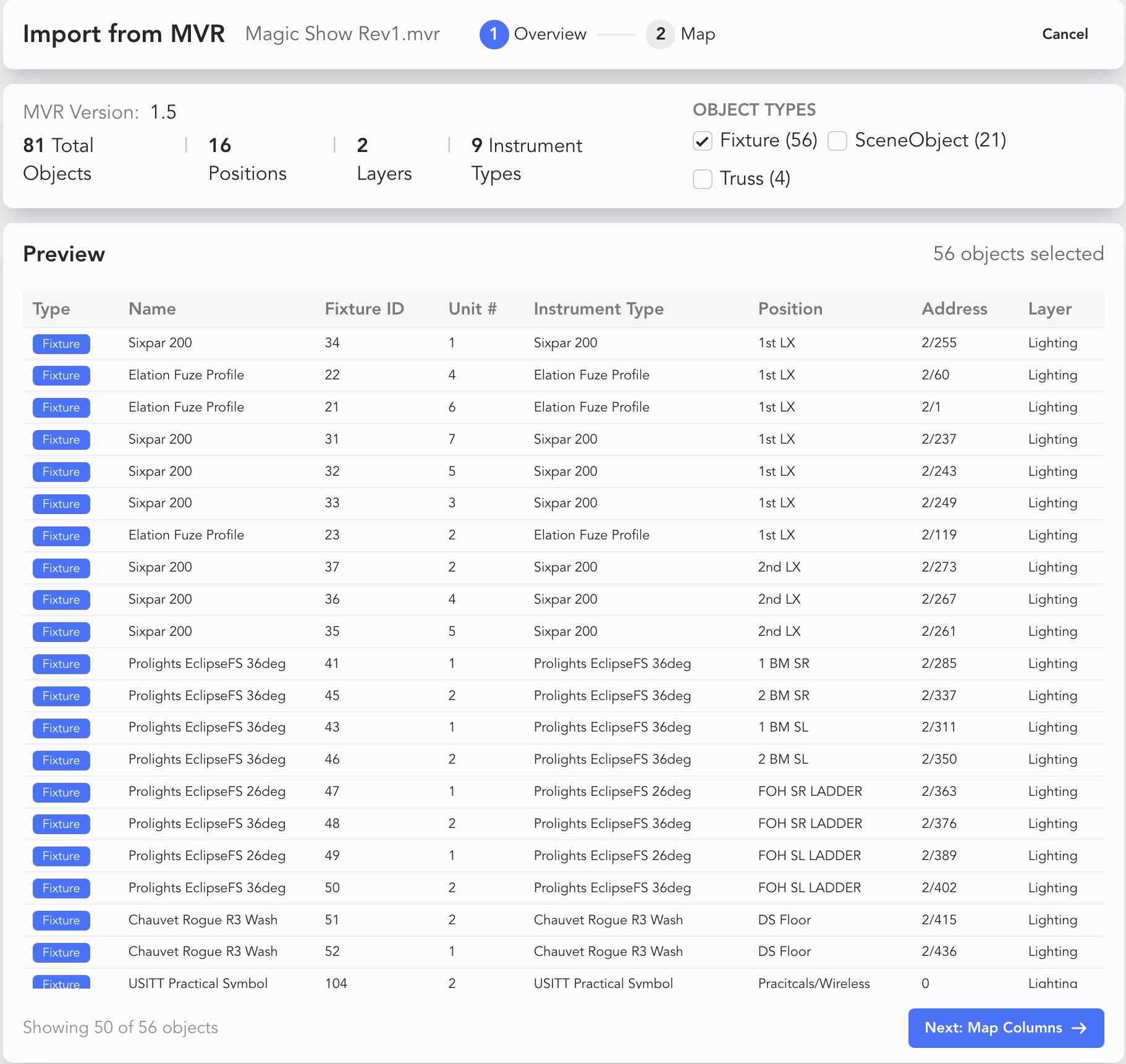
Touch Next: Map Columns.
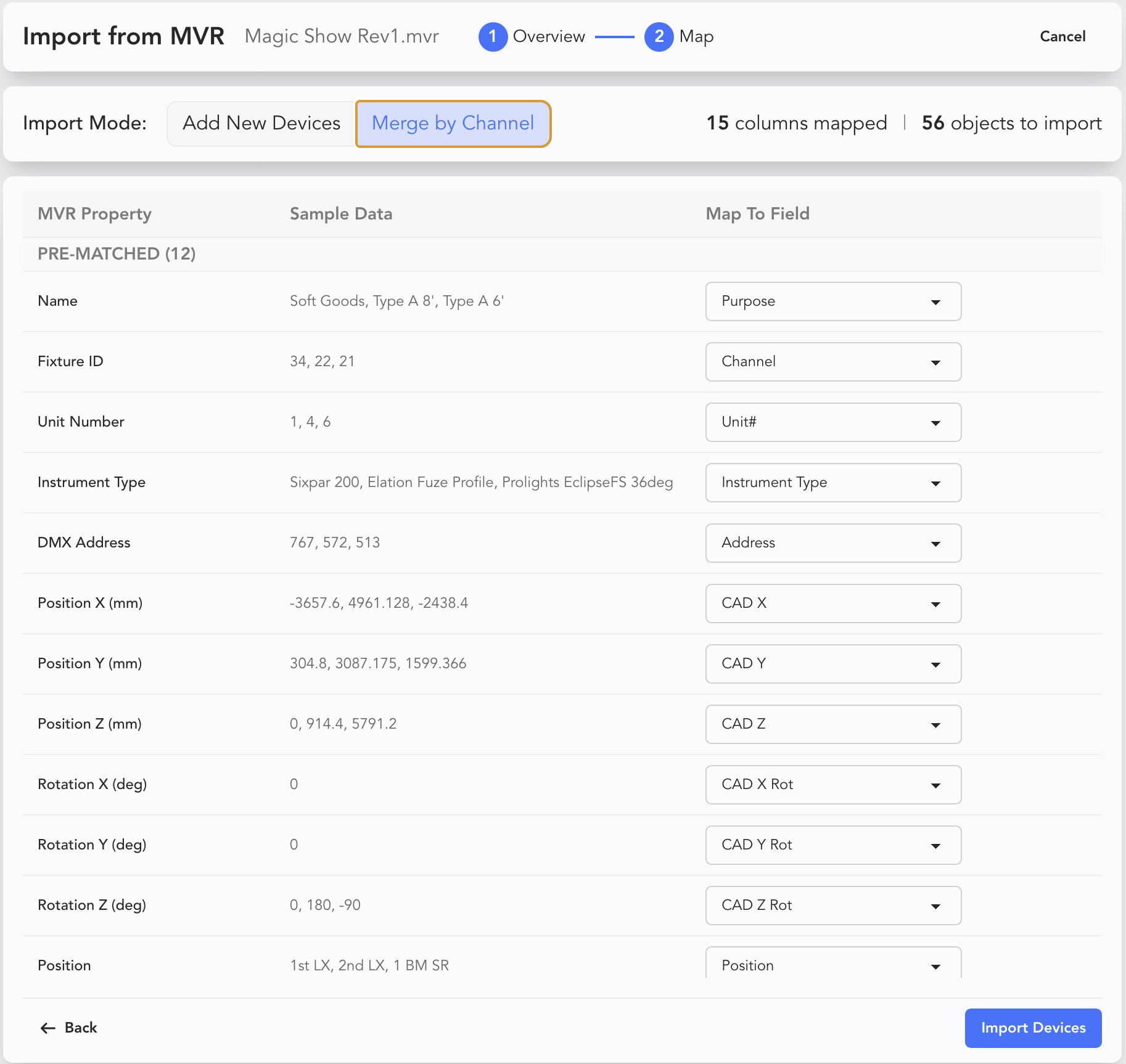
Make sure you select Merge by Channel. Double-check the mapping for your import data to the Lightwright fields. When satisfied, touch Import Devices. The Merge report appears.
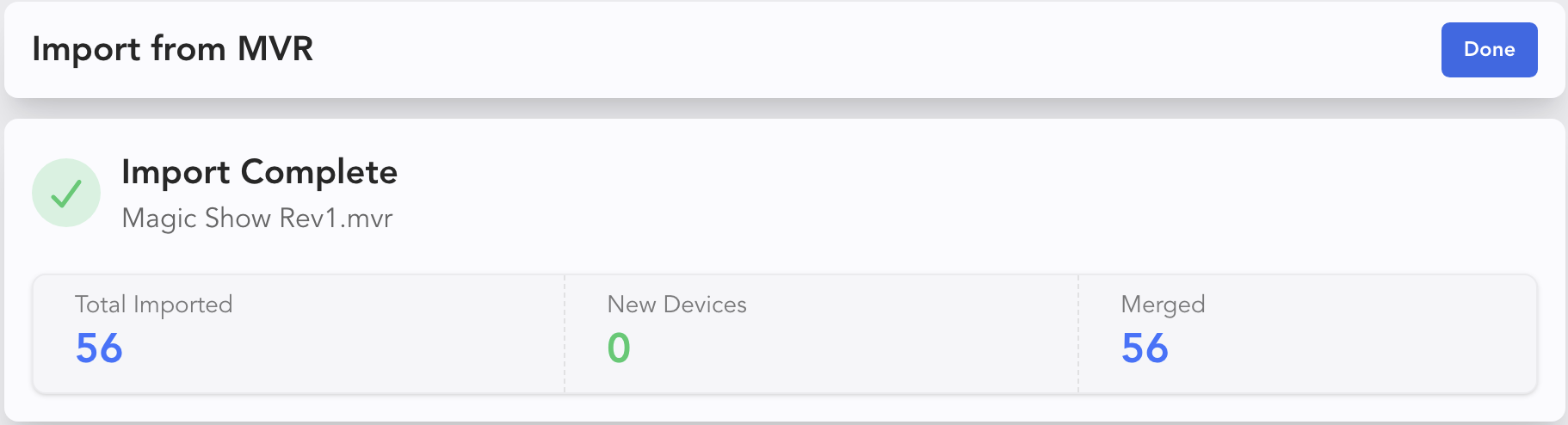
Touch Done to go to the Worksheet.