Appearance
Work Notes
Work Notes allow you to create and track notes as they come up in production. Touch the Work Note icon  in the upper right of the interface.
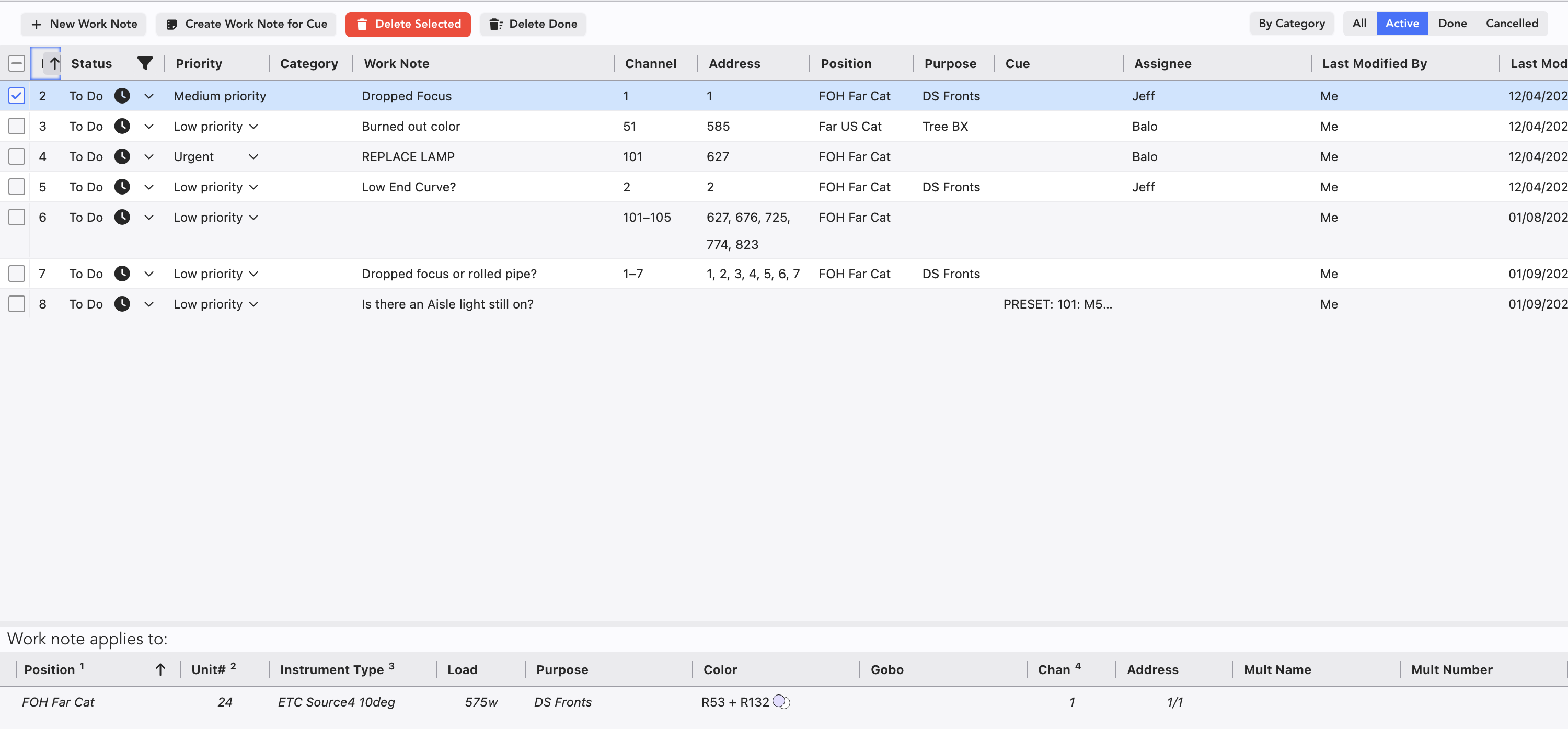
There's a lot going on here, so let's discuss it.
+ New Work Note adds an item to the list.
Create Work Note for Cue allows you to add a note for any cue in Eos, provided you have imported your cues already.
Delete Done-- when you change the Status to Done, this button deletes just those notes.
All, Active, Done, Cancelled, By Category are Filters for the work notes.
Id is a LW-defined number.
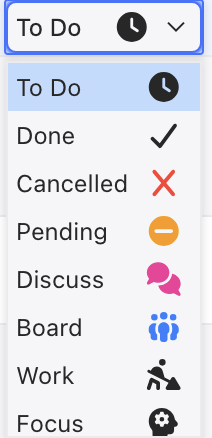
Status is a pull-down menu of options to select from. Most are obvious, but Cancelled hides your note. The names and colors of these items can be edited in Settings>Show Preferences.
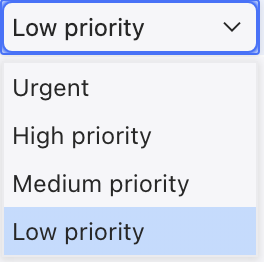
- Priority is a pull-down list of options to select from.
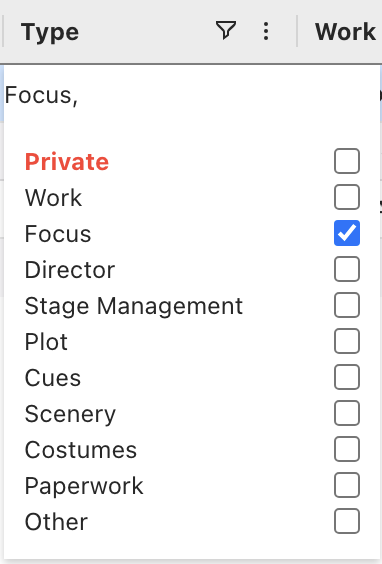
Type is a type-in and/or pull-down list of options to select from.
Work Note- a field to type in the task
Channel-- Typically, people would enter the Channel or Address to get started. Whichever one you enter, the other will appear, as will Position and Purpose.
Address-- Typically, people would enter the Channel or Address to get started. Whichever one you enter, the other will appear, as will Position and Purpose.
Position-- You can type in a whole position for notes. Example-- Fly out FOH Truss 6"
Purpose-- You can assign a work note by Purpose. Example-- All Cool Fronts, change to L202.
Cue-- Displays the List, Cue Number and Label of any cue you have attached a Work Note to.
Assignee-- You can type in a name or if you are using Collaboration, this will pull from the Collaborators list.
Last Modified By-- Tracks which collaborator last changed the Work Note.
Last Modified-- Time stamp for the last modification.
The lower third of the screen populates with items you have checked. Added details appear that will help your team accomplish the task (such as Unit Number).
TIP
All columns can be sorted by their contents. Example-- sorting the Priority column by urgency.