Appearance
Collaboration
Lightwright is built to support multiple collaborators simultaneously working on the same document. Collaboration begins with the invitation. Go to  Settings>Collaborators.
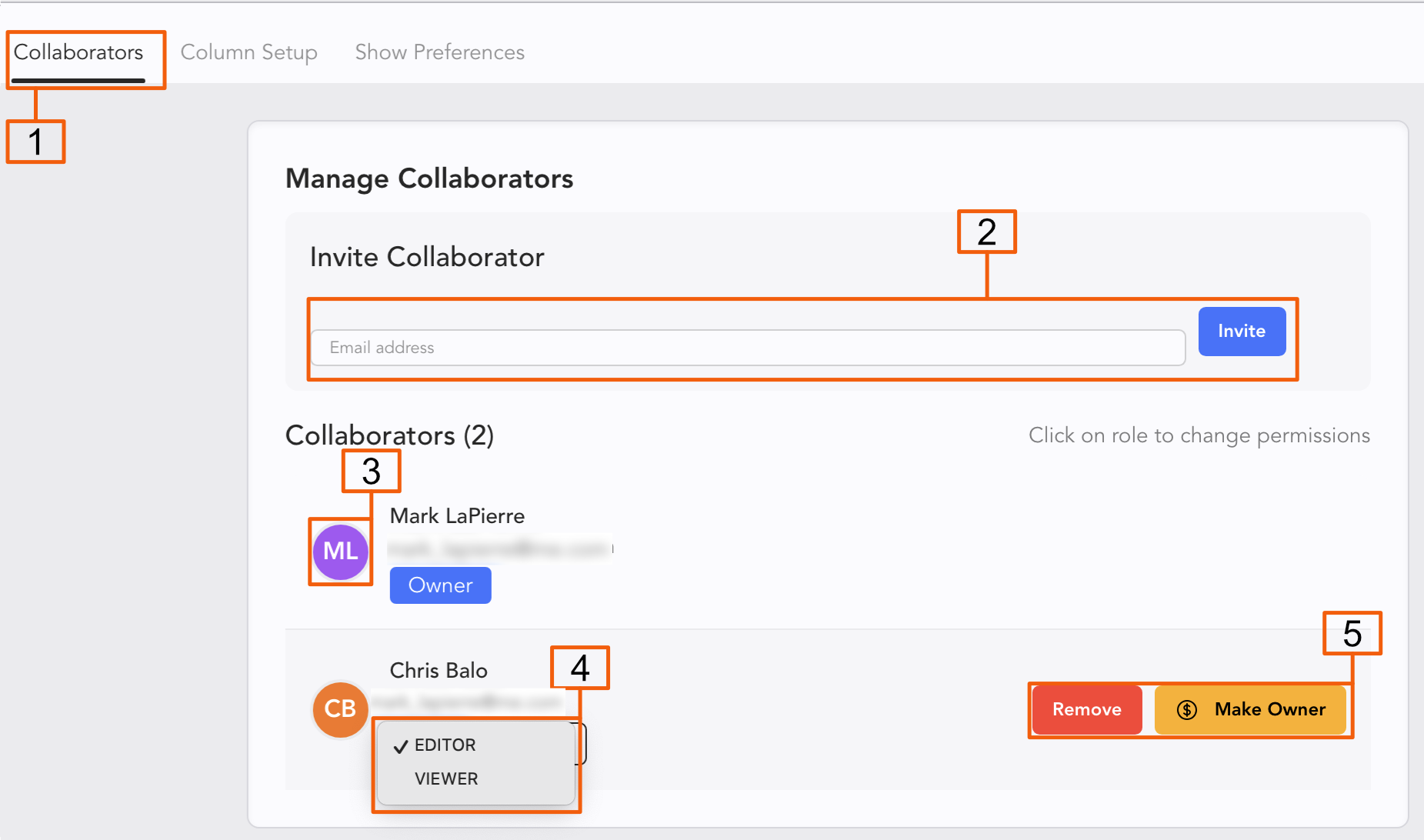
The Collaborators Tab-- navigate to this.
Send the invite to the email your Collaborator has their Lightwright account authorized to.
Clicking the initials circle allows you to choose the color for you and your Collaborators.
Permissions-- Collaborators can have Viewer or Editor permissions. Choose from this pull-down.
Remove a Collaborator or Make the Collaborator the Owner. Only one account can be the Owner.
Once your Collaborators are invited, there is very little to track. All Collaborators may work simultaneously. All active Collaborators appear to the right of the Show File name.

Any field or fields your collaborator is working on appear outlined in their color. My collaborator is indicated in orange here, while I am the blue. (I appear as pink in their worksheet, per the Collaborator color codes.)

On the off chance both of you edit a field at once, Lightwright will accept changes in the order they occurred. So the last person to hit enter wins.
View History
Any item in the Worksheet can be right-clicked to select View History.
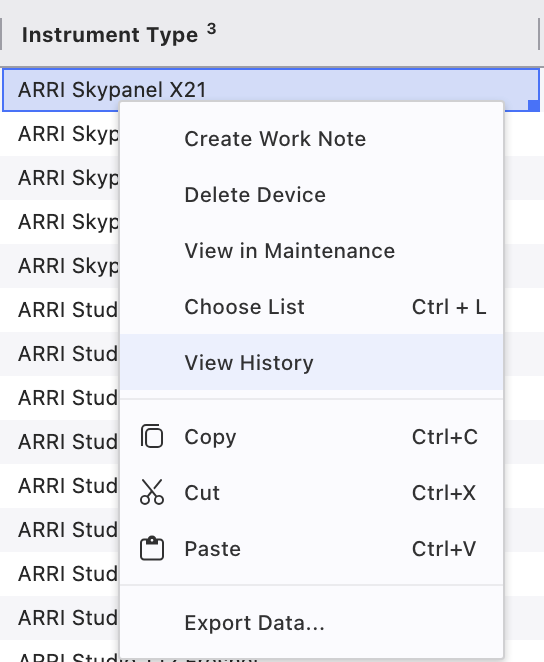
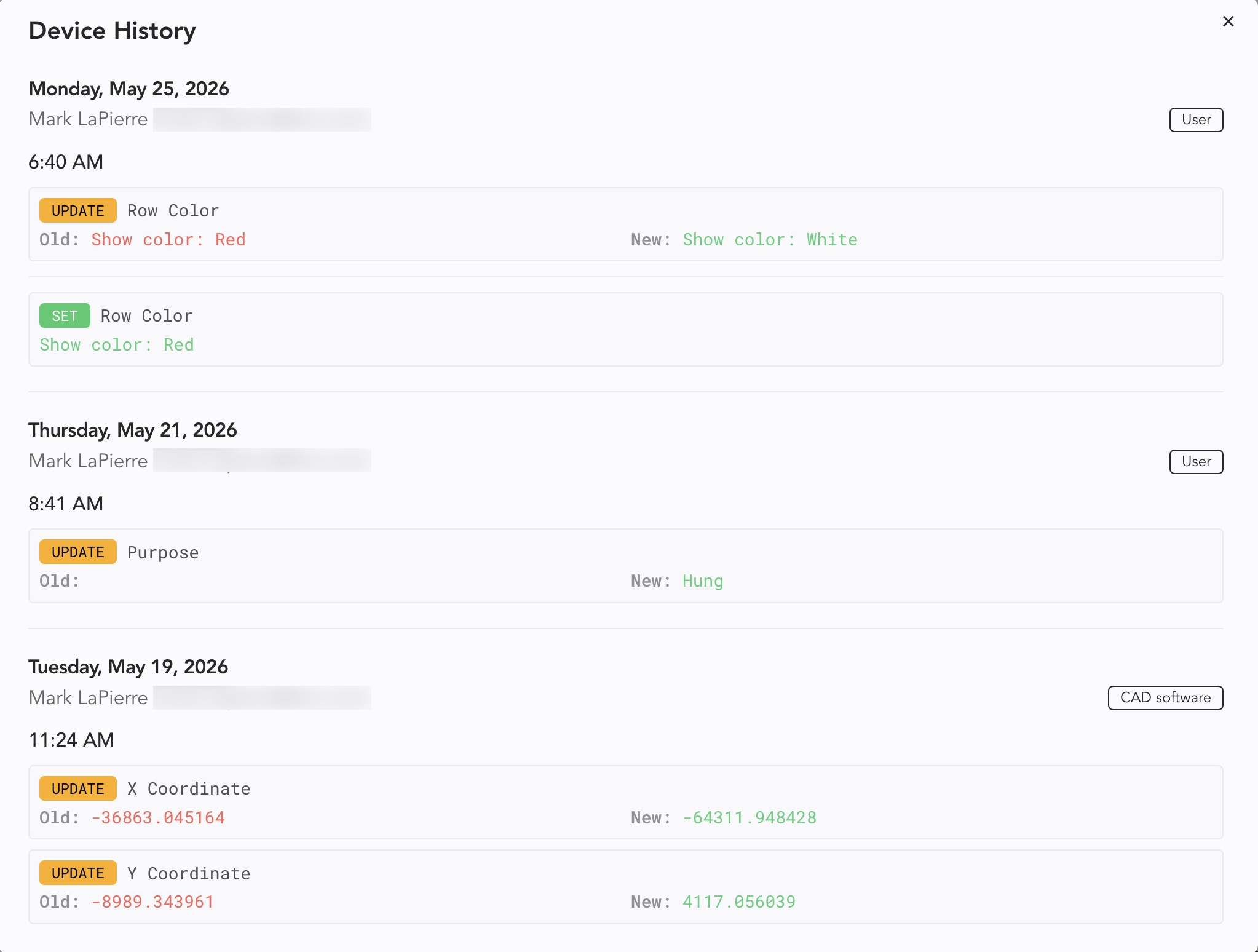
A pop-up appears showing the history of changes for the device.
IMPORTANT
You must be connected to the internet for this feature to work.
Conflict Resolution
When two or more collaborators are working on the same data offline, there can be conflicts that arise. When either collaborator comes back online after creating conflicts, a popup will occur.
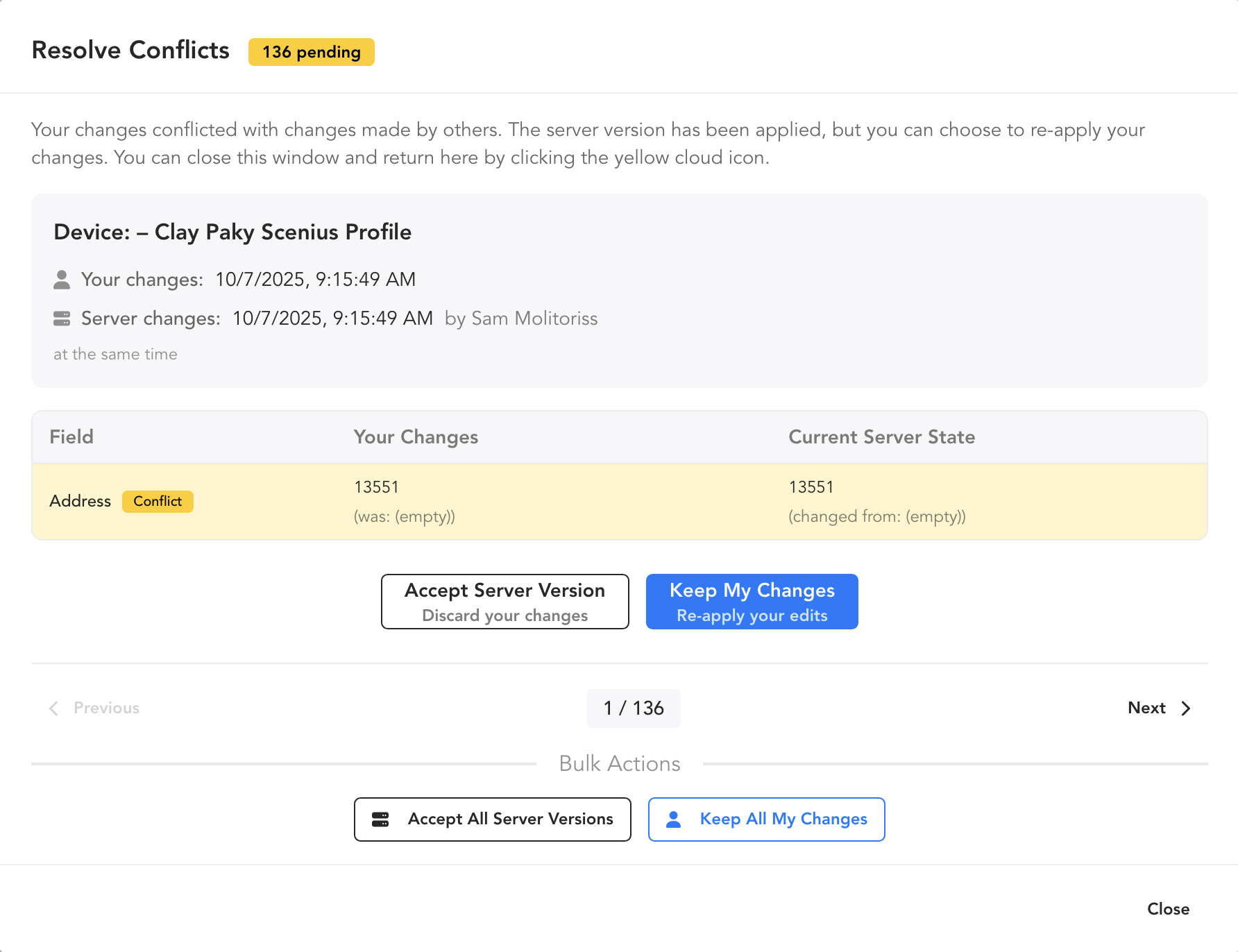
You can choose to examine each item and approve the change or retain your data, or you can opt to Accept Server Version (overwriting your data) or Keep My Changes (overwriting the Server Version).
If you ignore the popup, the cloud icon in the upper left of the interface will show a cloud with a triangle with an exclamation point inside. 
Reset Text Colors/ Manage User Colors
In the course of production, you may want to reset the color of your text, which indicates which collaborator contributed that data or if the data came from a Vectorworks Sync.

This is easily accomplished by opening the Format Side Tab in the Worksheet.
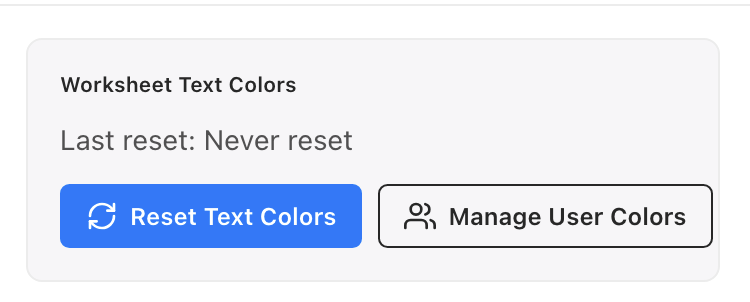
Once the tab is open, touch Reset Text Colors.
INFO
Resetting Text Colors only resets the Worksheet colors for you-- not your collaborators.
Manage User Colors
For your convenience, there is a button in the Highlights Side Tab to jump you to the area in Settings where you can change what colors your collaborators appear in.