Appearance
Device Worksheet
This is the working data grid for devices. Options for filtering and insights into related data surround the interface.
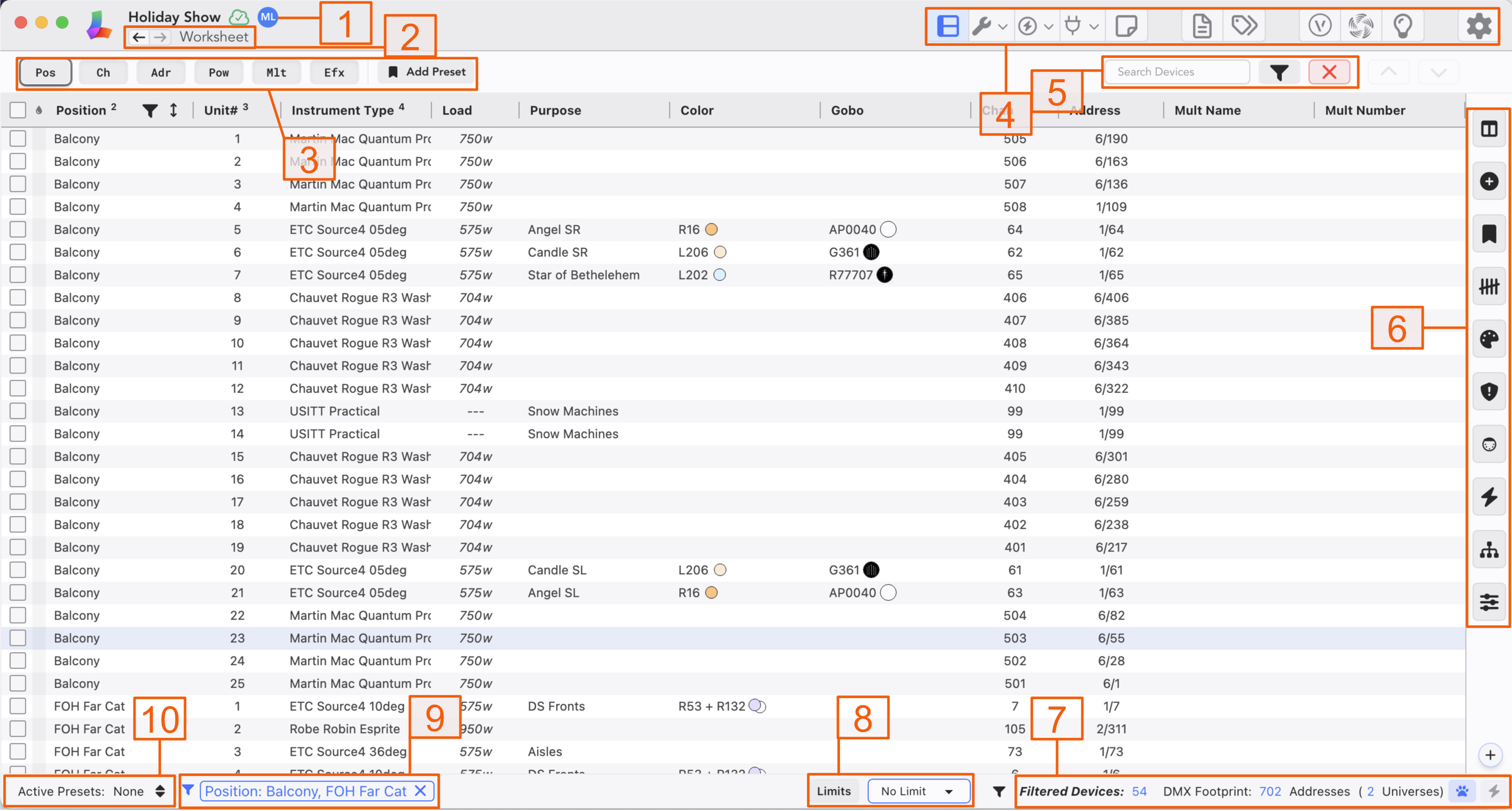
Show Name and Present Collaborators-- This is where icons for collaborators appear, as well as the cloud indicating that you are synched, need to synch, or there are conflicts from synching that need to be resolved.
Forward/Backward arrows-- Similar to a browser, you can navigate forward and backwards through your views. If you long press on either arrow, a pull-down menu of past view changes will pop up to select from.
Presets-- A place to recall and/or save Presets for Sorting, Filtering and Columns.
Major navigation buttons that change your view. Examples: Worksheet, Maintenance, Labels, etc.
Search Devices acts as a Global Find function. Type in any key piece of data and Lightwright will show the results.
Sidebar Tabs-- Touch one for a side overlay on the function or options. Each option will be explored later.
Summary-- a place that displays helpful Counts for your worksheet. In the case of DMX Footprint, this can be displayed in Normal and grandMA parameter count (selectable in Setup>Show Preferences). You can also to switch to Live Power Loads to load calculations as you work instead of DMX.
Limits-- a place where you choose or release Limits for your worksheet. Limits function almost as a Partition, in that they limit Show-wide data. Use examples: Worksheet, Paperwork and Labels as well. The word Limits, when clicked, opens the Limits Management window, where you can create and modify Limits.
A place where the current Filter state is displayed. Here you can remove individual filters.
A place where the current Preset state is displayed.