Appearance
Add Devices
Adding new items to your show happens one of several ways.
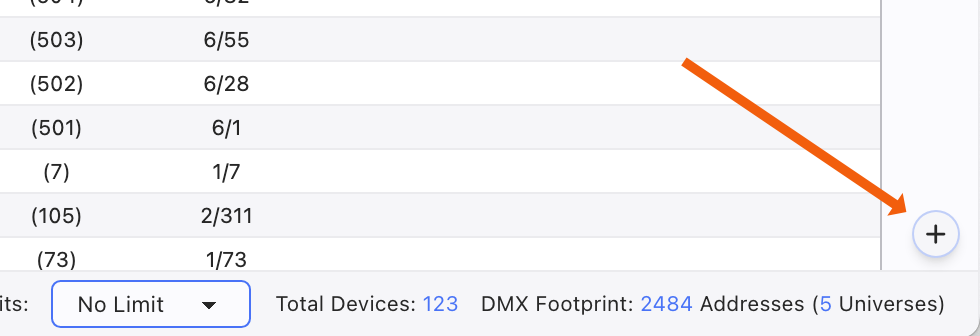
- The + in the lower right-hand corner adds one line at a time. This is to add one empty line at a time. You can then fill in the items as you wish.
- For adding several fixtures, you can click in an empty area of the worksheet, right-click and choose Add Device, press CMD/Ctrl + i or touch the +Add side panel.
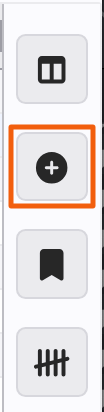
Any of these open the Add Devices side panel.
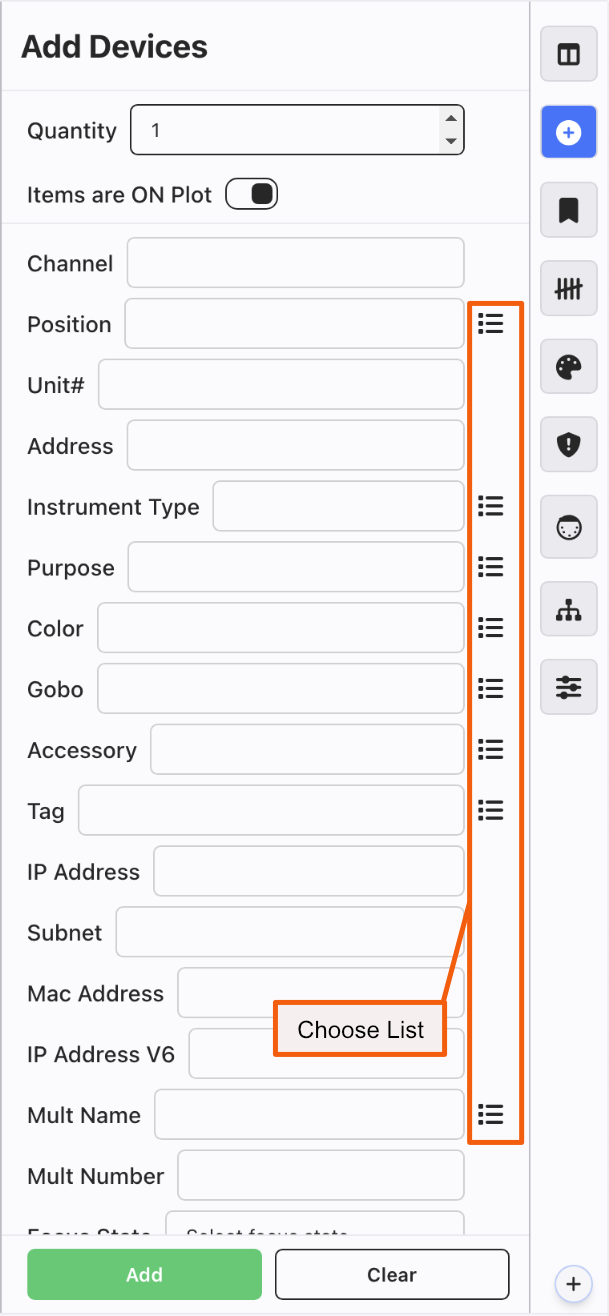
Procedure Notes:
Quantity: Allows you to add several lights at a time. Powerful when combined with offset. (See below.)
Items are ON Plot: An option to add or exclude these items from synching with Vectorworks.
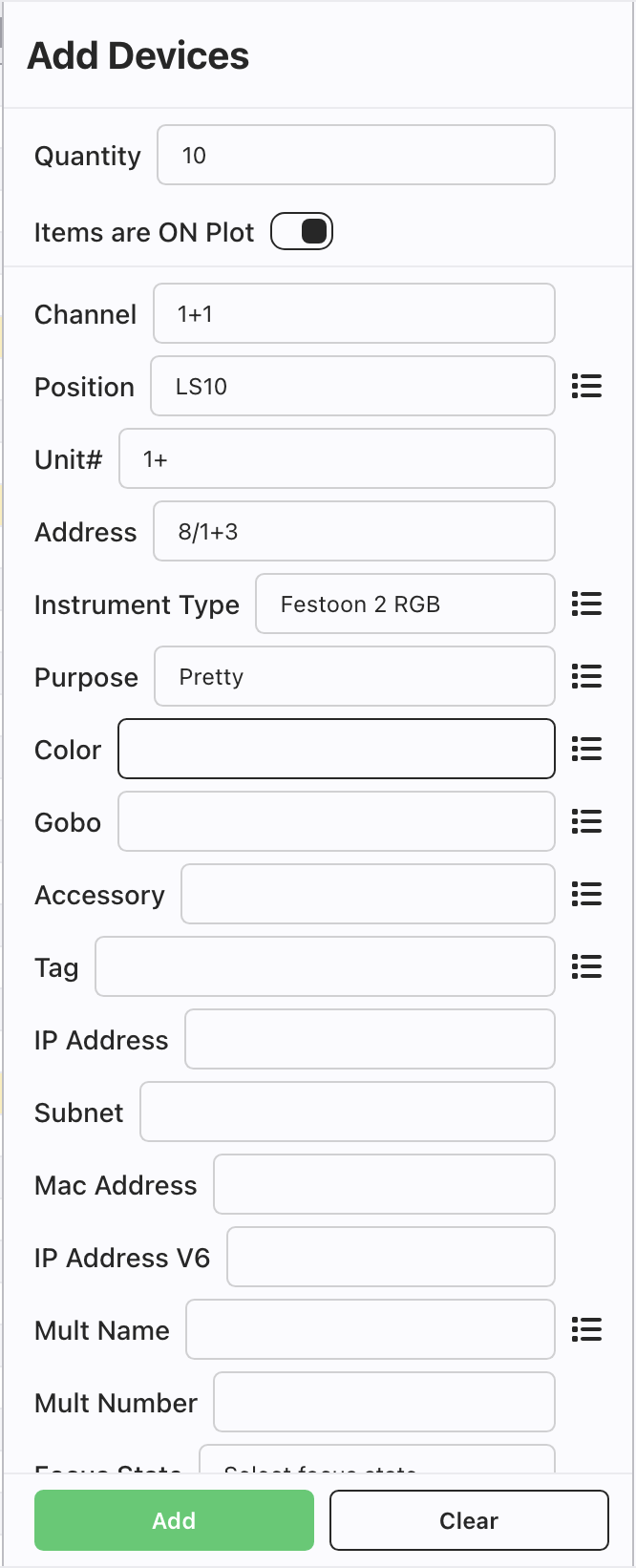
Channel To increment channel number, add +1 to the end of your number. To start at 1, type 1+1 in the channel field.
Address: Hosts both universe and address. If you wish to address RGB bulbs starting at universe 8 address 1, type 8/1+3 in the Address field. This will start at 8/1 and increment up by 3.
Unit#: To increment Unit numbers, add +1 to the end of your number. To start at 1, type 1+1 in the Unit# field.
Please note how many categories of info you can fill in here. This includes User Columns.
When you add Accessories, you can add many at once separated by + or commas. Lightwright will convert + to a comma for internal consistency.
Add: When you have populated your fields, click Add. This adds the current Devices to the Preview section on the lower half.
Clear: Press to empty your fields. Helpful if you already input one position of Devices and wish to continue adding.
Pressing the icons on the right trigger the Choose List function, which allows you to select data from your show file for consistency and ease.
Add: Adds all fixtures.
TIP
After filling out your fields, pressing Ctrl/Cmd+i adds your devices and closes the side panel.
Channel/Unit Format
Valid input values for Channel or Unit:
- Any Positive Number
- A single word without numbers "Works"
- A number with a multi-letter prefix (up to eight) or single letter suffix such as Spot1 or 1A.
- A number with a single letter prefix and suffix such as A1A
(Example of Fields with Offset)
TIP
You can increment anything by typing in a number, then adding either + or - and a value. As shown above, Unit numbers would most likely be "1+1" to increment. But an address can be input as "8/1+37" for the fixtures to be patched in the eighth universe, starting at 1 and will jump every 37.
Duplicate Devices
To Duplicate, select an item using the Selection Box on the left of each device, then either press Ctrl/Cmd+D or Right Click and choose Duplicate Selected Devices. These items are instantly placed in the Worksheet.

Delete Devices
To Delete, you have a couple of options. You can point and right click and select Delete Device or you can select an item (or items) using the Selection Box on the left of each device, then Right Click and choose Delete Selected Devices.
