Appearance
Maintenance
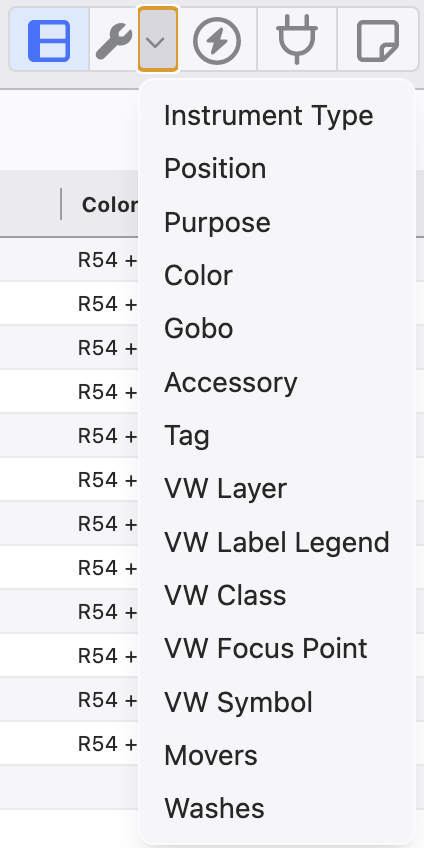
Maintenance Tabs are available by pressing and holding Ctrl/Cmd and clicking on any header category or from the Maintenance pulldown menu.
WARNING
Once in the Category Maintenance List, it should be understood any changes you make to an item here changes all uses of that item in your file. So changing the name "ETC Source 4 10 Deg" to "Giant Megaphone Light" will change every light that used to have the name to the new name. This will also affect your Vectorworks file if you are synching across the two.
Common Maintenance Tools

Remove Unused-- Removes unused item.
Alphabetize-- puts the whole list in alphabetical order.
Delete-- Deletes the selected item.
Merge Entries-- merges the selected items. Example: having two nearly identical Source 4 10 degree fixtures. You can select them both and merge, combining them into one. Lightwright will ask you which of the two to merge into.
Create Family-- combines selected items into a collapsible Group. Example:
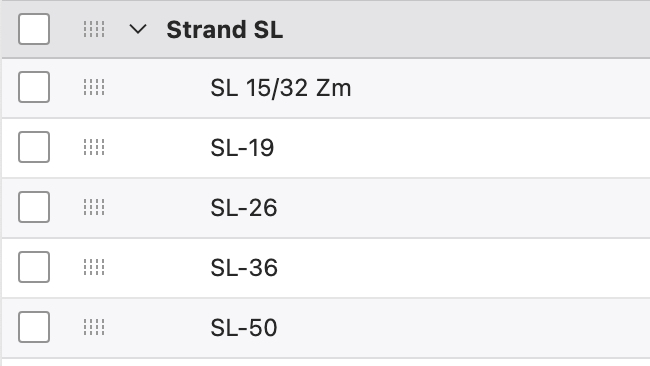
- Remove from Family-- removes the selected item(s) from the Family Group.
TIP
Family fixtures can have stock counts. For instance- if you have 90 Source 4 bodies, but a total of 120 barrels.
Editing Columns in Maintenance
Right-clicking on a Header will open a popup.
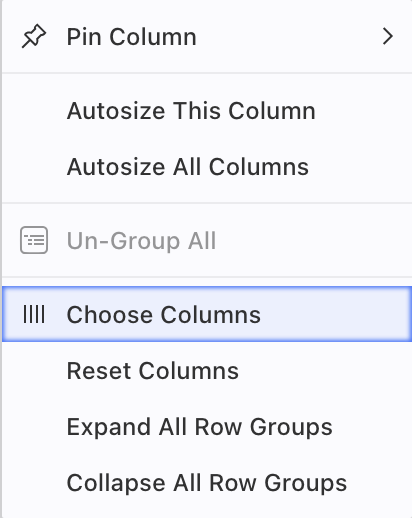
Options here are similar to other areas in Lightwright.
Pin Column allows you to lock the column you right-clicked on to the left, right or unpin.
Choose Columns allow you to hide or reveal Columns in this view.
Expand all Row Groups will expand all Family items in your Maintenance list.
Collapse all Row Groups will collapse all Family items in your Maintenance list.
Selective Re-ordering Items
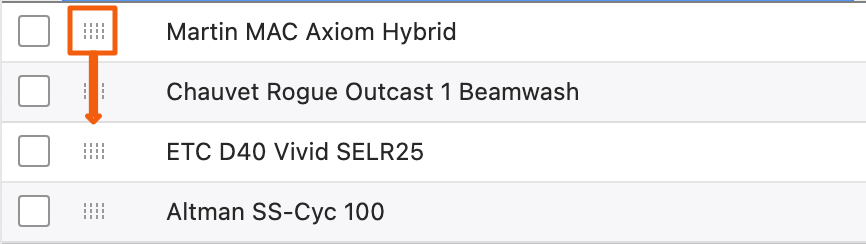
Selective re-ordering (as opposed to alphabetizing) in any Maintenance list is a simple matter of dragging and dropping one or more items at a time by the grid of dots.
Maintenance Side Tabs
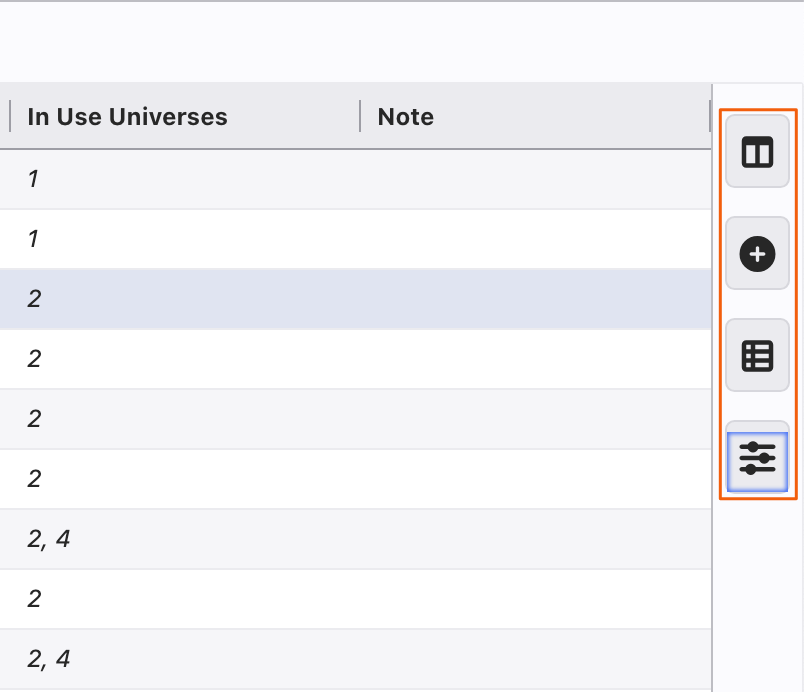
Along the Maintenance windows there are side tabs for many functions. The common ones across Maintenance tabs are:
Columns
Add Item
Devices Using Item: select any item then touch this Sidetab to see what it is being used in.
Settings: add columns to your Maintenance view or other varied options per Maintenance tab.