Appearance
Import MVR to Capture
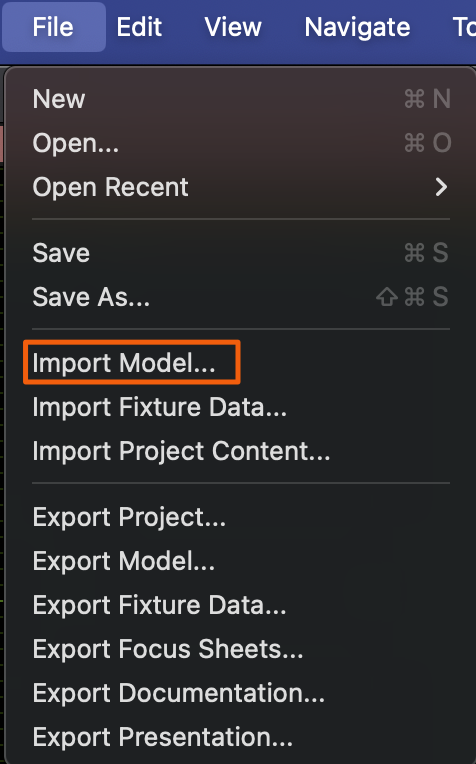
In Capture, go to File>Import Model.
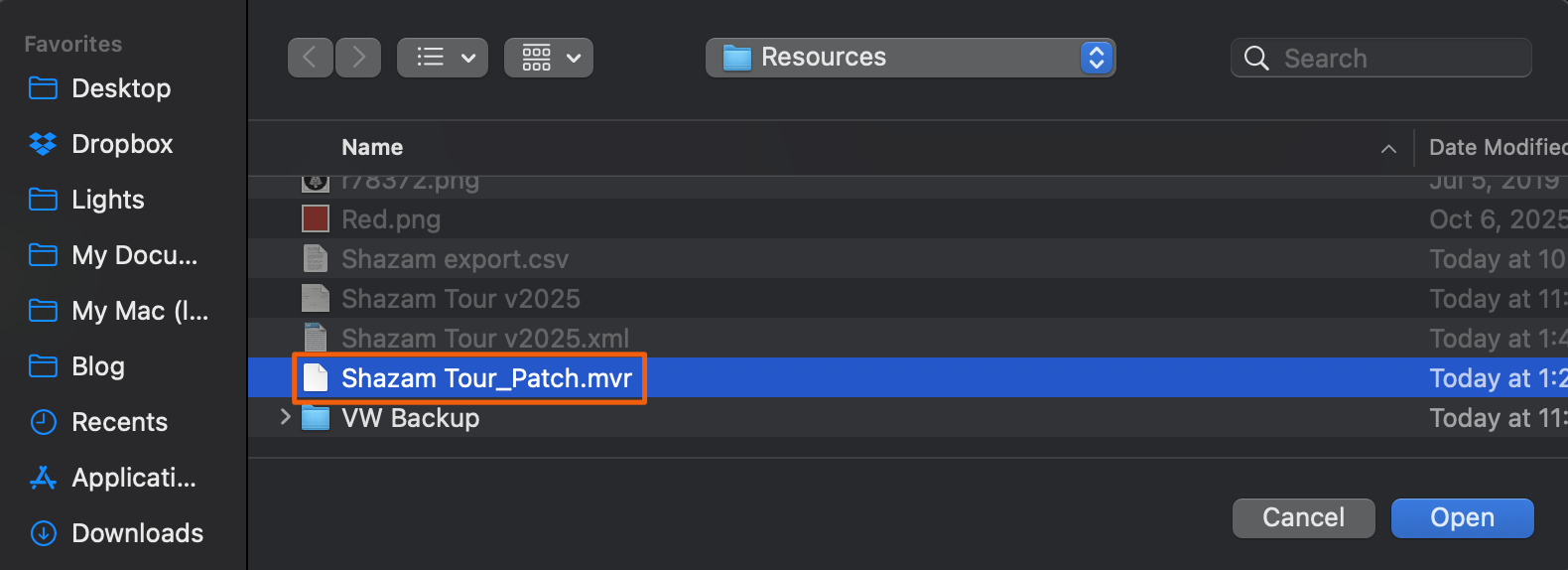
Direct the popup to your MVR file and click Open.
Another popup opens that allows you to map the incoming GDTF to the internal Capture library.
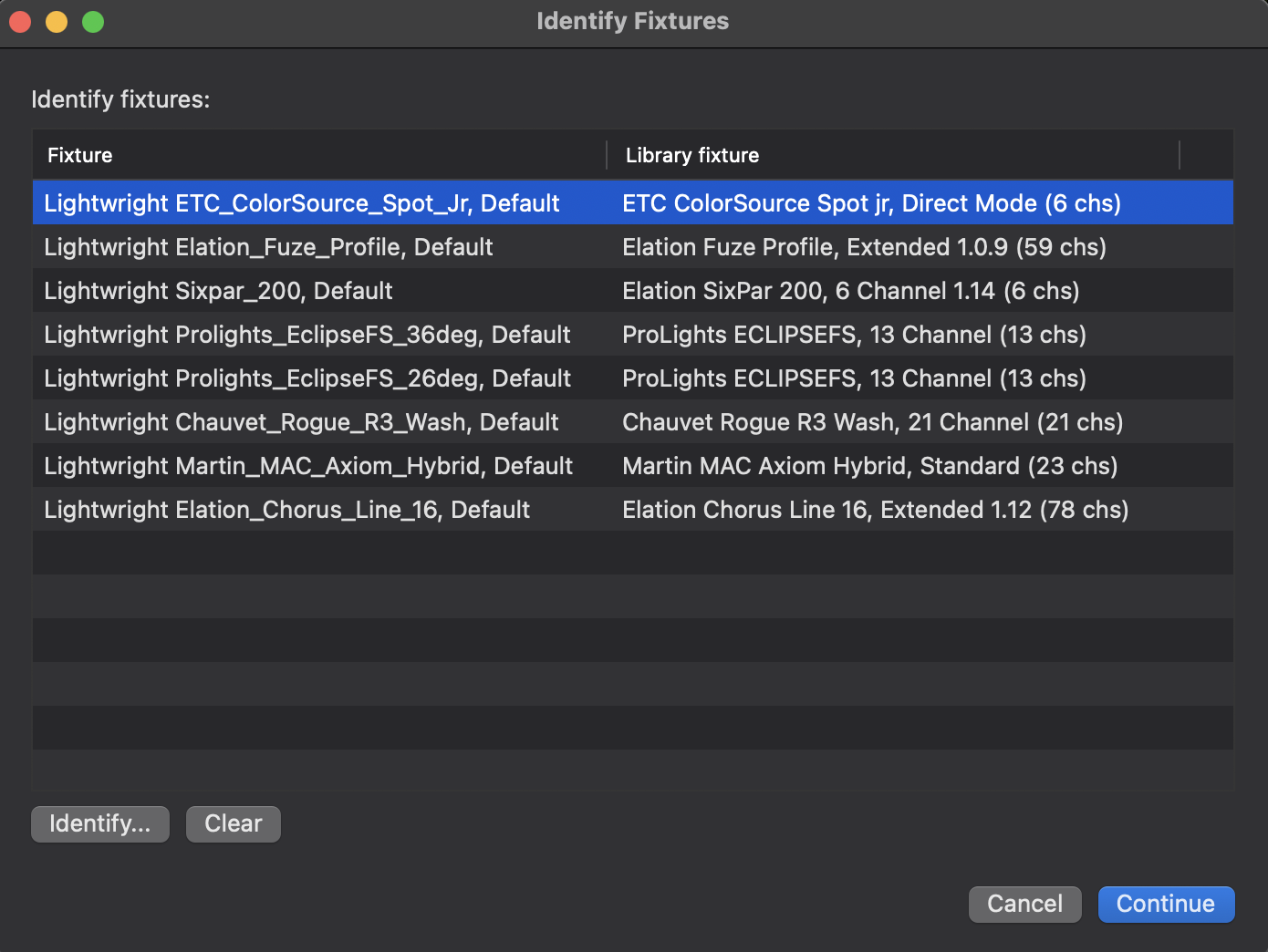
These fixtures are all correct (lucky!), but if you needed to provide more detail or correct a problem, double-click on the item in the right column.
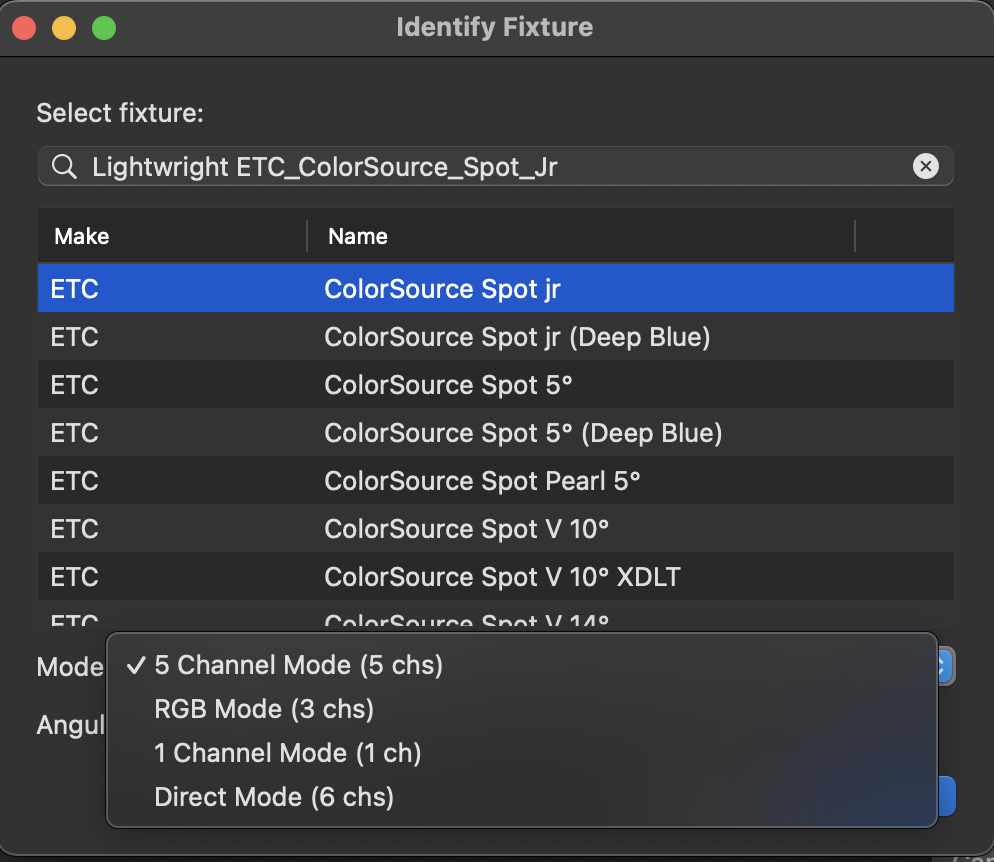
Select the fixture, then at the bottom, there is a pull down menu to select the correct profile/mode. When you are finished, click Continue.
A popup shows what happened. There are errors listed, but in this case, none of them prevent the import from working.
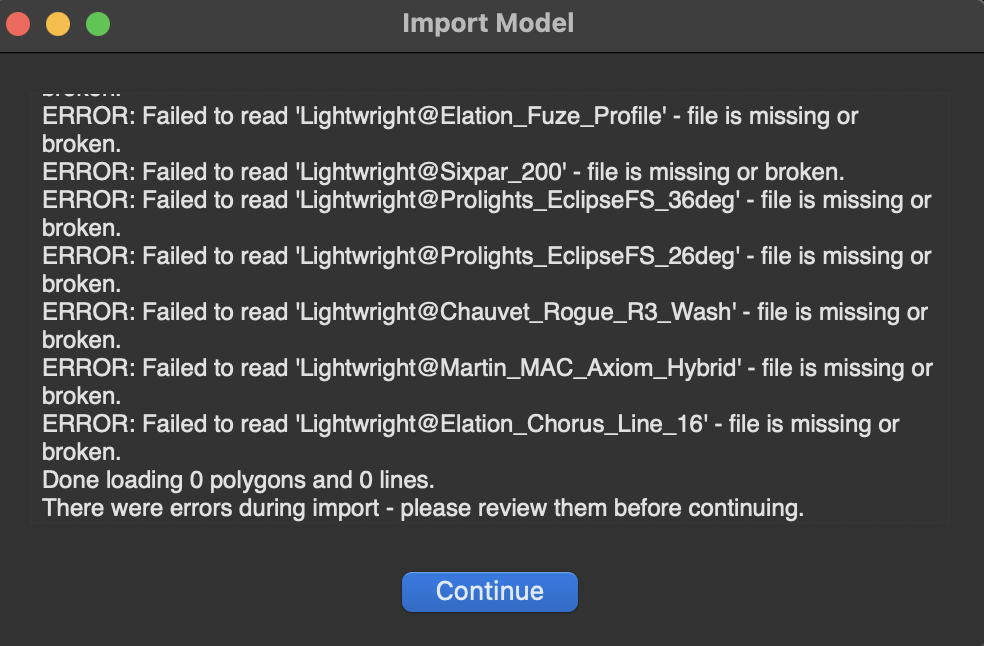
Touch Continue. Capture opens a new popup window with the fixtures.
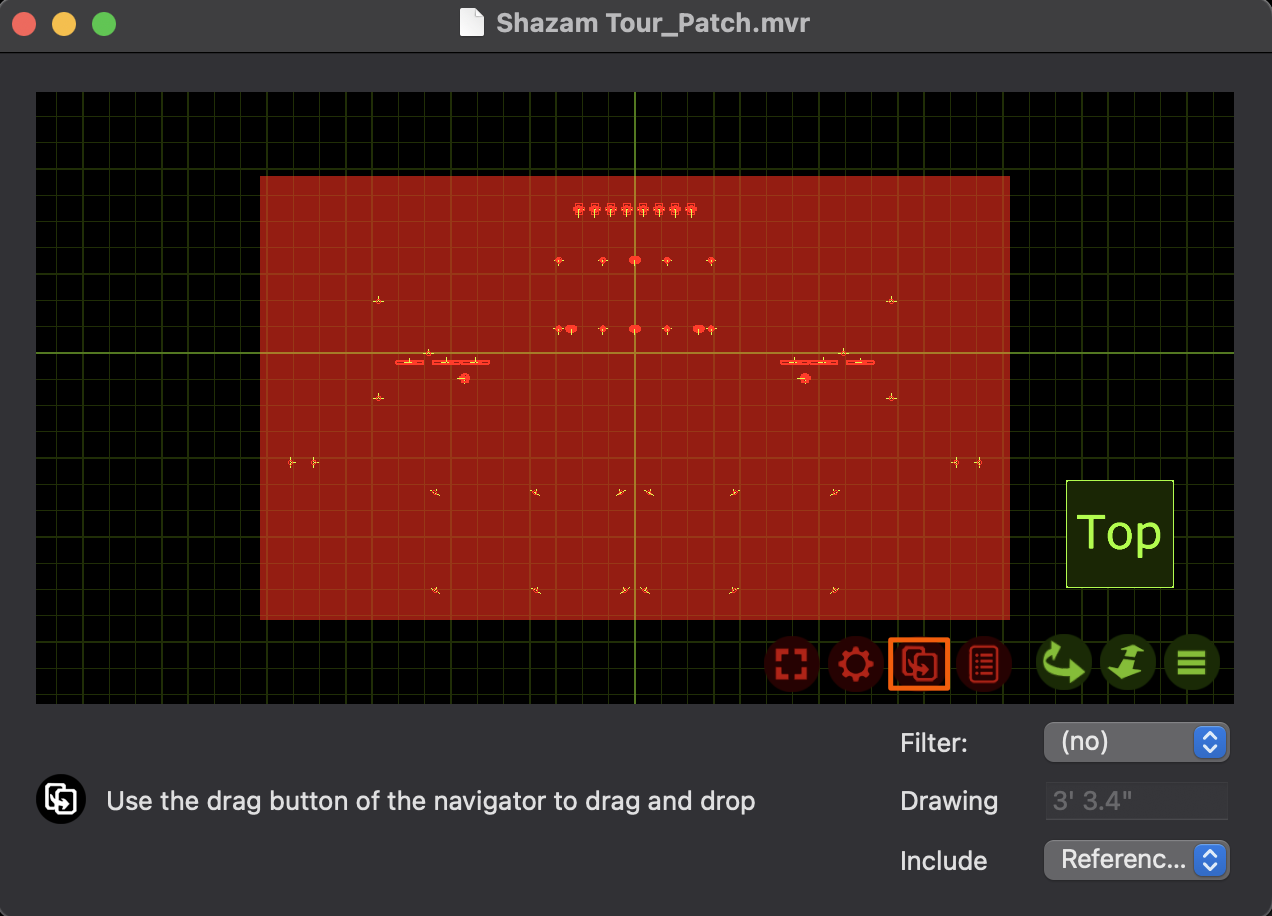
Using the icon above that looks like two pieces of paper offset on top of each other, drag and drop everything into your Capture window that has a Top view. Capture will ask a question when you do.
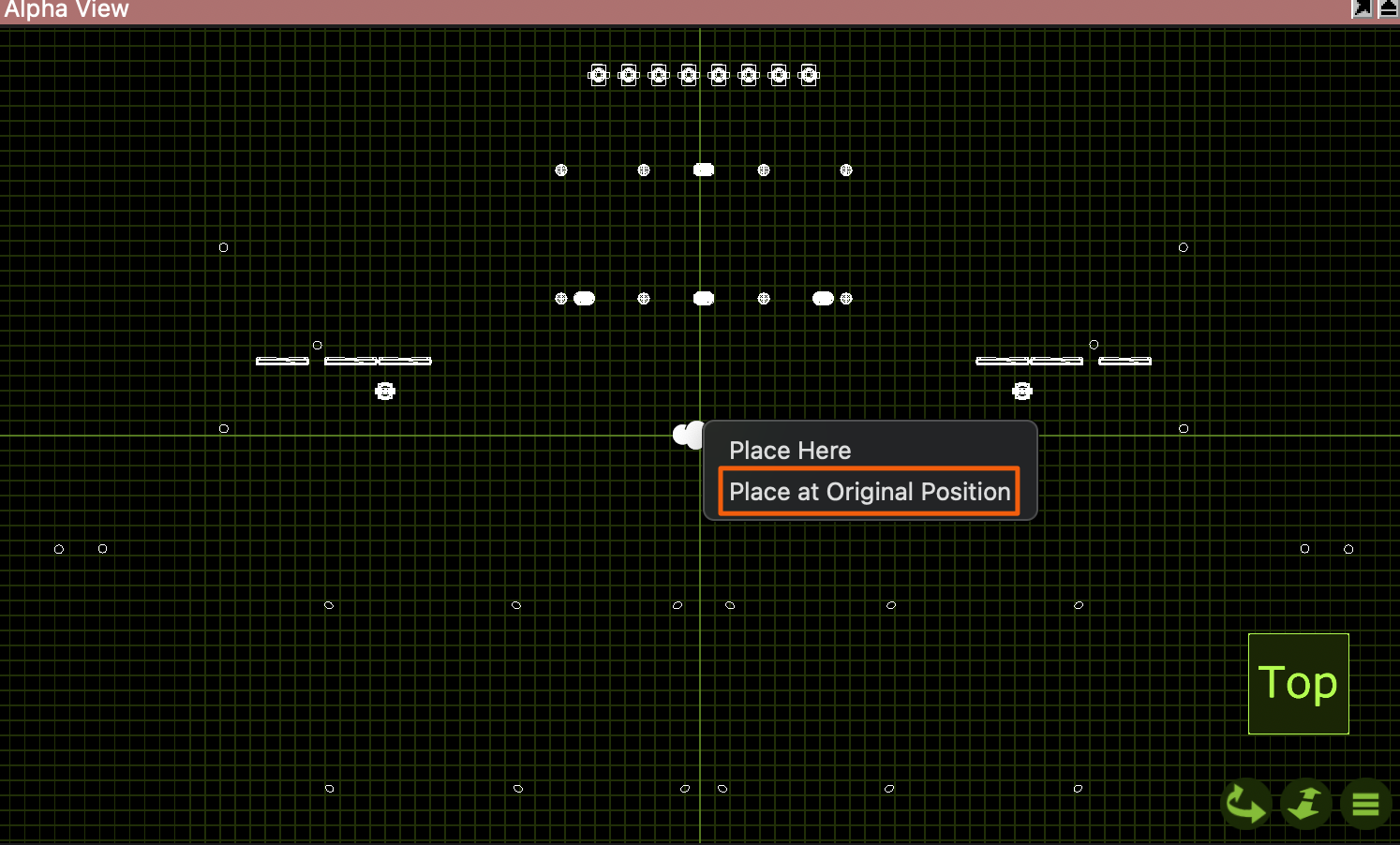
Choose Place at Original Position unless you have a custom need. Check the scale is correct by clicking a few items and viewing their XYZ positions to verify.