Appearance
Export/Import Patch to Eos
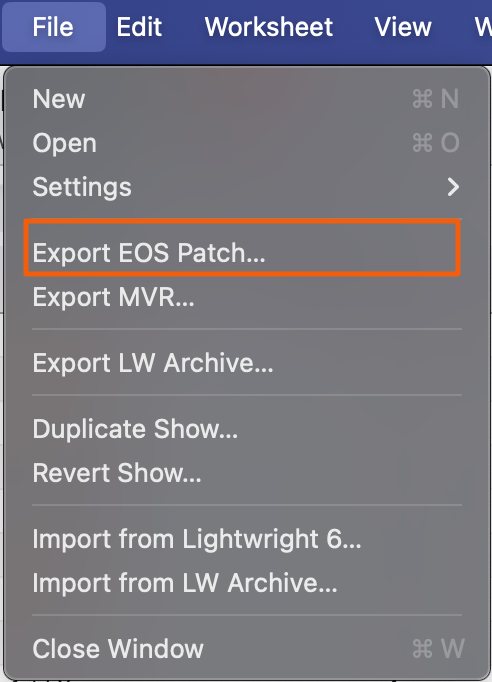
Lightwright supports Patch Export to Eos family consoles. Start by going to File>Export Eos Patch.
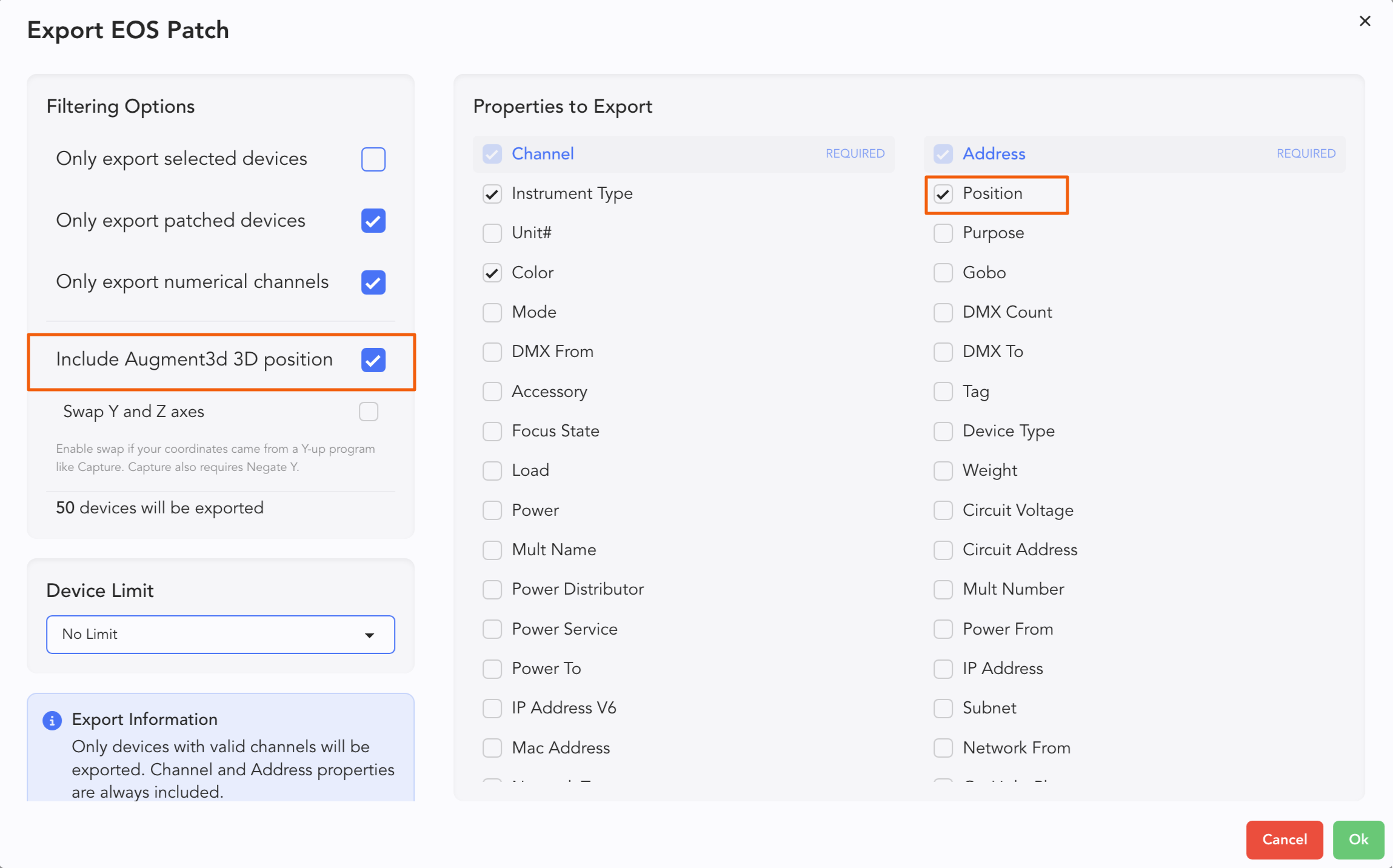
A popup open, giving you choices of what columns export. By default, only Channel, Address, Instrument Type and Color are exported. If you are planning on using Augment3d, positioning data is exported by default. You can also choose to import Position, which Eos will accept.
When you have your data selected, click Ok. Another popup opens to choose where to save your txt file.
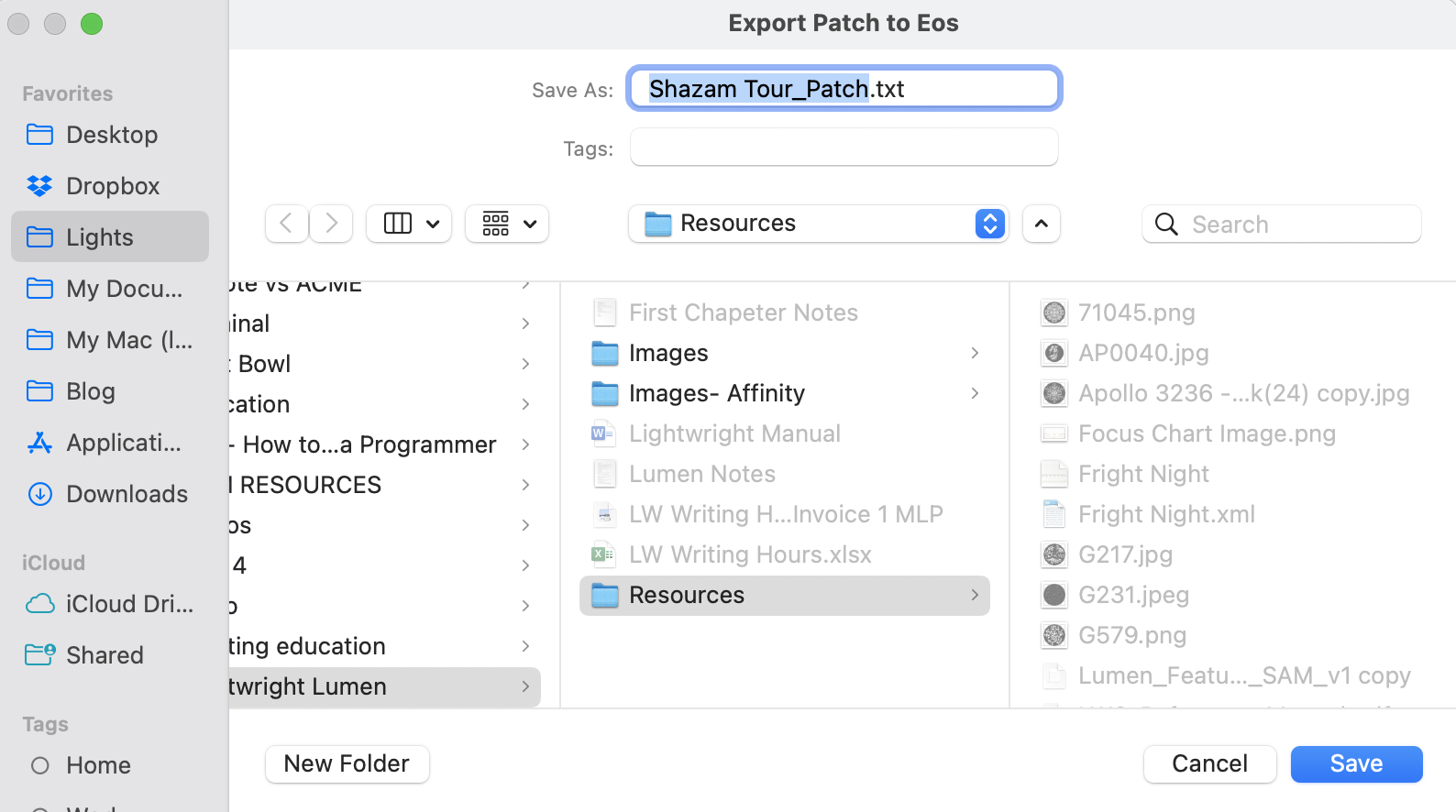
Click Save when done.
In Eos, make sure you are in an empty (or template) show file. You can, of course, Merge this data into a show file, but that is beyond the scope of this manual.
Go to File>Import>Lightwright and navigate to your file.
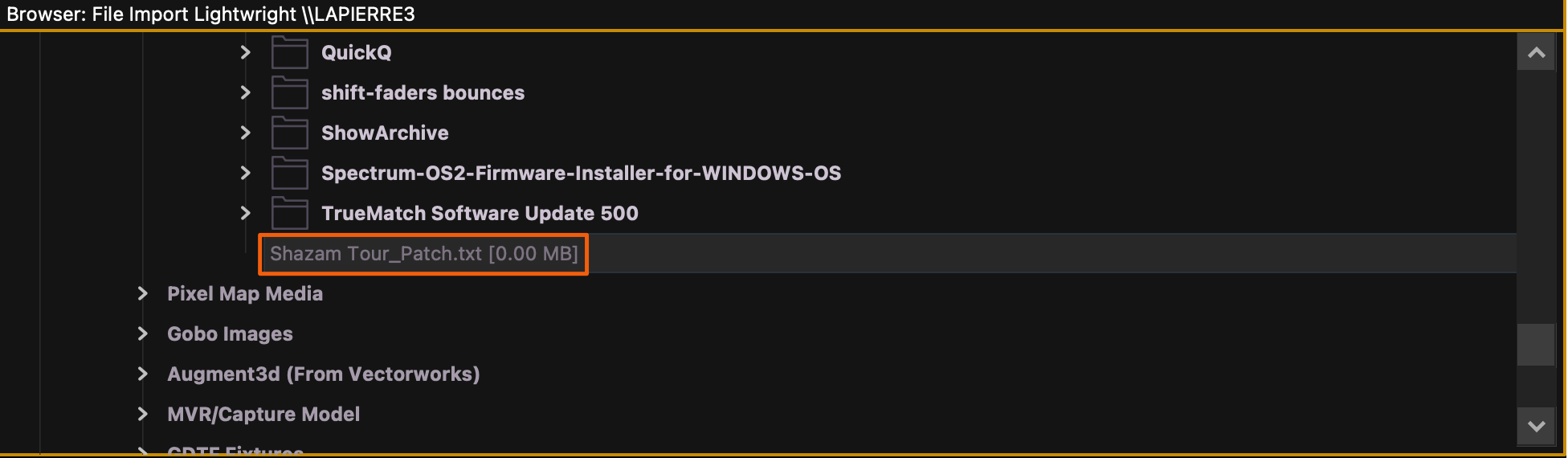
Double-click the file. A popup opens. The focus of this area is to align the incoming fixtures with fields and fixtures that Eos recognizes.
WARNING
Make sure Address in the Source File is Selected and NOT Dimmer!
Importing Augment3d data is only supported in Eos 3.3.9 and beyond.

Press Map Devices to continue. Another popup opens.

Type the name of your fixture, then select it in the correct profile.
Select the item in the Source File to map it to.
Click Link Devices
Repeat until done with all Linking.
When you are finished, you will have an empty Source File box in the center. When finished, touch Done.
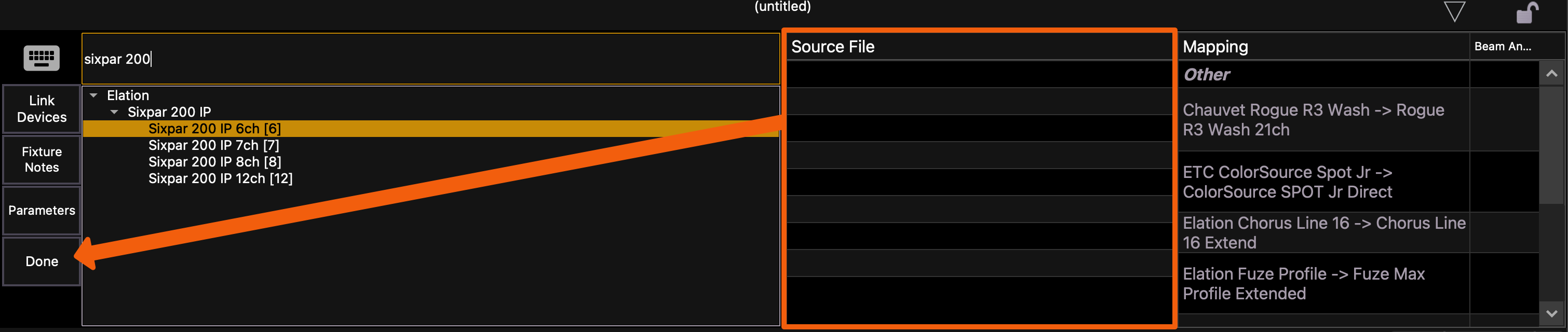
The Mapping popup will close.
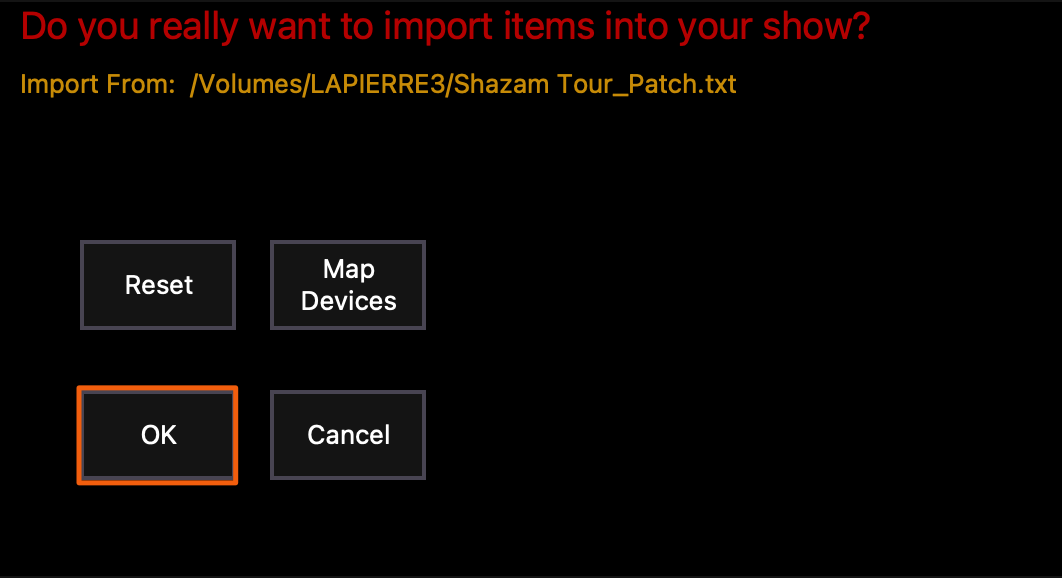 Press OK to confirm import.