Appearance
Sorting
Sorting can be done directly on the column headers using the arrow icon  to sort from low to high or high to low.
This is also an ideal way to sort through Positions or Instrument types (for example) to isolate devices with those items from those without. This is not just a numerical or alphabetical sort. Typically sort order, when not user-customized, is based off of three columns that can be a combination of alpha and numerical orders (see Manage Sort Order further into this section). Sort order can also be determined by dragging the item order in Maintenance.
Column Management
Every Column has a Column Header. Sorting and filtering can happen here, as well as resizing.

By clicking and dragging a column, you can shift it left or right in the worksheet.
TIP
To open the Maintenance category of any column, press and hold Ctrl/Cmd and click on the header. Press the Worksheet button  at the upper right of center to return to the Worksheet.
Right-clicking on a Column Header opens a popup.
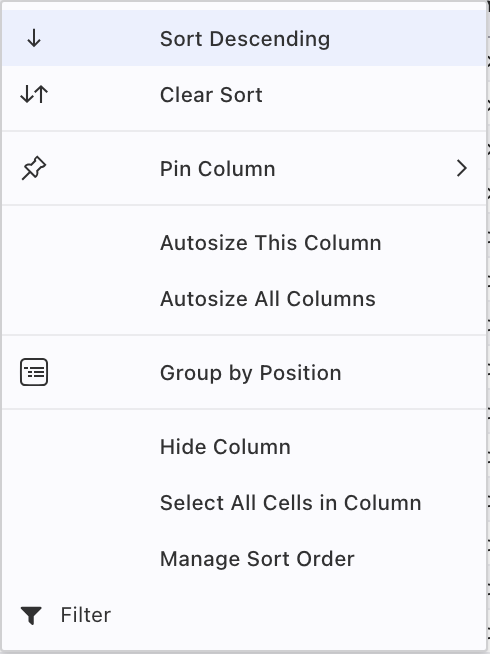
Most options are self-explanatory, so let's go over those that might not be.
Pin Column allows you to lock the column you right-clicked on to the left, right or unpin.
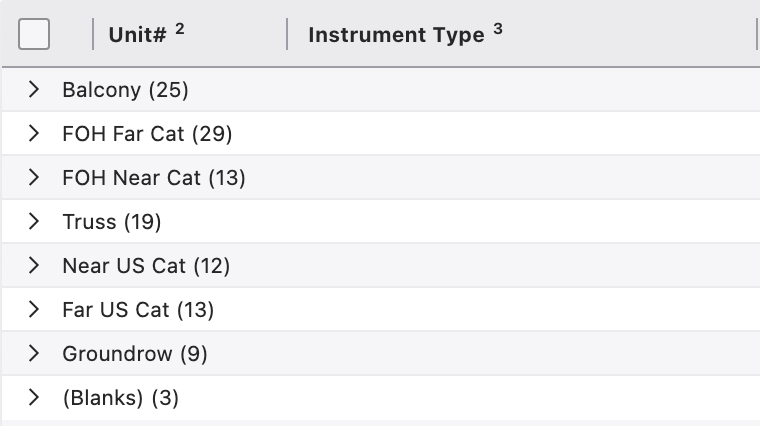
Group by Purpose (or Position, Instrument Type, or Color, etc.) will make collapsible categories in your worksheet that can make navigating your Worksheet easier. Here's an example of what Group by Position could look like:
Choose Columns is another way to choose which columns you are viewing.
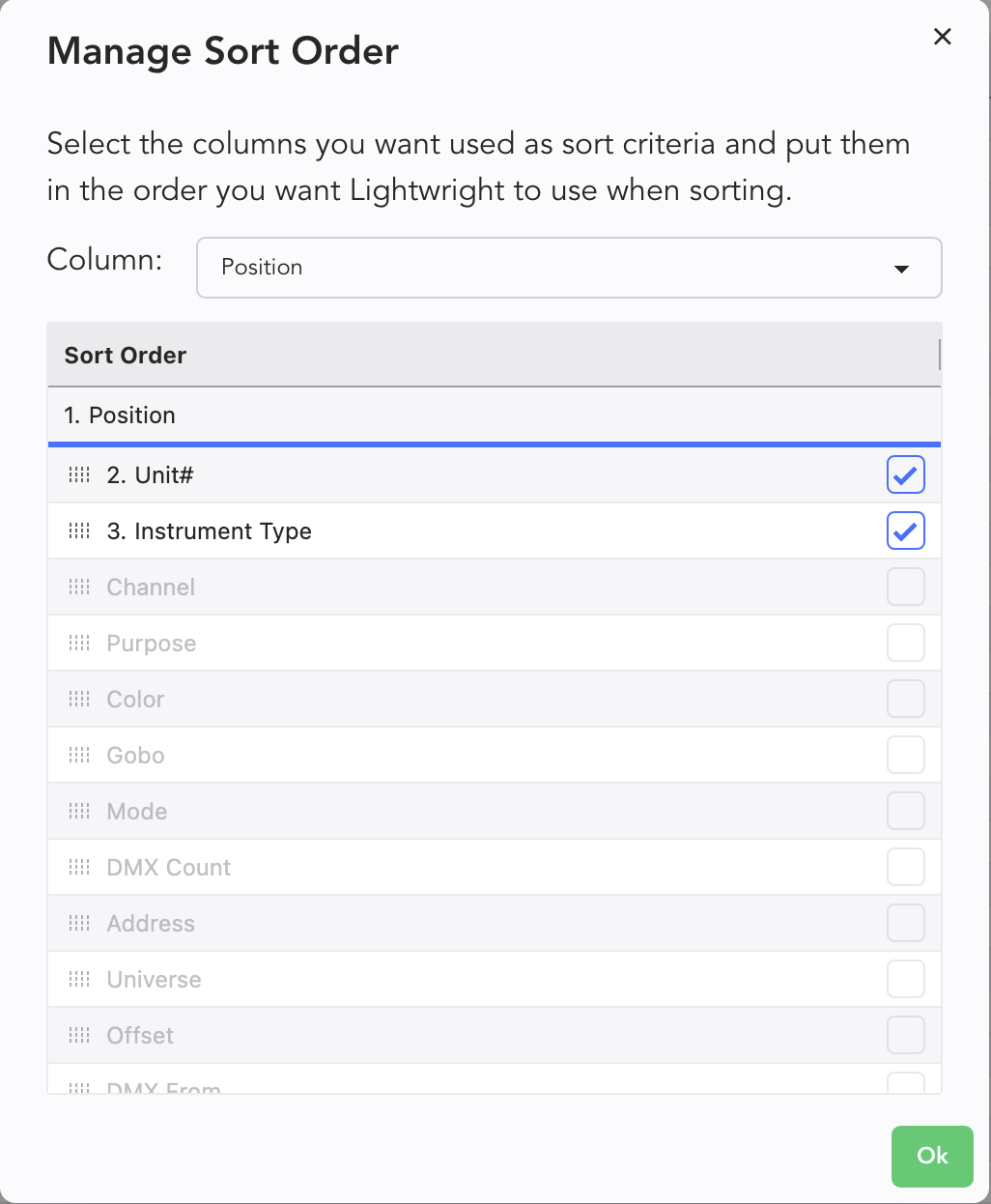
Manage Sort Order. You may have noticed little numbers by certain columns as you shift from your Position and Channel Presets. Those are indicating how Lightwright is sorting your data in each Preset. If you wish to change that sorting, selecting this action will open a popup where you can change these priorities. Here is an example of the popup when you right-click on the Position header.