Appearance
Capture Data Exchange
Lightwright now offers support for synchronizing with Capture. This process uses a network protocol called CITP so you will need to be on a basic network for this to work. (A home WiFi setup will do-- no special network infrastructure needed.)
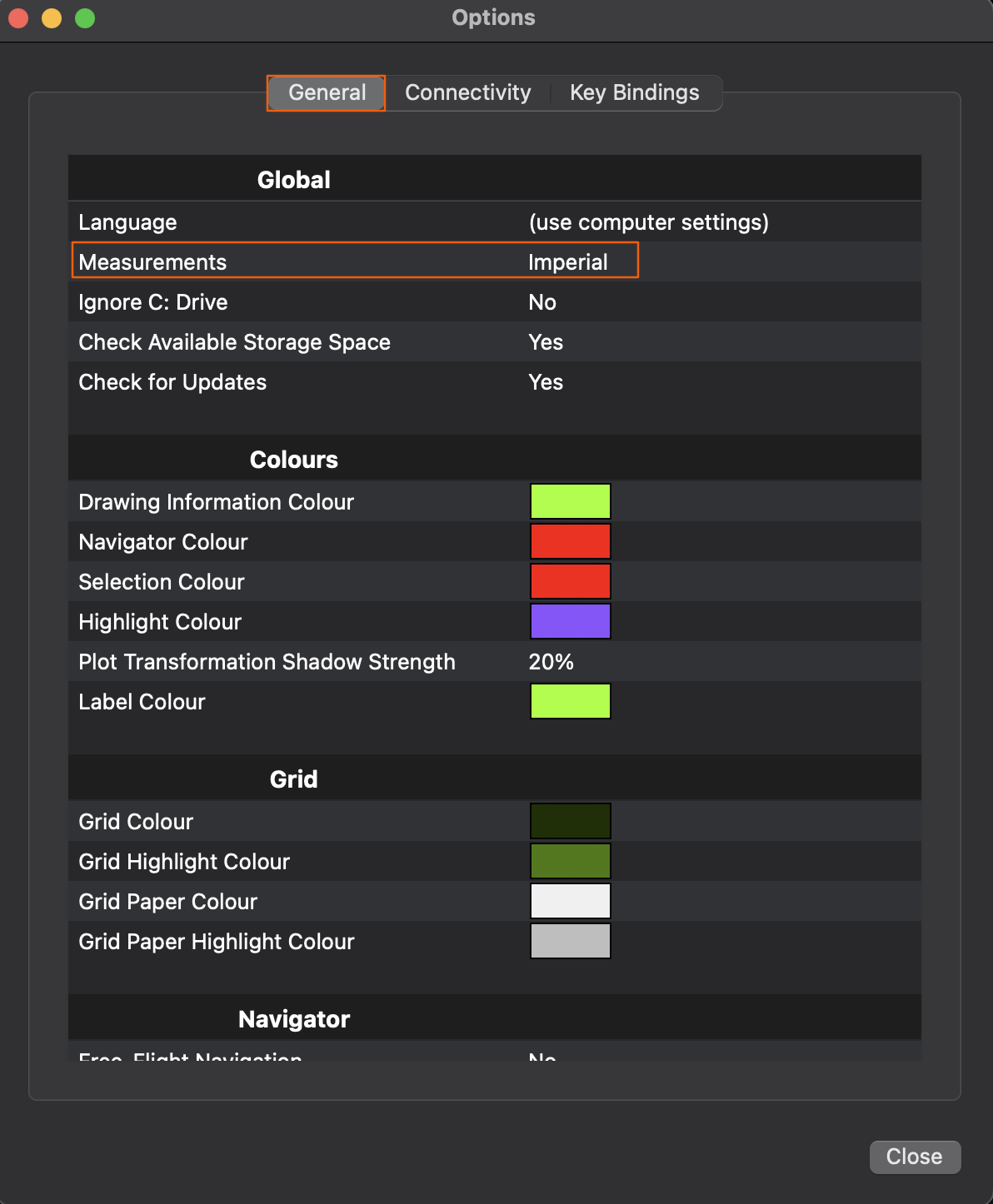
The only paramter to change in Capture is to make sure the coordinate unit (Imperial or Metric) matches Lightwright. I want Imperial, so go to Tools>Options.
On the General tab, look for the second item name Measurements. Make sure it is set to what you want. If it's not- double click it.
Start a new file in Lightwright. Once created and open, touch the Capture icon between the Vectorworks and Console icons.

This opens a popup.
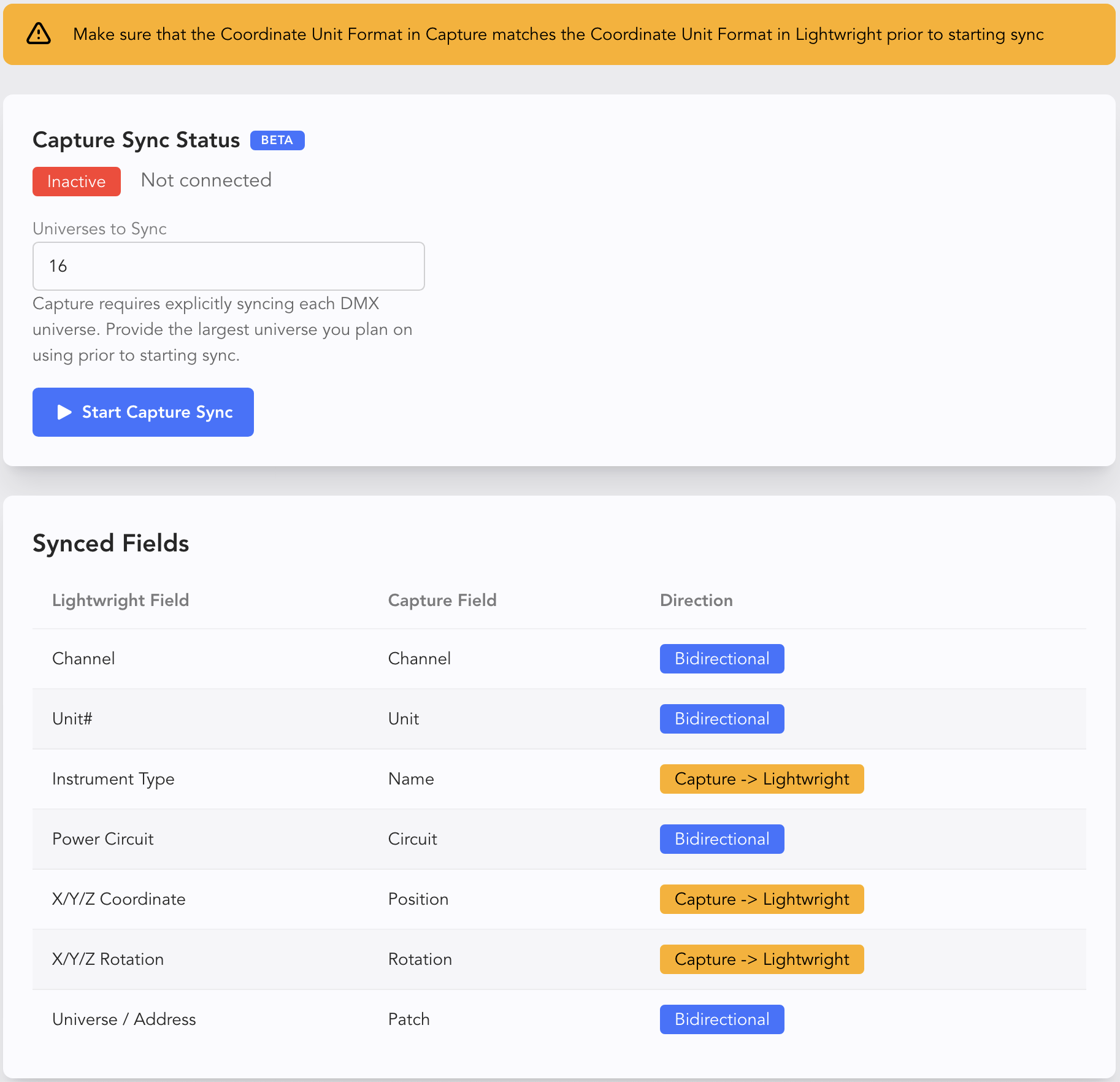
Take a moment to read through this entire window. First is the warning that units of measurement must match. We've already covered that.
Next is a declaration of universes. You must specify the highest number of universes here you may use. Guess high if you have any doubts. This example show is only four universes, so the default covers that generously.
As you read the rest, notice that data highlighted in amber will only go from Capture to Lightwright and not the other way around. Stay aware of this. As an example, if we synched a position originally named "1st LX" and later wanted to change it to "1st Electric", we would need to edit this data in Capture to push to Lightwright.
Fields highlighted in blue are bidirectional and will share updates across both programs. This means we can update Addressing (for example) in Lightwright and expect it to push the data to Capture.
Last note: Take a moment to notice what fields are not here. There is a workaround, and we will go over an example later in this section.
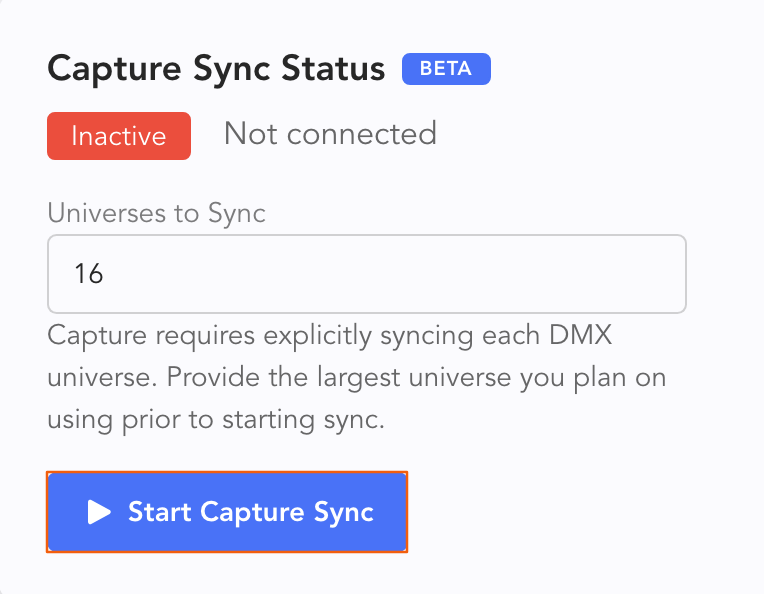
Once you have double-checked everything, press Start Capture Sync at the top.
WARNING
If you find your synch is failing, bear in mind that this process requires a working network. If you started Capture while there was no network, close and open both applications (Lightwright and Capture) and this should solve the problem.
Once you are synchronizing- don't leave this page yet! There are now four new options near the top.
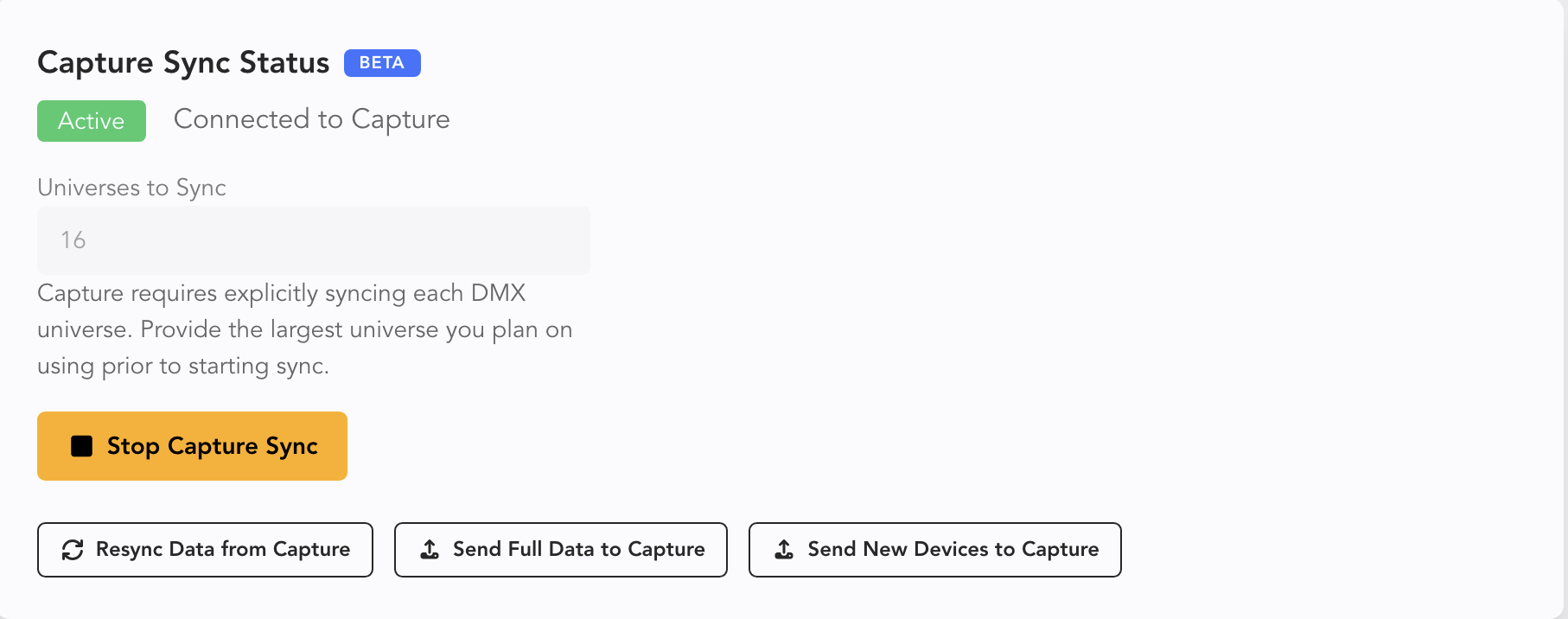
- Stop Capture Sync
- Resync Data from Capture pulls data from Capture and initiates a Reconcile in Lightwright.
- Send Full Data to Capture pushes all data to Capture and overwrites values with data from Lightwright.
- Send New Devices to Capture pushes new items to Capture only. New items are not synched automatically.
Change to your Worksheet view to check out your data.
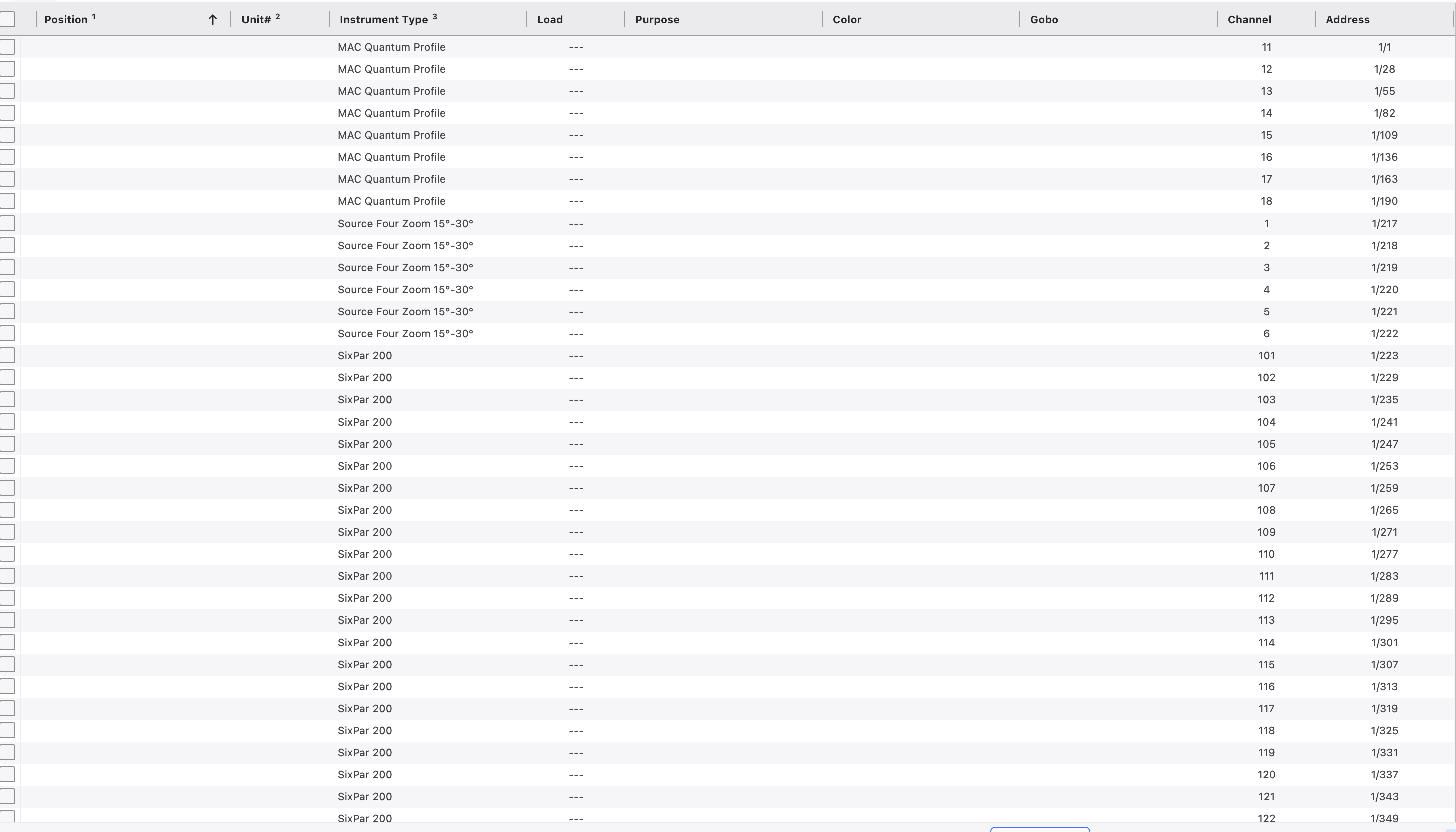
Position and unit data isn't supported by CITP at this time, so that info is missing. Let's do our workaround now.
Important
To add the missing data into Lightwright from Capture, you will need a unique identifier, such as the channel, already input in Capture.
Sort the Worksheet by Channel in Lightwright. Go to Capture to do the same.
Go to the Fixtures tab.
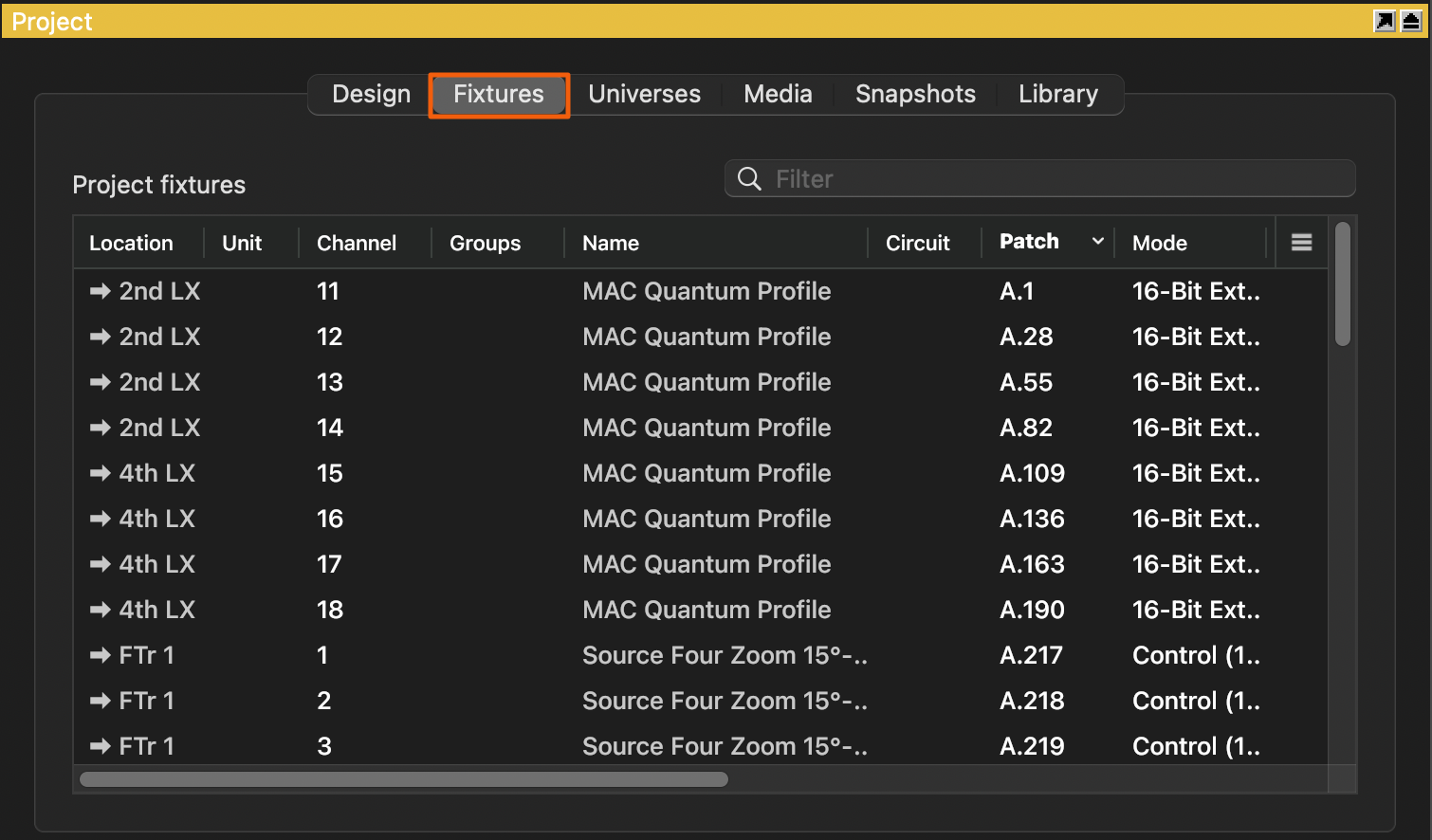
Click the Channel header until it is sorted in the same order as Lightwright.
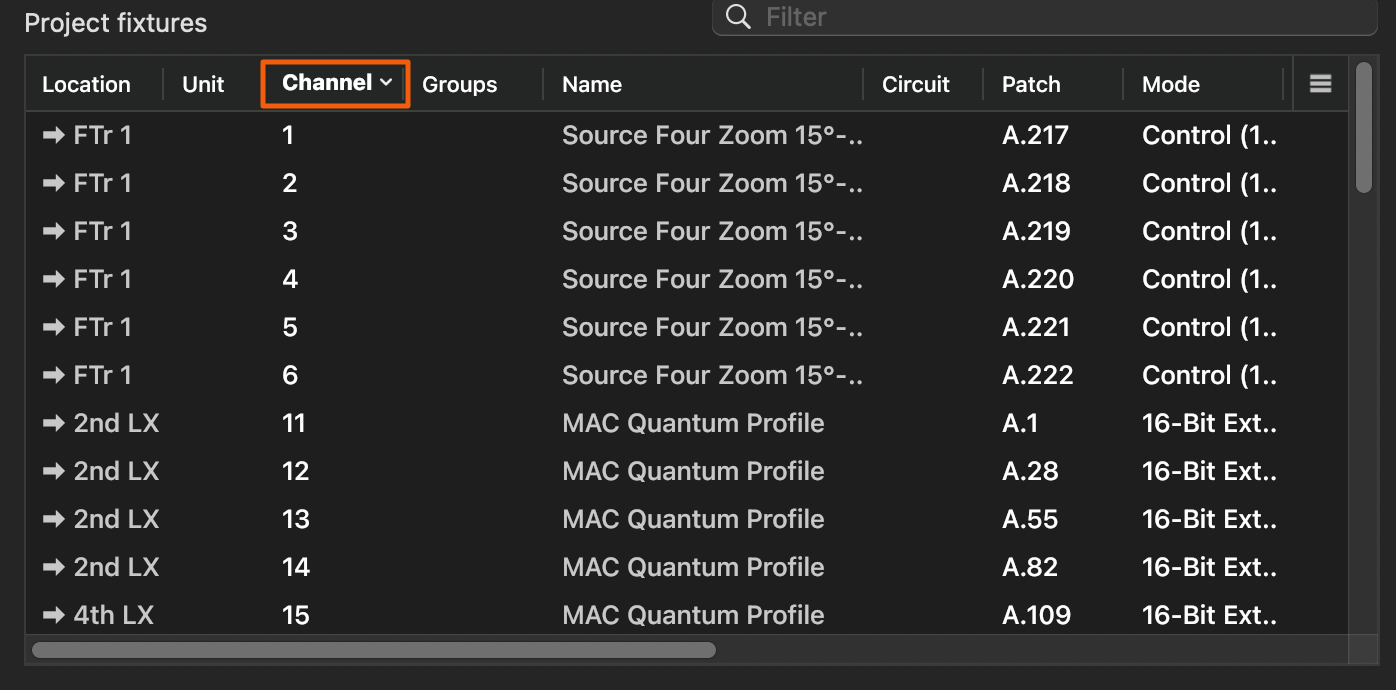
Click on the first field of the Location column, then scroll down and press shift while clicking on the last item. New in Capture 2026 is the ability to copy and paste as if the Fixtures tab is like any other spreadsheet. Copy by pressing Cmd/Ctrl+C.
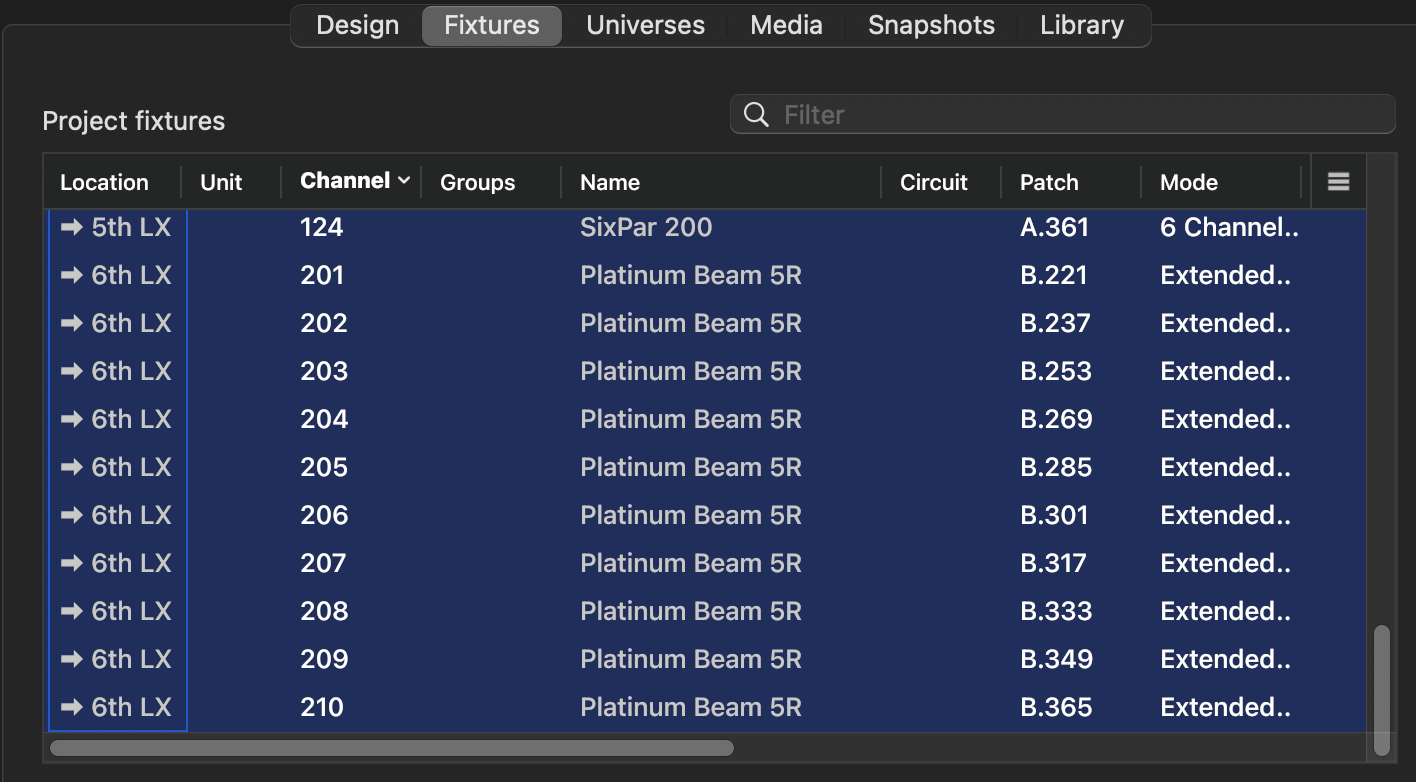
Now go back to Lightwright, select the first cell of Position and paste by pressing Ctrl/Cmd+P.
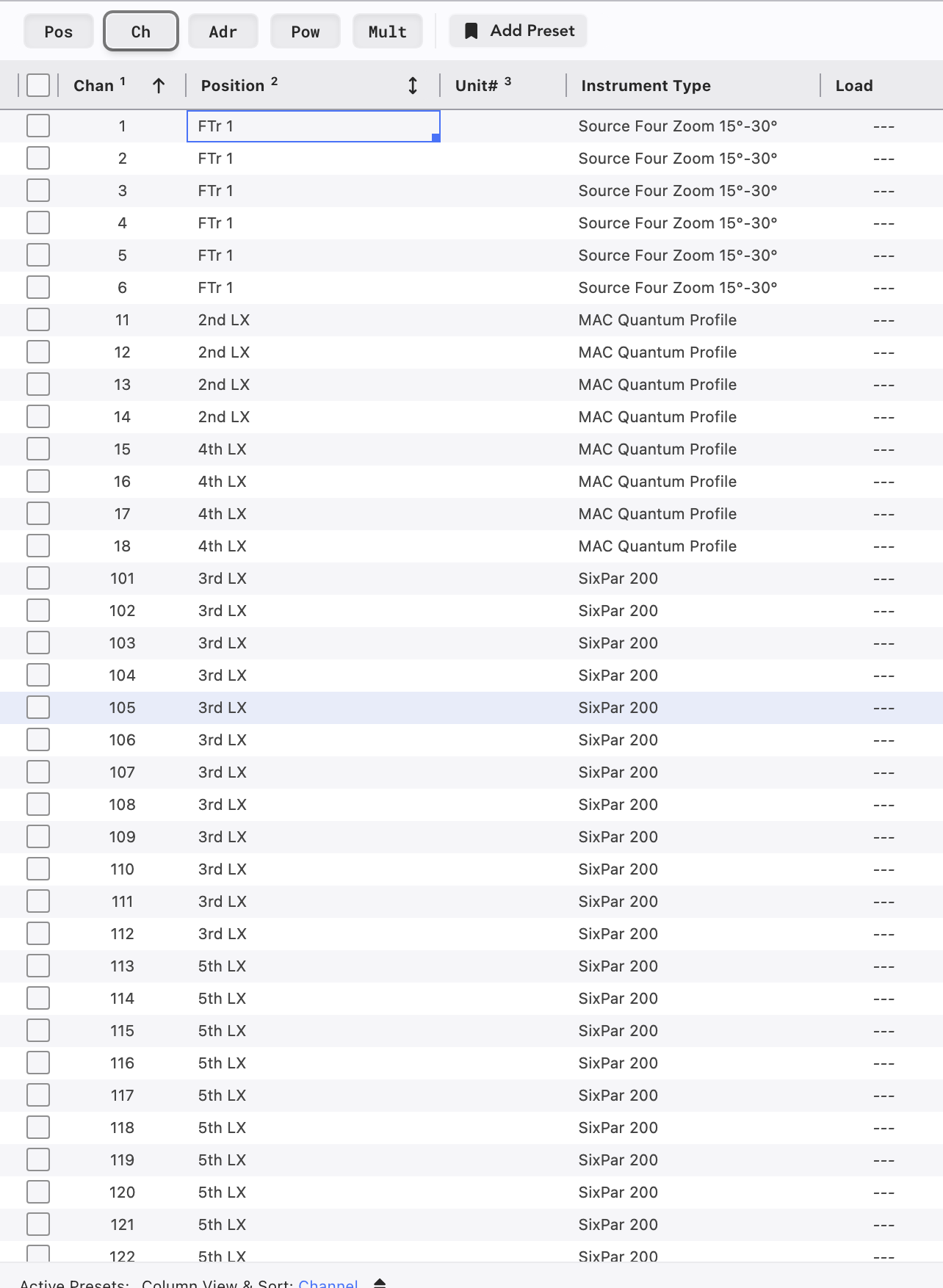
Do the same for Units and any other data fields you wish.
INFO
If you do not have Capture 2026, you can do the same thing by exporting the data from Capture to a csv file, opening the file in any spreadsheet and copying and pasting between that way.