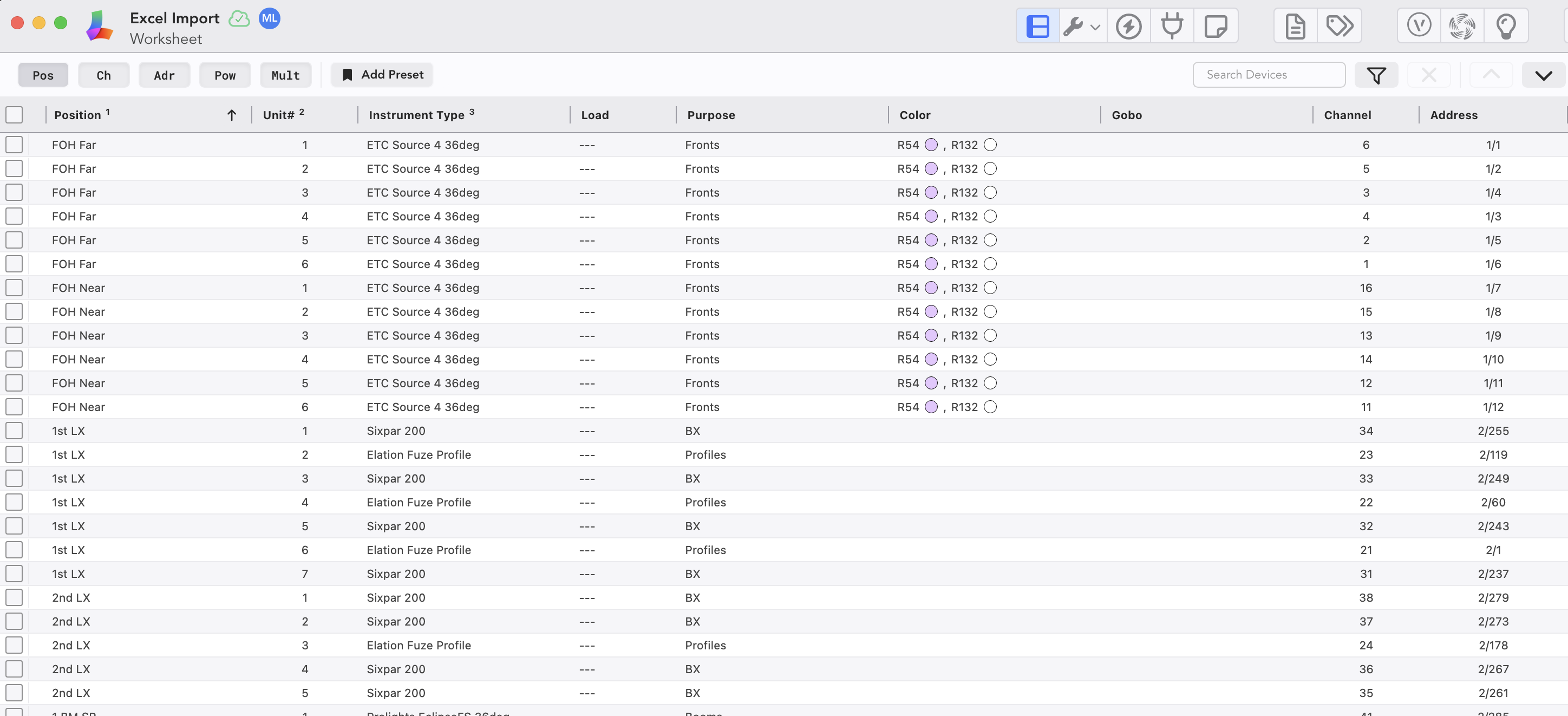
Appearance
Import from CSV
Lightwright supports importing from an Excel file. Let's start in Excel with your file already open.
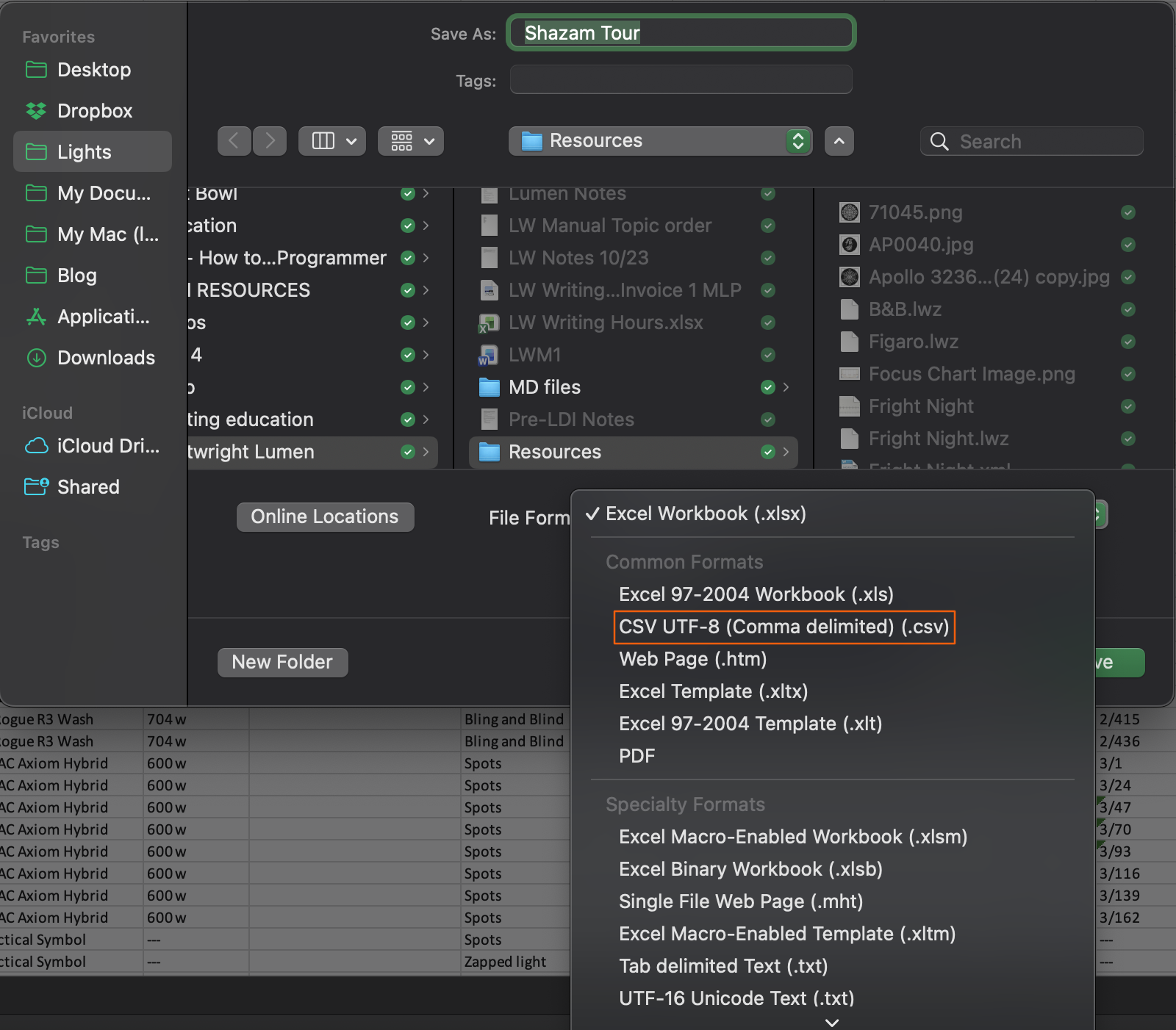
File>Save As, choose CSV in the pull-down menu at bottom of the popup.
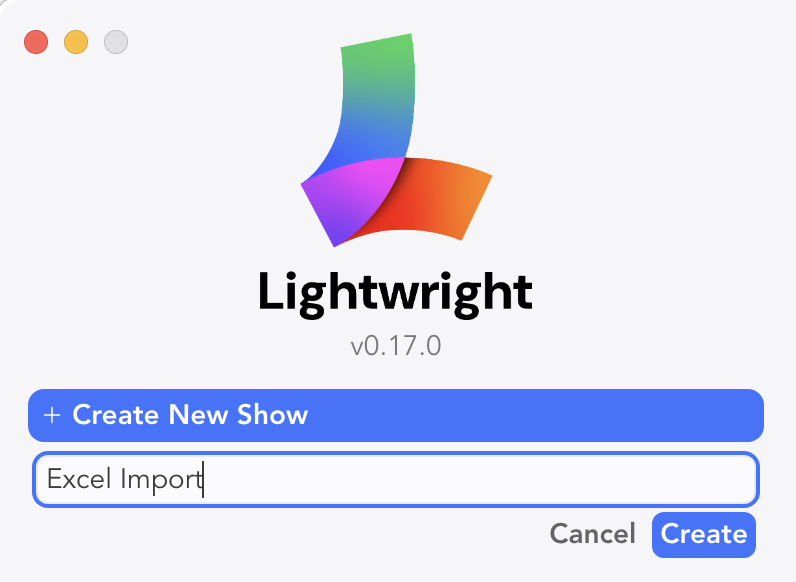
In Lightwright, use Create New Show to start and name a new show file.
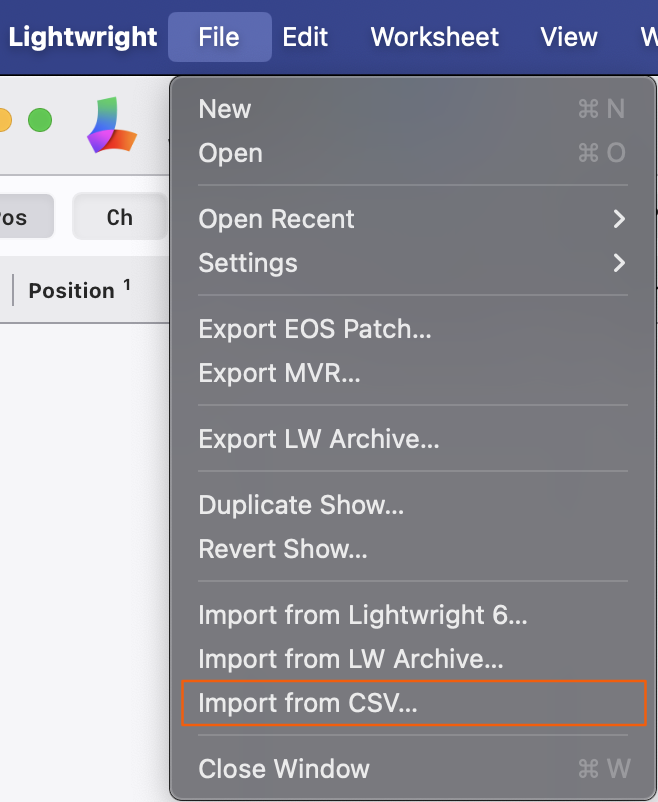
Open your new show file. Navigate to File>Import from CSV.
Select your CSV to import.
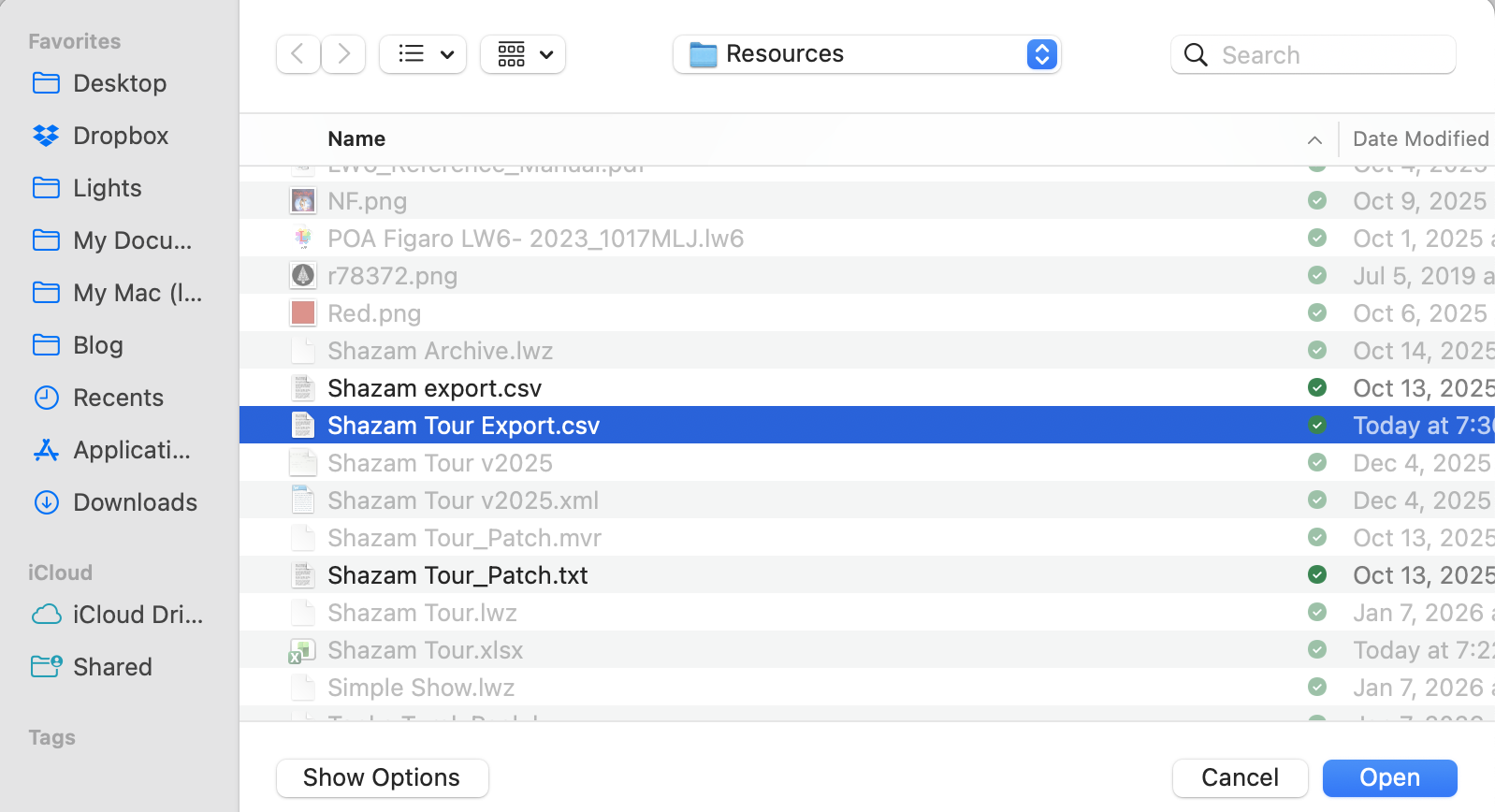
A popup opens.
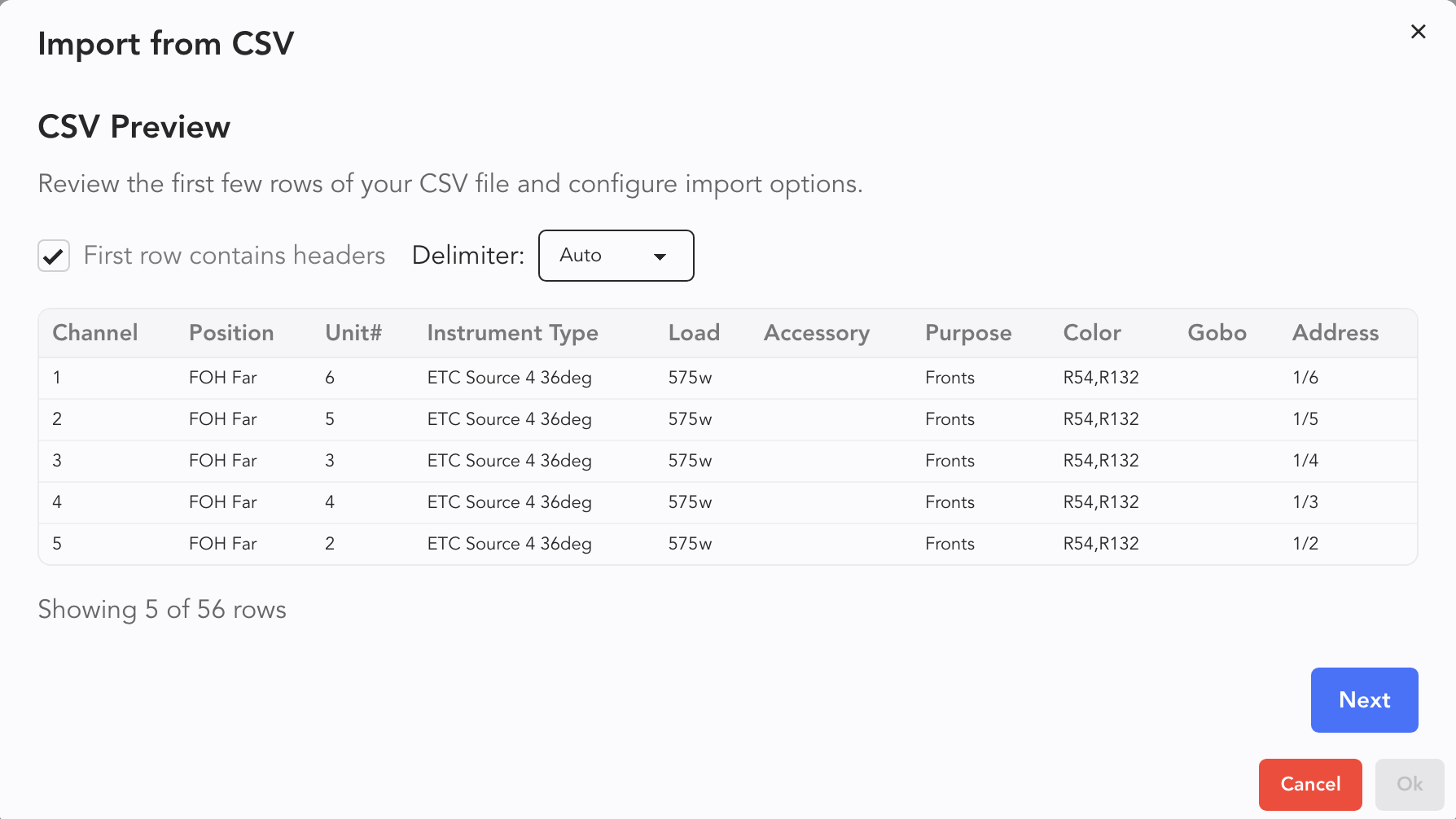
Change anything that is appropriate, or just press Next at the bottom right.
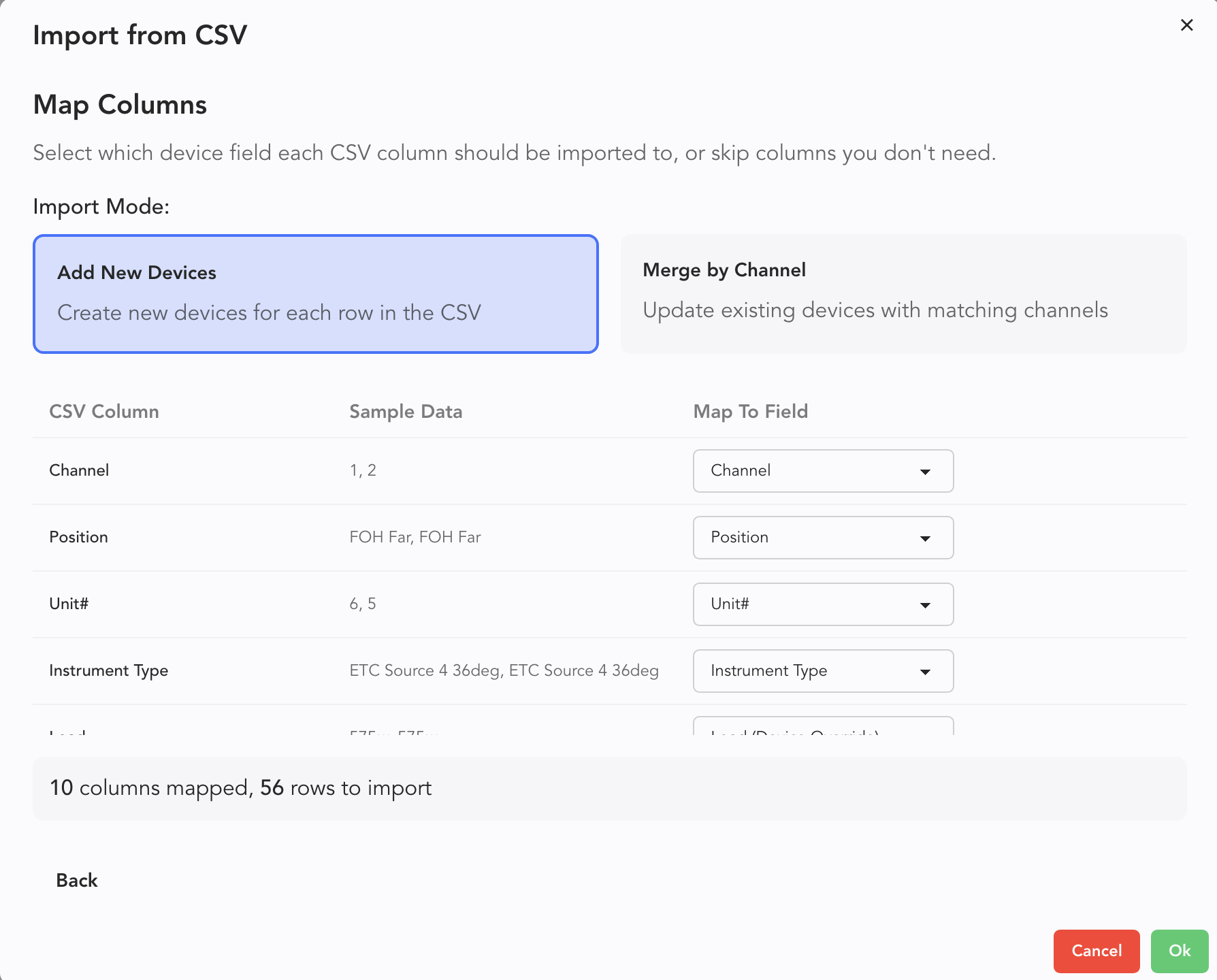
This next popup is where you choose between Add New Devices (which is the choice for this currently-empty file) and Merge by Channel-- which is better for merging data. You can also map fields to Lightwright Columns. When you have made your decisions, press Ok. Lightwright imports all the data.