Appearance
Filtering
By default, LW shows all Devices. There are times when you only want to view data with one attribute-- such as a certain color filter or fixture type-- and that's where filtering comes in. Filtering can be done in either of two ways.
Filtering on the Column
Hovering your mouse over any column introduces two options, one of which is filtering.

Clicking the filter icon opens a popup that immediately allows you to choose what items you want to filter down to.
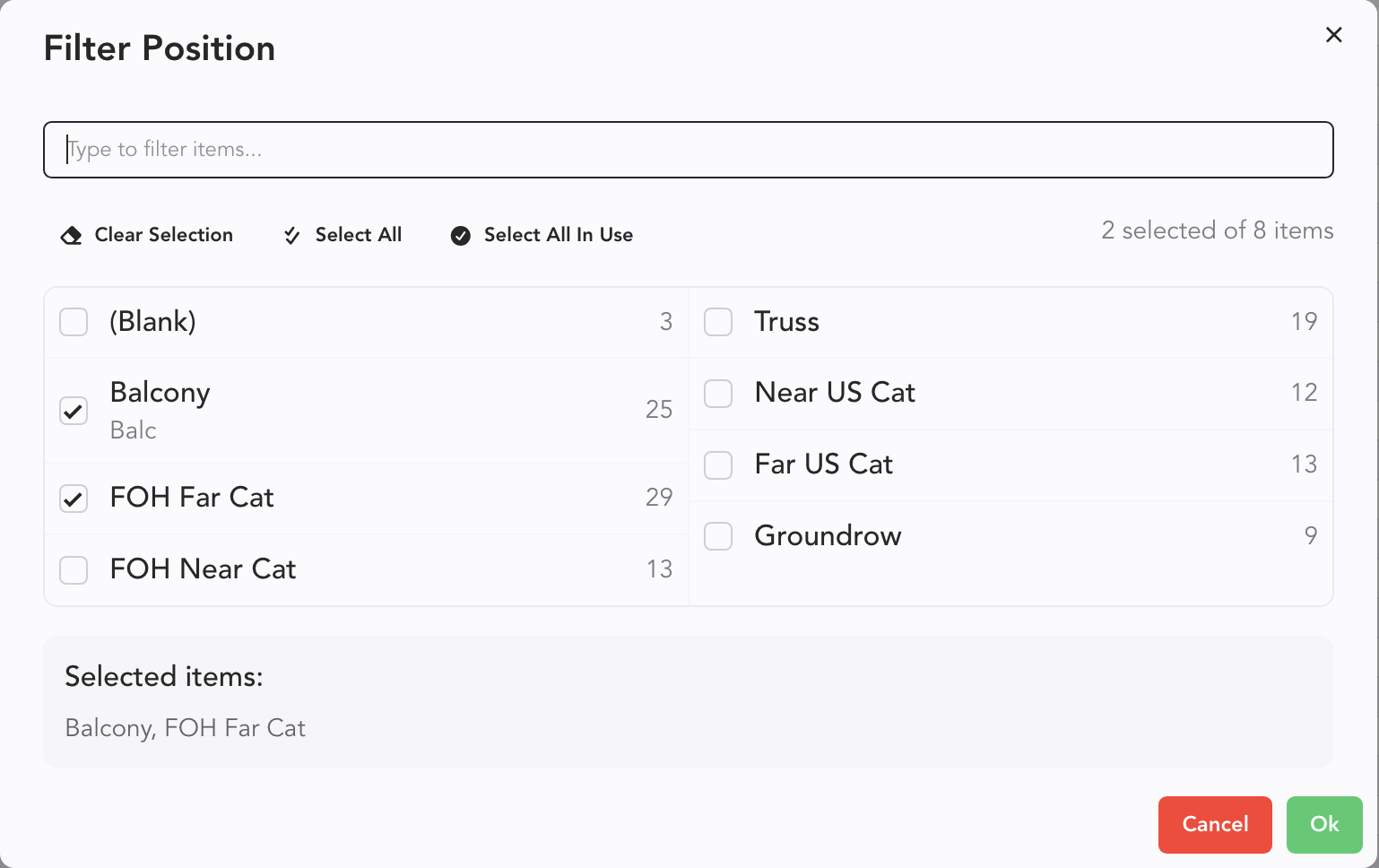
Choose one or more items (Positions here) and click Ok to apply.
Filter Icon
 Touch the Filter icon in the upper left. A popup appears that shows all filterable columns.
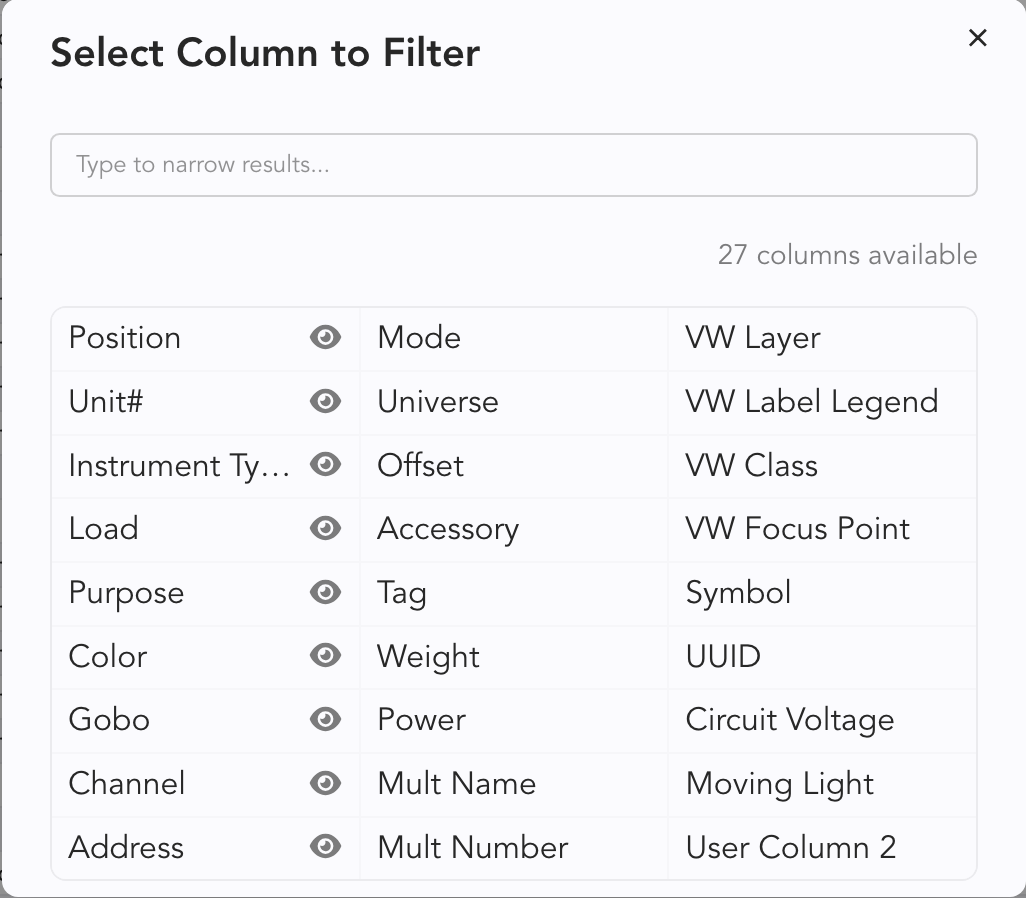
The eye symbol indicates the column is visible in your Worksheet.
Select a column to filter by and another popup appears.
Here, you can choose one or more items, then press OK. Your filtered results can now be sorted and resorted as you wish (Position, Channel, etc).
Removing a Filter
When you are done with this filtered state, press the red X in the upper left  to return to an unfiltered state. Pressing [esc] will clear filters. You can also use the Active Filters area in the lower left of the Worksheet to selectively release one or more Filter. Press the x of a filter you wish to release.
