Appearance
Show File Creation and Handling
It's important to know that file handling has been rethought completely. All files are meant to be synched across however many team members are on the production. Everyone can work at once on the same show file and the system is organized around that. It's much more like Google Sheets or other web-based file creation/sharing solutions while still keeping a local copy on your hard drive. Certain work flow habits may need to be adjusted, but the benefits are huge.
Show Navigation Window
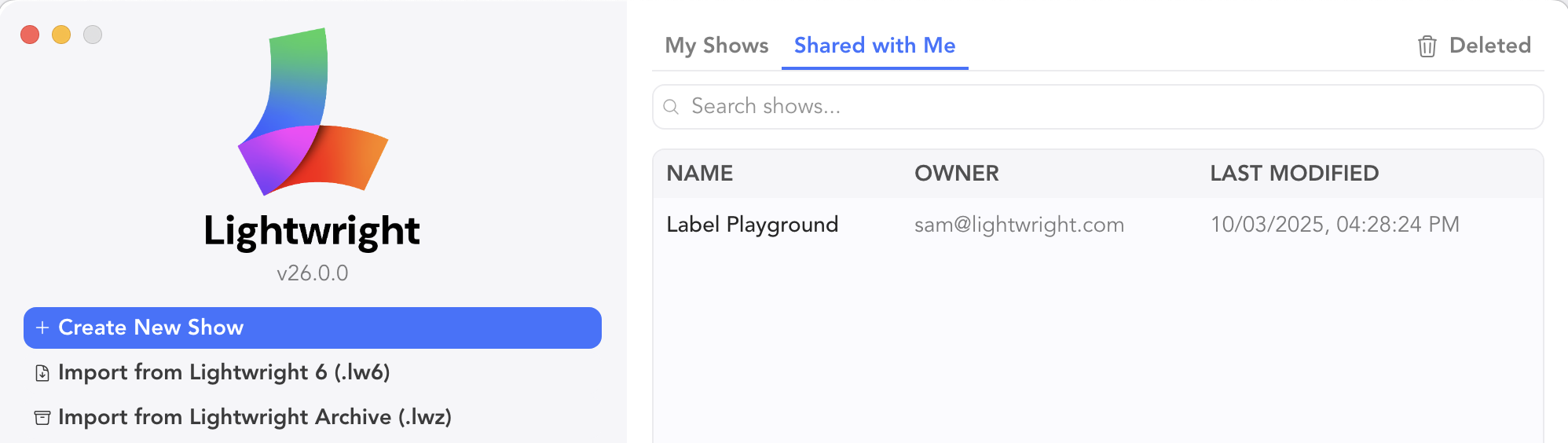
Options for show and folder creation and navigation are here.
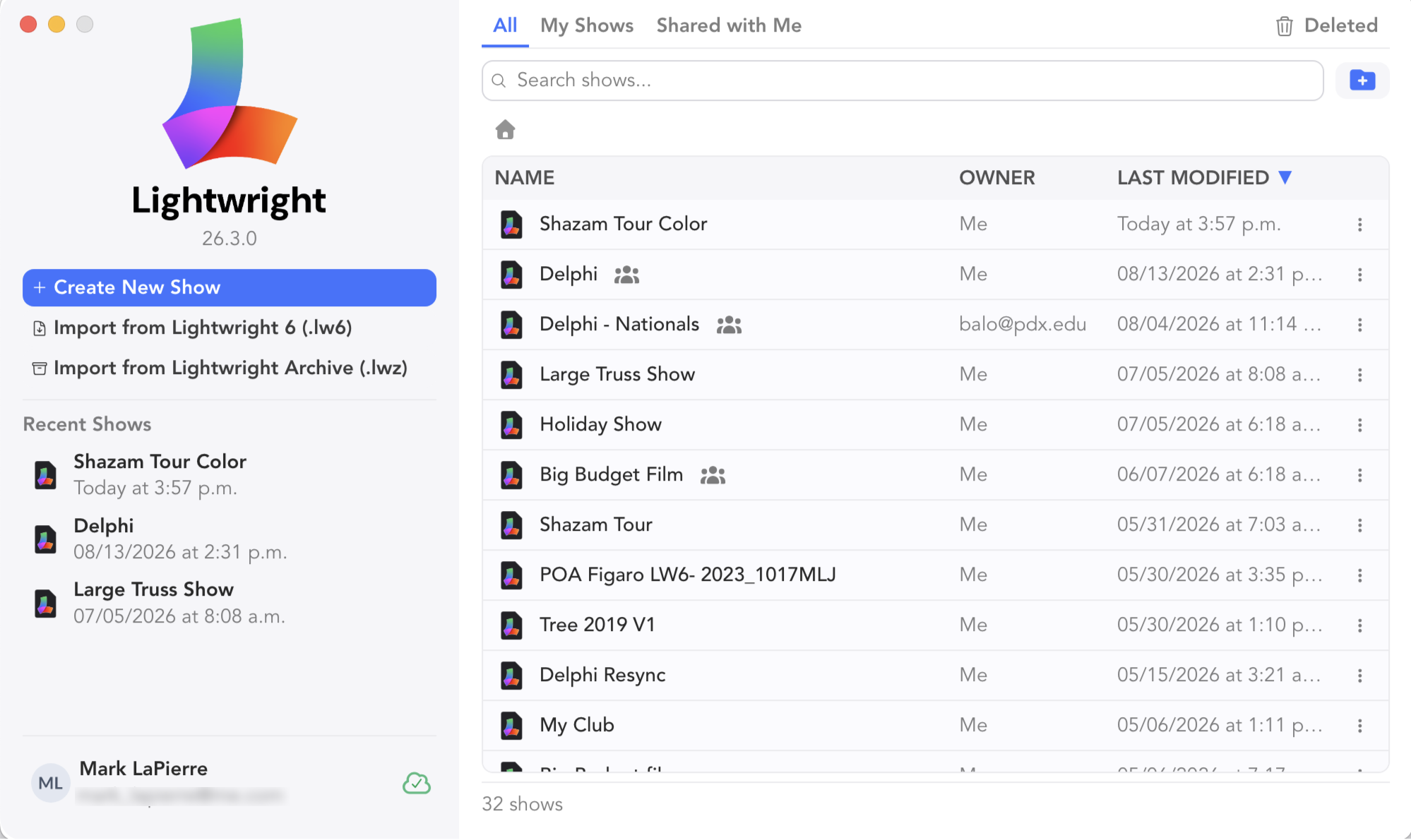
Start a new show with 
INFO
Show files can be created offline. They will sync when you are back online and the show file is open. Same rule applies to editing existing shows offline.
Create a new Folder with 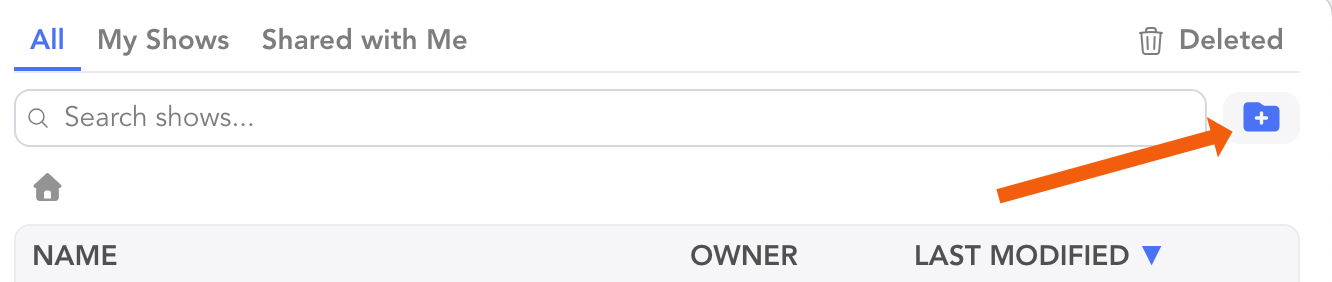 After touching the icon, fill in a name and touch Create.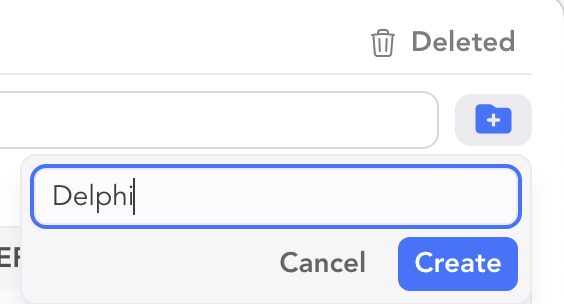
Once you have created the Folder, drag any files you wish into it.
INFO
You can share an entire folder by touching the three dots on the right and selecting Manage Collaborators.
Import any LW6 file with

Import from an Archive with

Of course, you can Delete any show file by touching the three dots to the right and selecting Delete. 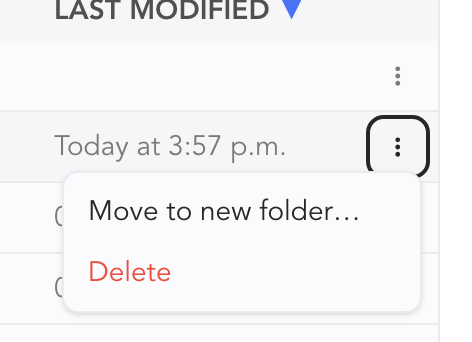
Deleted Show Files remain available to restore for 30 days from the Deleted tab in the upper right-hand corner of the Show popup.
WARNING
When you delete a file and restore it, you will need to re-invite collaborators.
My Shows/Shared With Me
On the right are all of your show files, in order of how recently you opened them. Open any of them with a single click.
When you choose the Shared with Me tab, all shared documents show up.
Certain core Show File Management options only exist once you've opened a show and go to File.
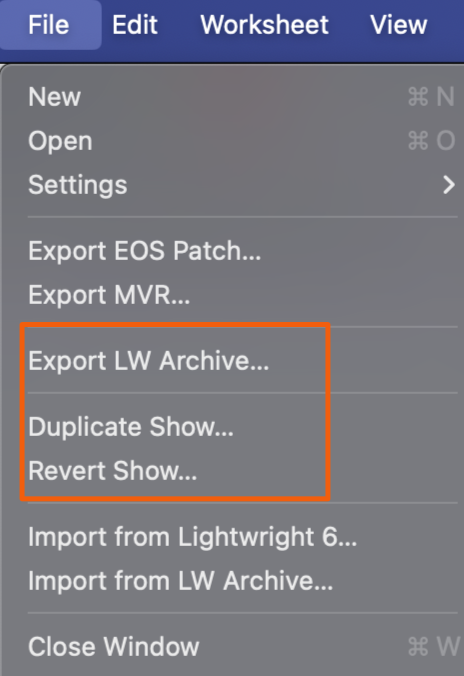
Export LW Archive-- exports a non-synched file that freezes everything in your LW file.
Duplicate Show-- a great function when you are at a fork in the road. If you're unsure if something will work, before you do it- Duplicate.
Revert Show-- see below.
Revert Show
Lightwright autosaves iterations of your show file with every action. You can roll back to literally any time/date at any time. This will revert all contributions from all Collaborators across all categories of data that can be stored in LW. To revert, navigate to File>Revert Show. A popup opens.
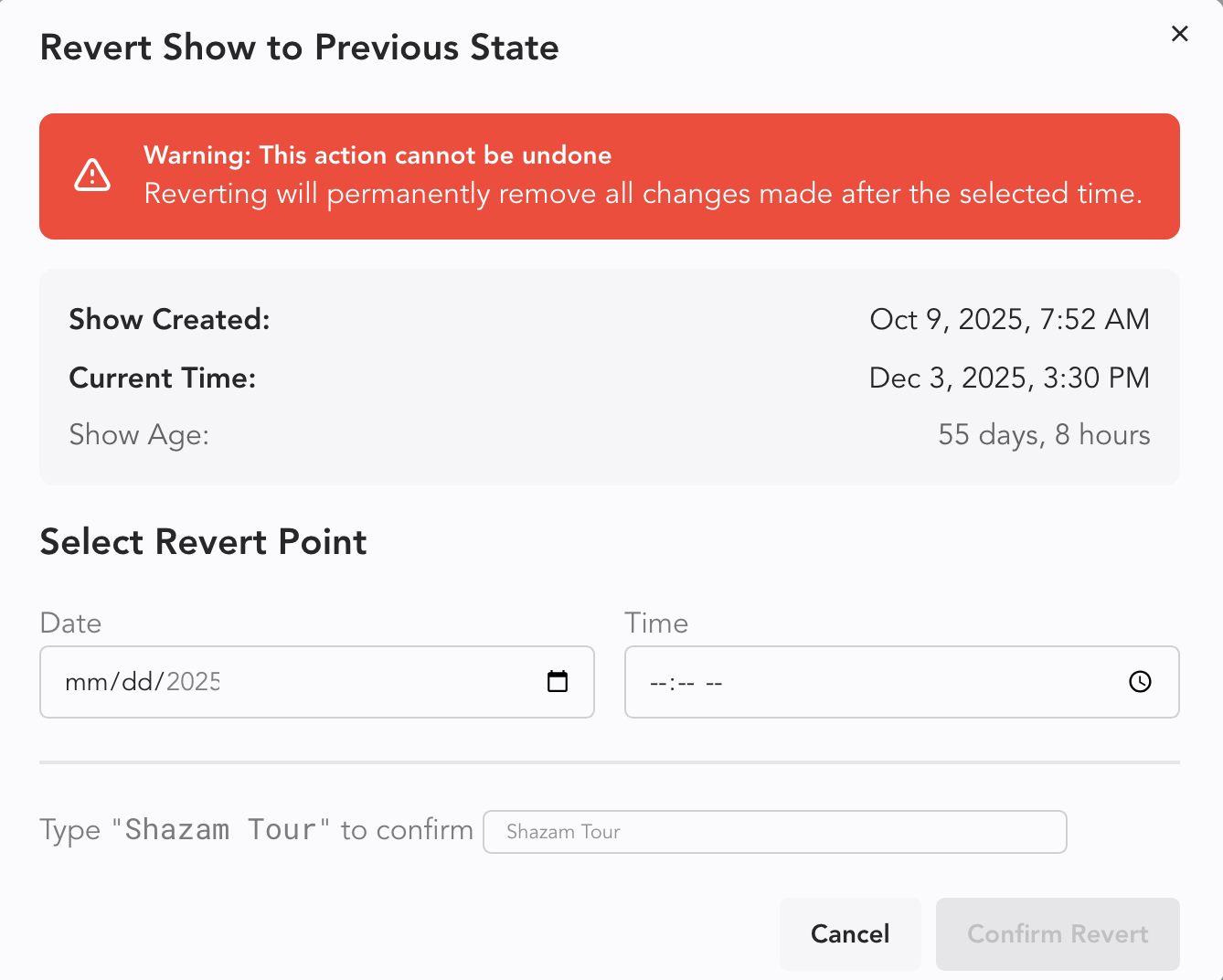
Here, you can use the Date/Time popups to choose a date and time, or you can type in a date and time yourself.
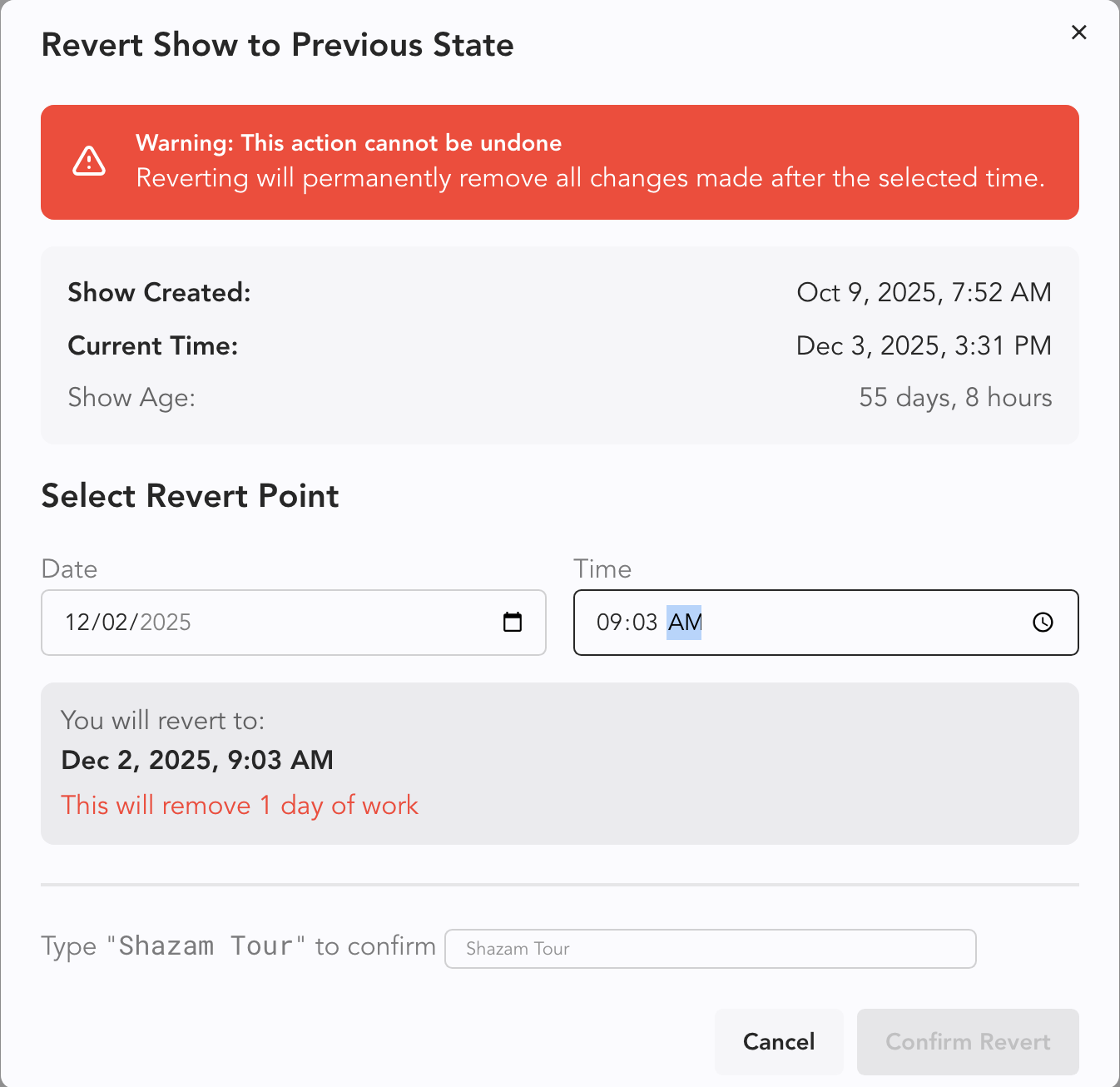
When you have picked your date and time, press Confirm Revert.
WARNING
Revert CANNOT be undone. If you have doubts, Archive first, then Revert.