Appearance
Power Worksheet
To go to the Power area, touch the icon  in the upper right and choose Power Worksheet from the pull-down.
Power Worksheet is a spreadsheet view of all the power in your show.
Power Worksheet
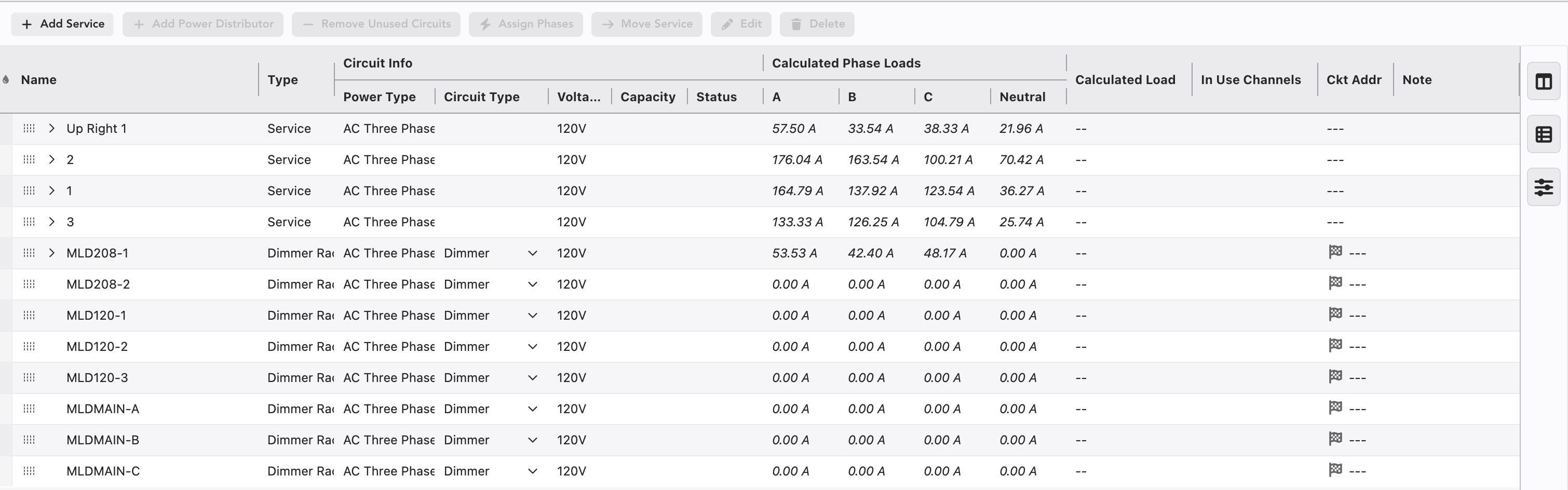
Here, you can set up Services, Dimmers and Power Distros (PD).

Add Service-- add an Electrical Service here. This could be, for example, a Dedicated Service (Service A powers the House Lights), a Company Switch that is available for any tie in, or a Generator.
Add Power Distributor to Service-- once you add a service, you can assign your Power Distro. That could be a rack of Dimmers, ML Power or several other options.
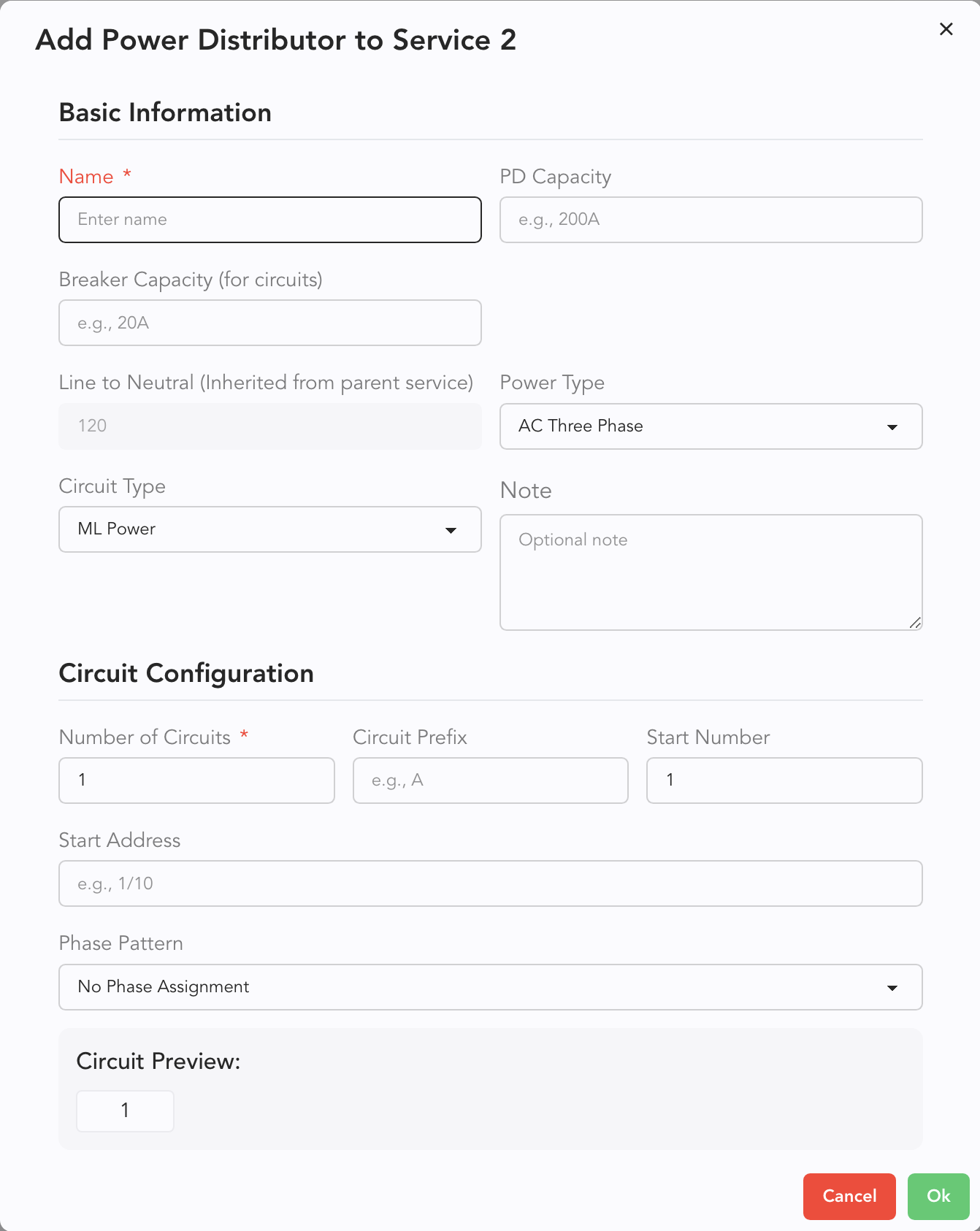
Once added, a Power Distro will then show up in the familiar Family structure.

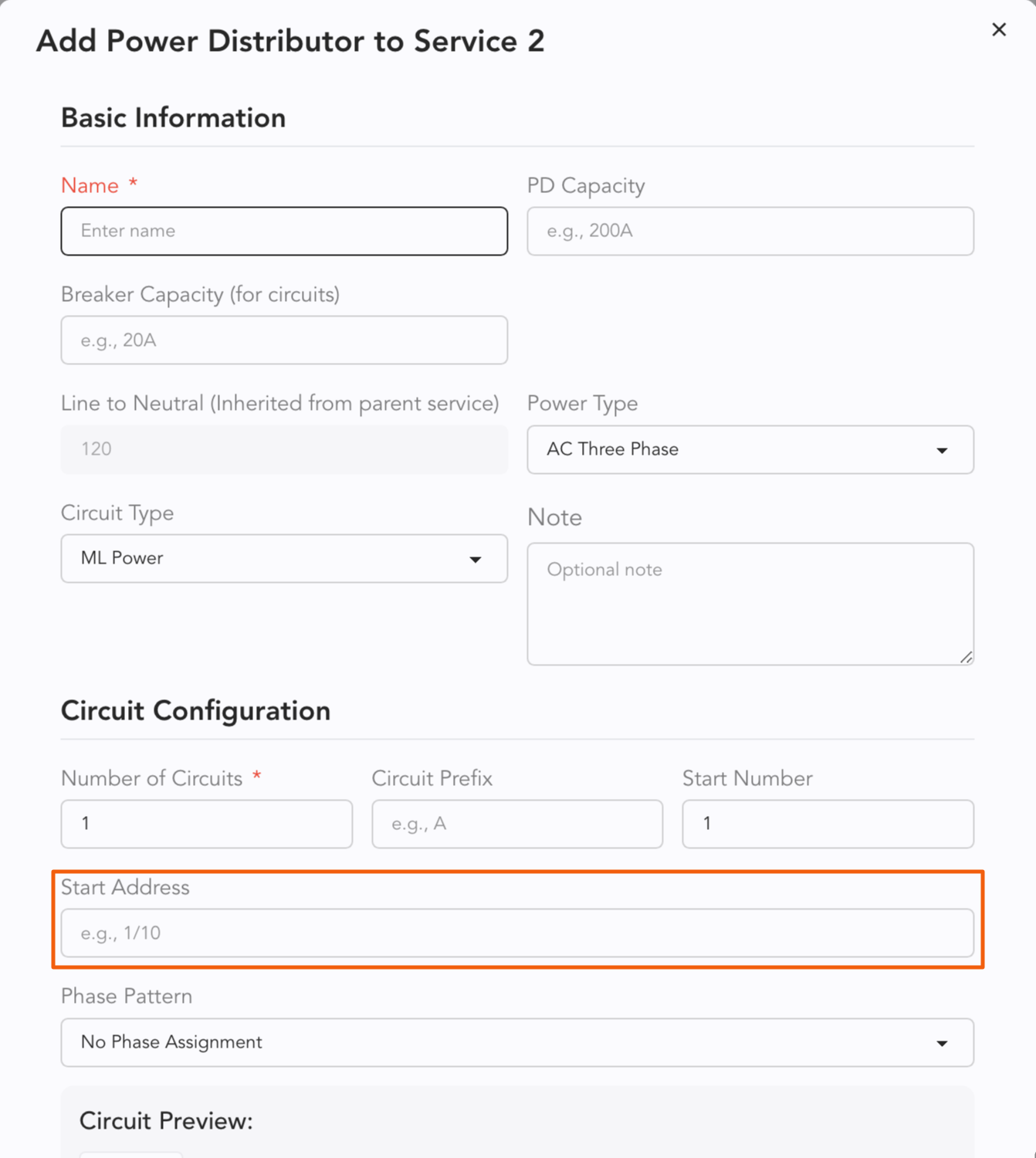
Name, set breaker capacity, choose the Power Type, etc. If it's relevant, you can set addressing at the same time.
Addressing PDs
You can assign addressing to PDs like a Dimmer Rack.
INFO
PDs with Addressing assigned will automatically assign the Address to any device you connect to that Circuit.
In Table View, you can individually address each dimmer for custom dimmer patches. Simply click on the field and input any address.

WARNING
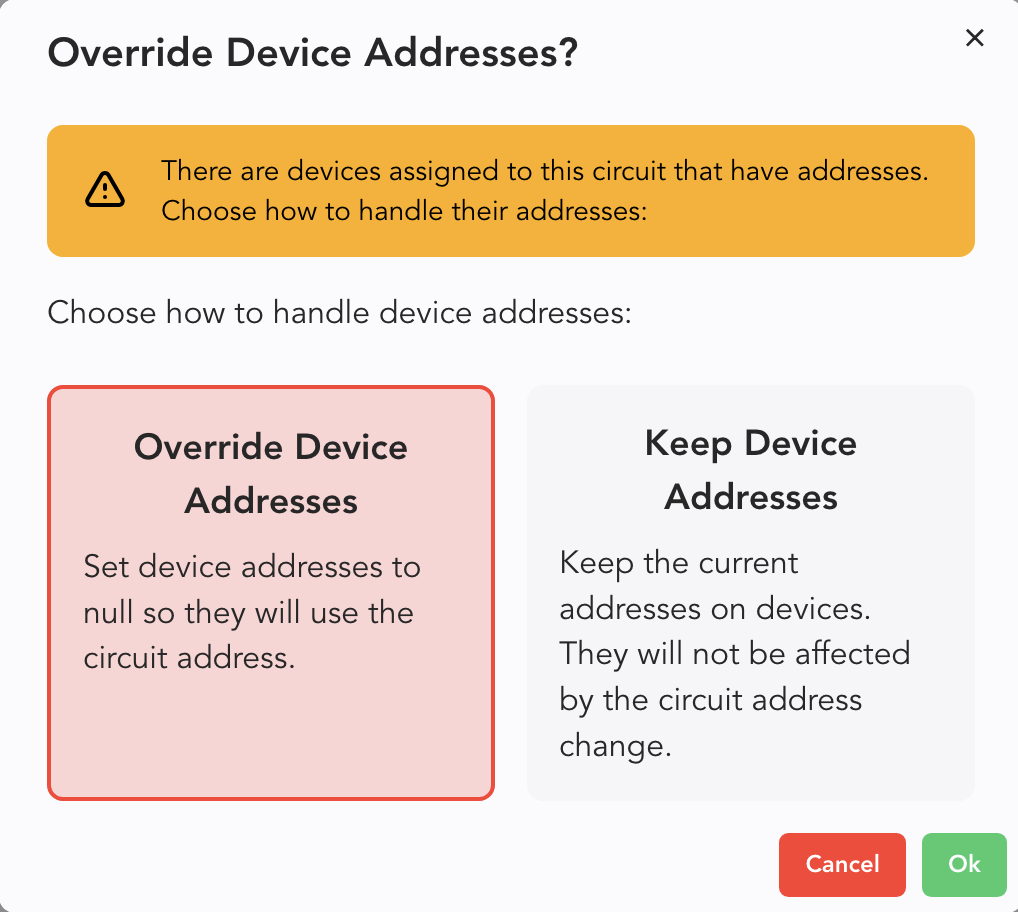
If you assigned Addressing when creating the PD, when you try to change addressing individually, Lightwright will open a popup for you to decide to Override or Keep your addressing.
Move Service
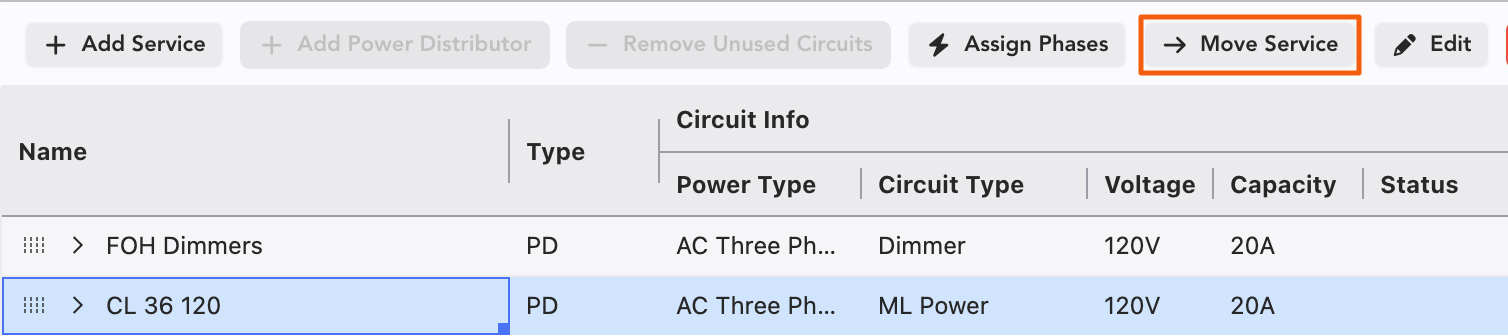
You can move PDs between Services. In Power Table, select the PD. A button appears at the top of the window.
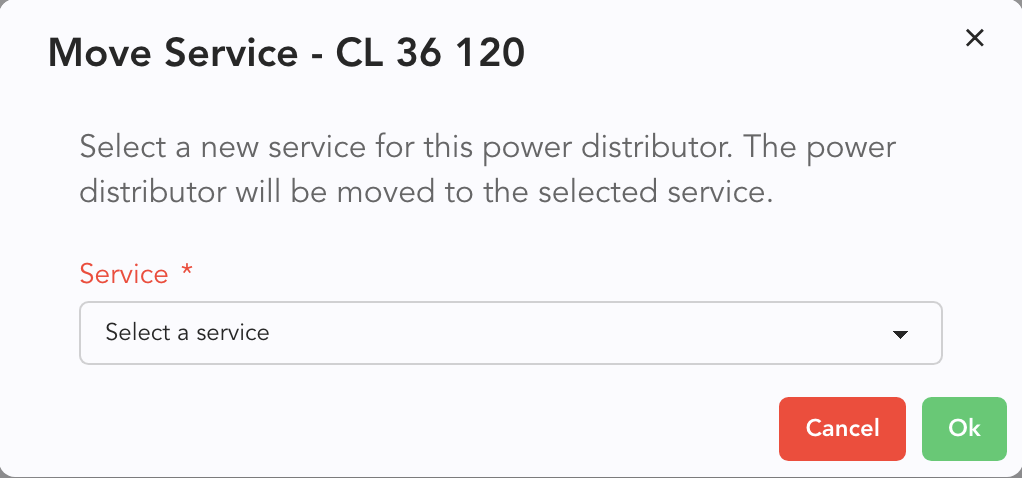
Touch the button and a popup opens. Choose and confirm.
Shrink Service
Perhaps you've built your tour and realize you could save some money by sizing down a PD.
Deselect your PD or Dimmer and touch Edit.
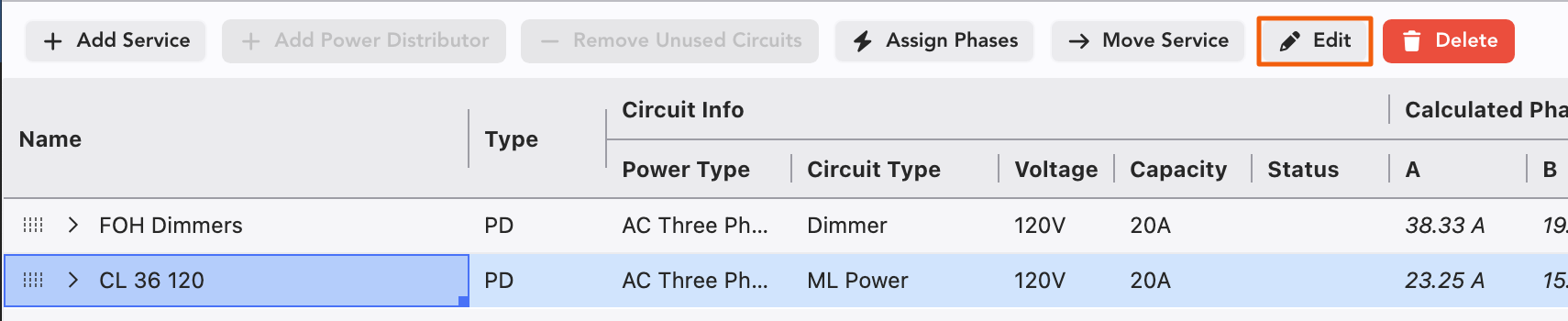
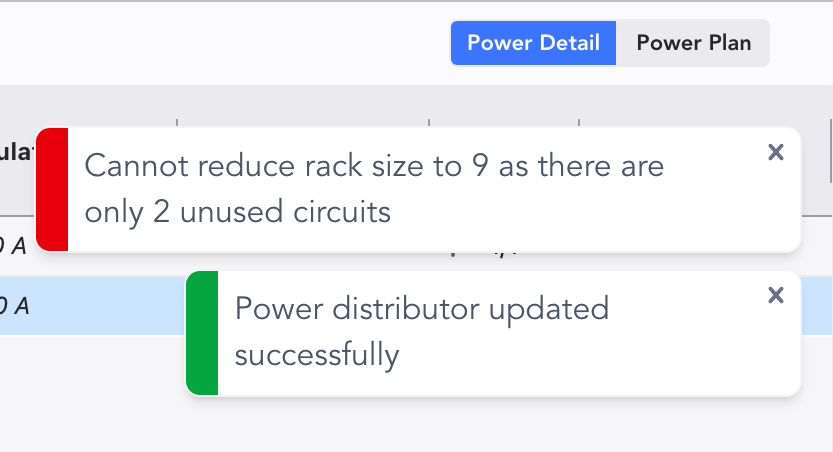
Lower the size of your circuits in the popup and press Ok. If you lowered your circuits too far (lower than you are currently using), Lightwright will deny the action and give you a red flag in the upper right-hand corner.
Power Worksheet Sidetabs
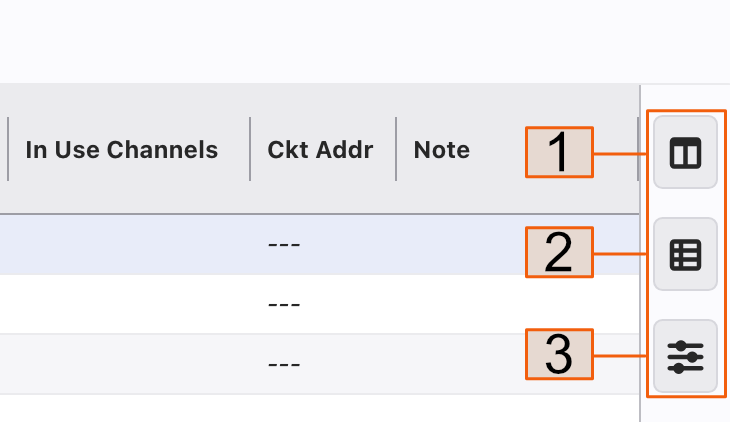
Columns-- choose which columns to see or conceal.
Devices in Use-- select any item to view what devices it is used with.
Power Settings-- Choose between Phase Labels. Also, choose which User Columns to add to improve your work flow.