Appearance
Columns Side Tab
To control what Columns are viewed in the Worksheet, touch the Columns side tab. All Columns with content or without will be here to include or exclude.
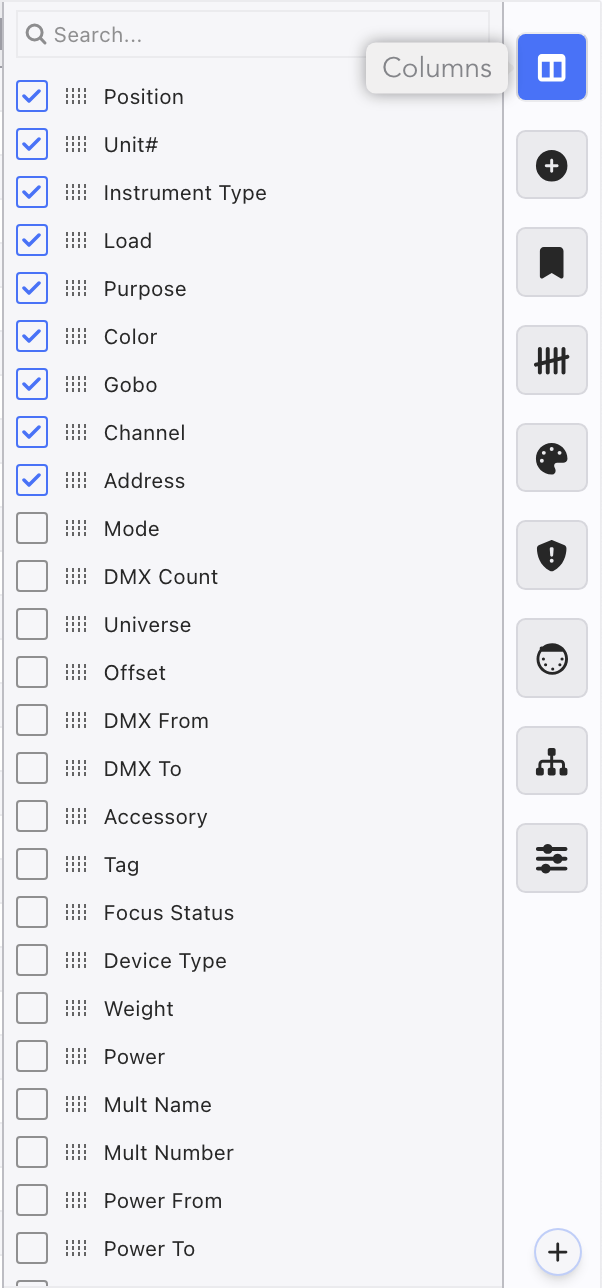
You can also drag the icon of dots to change the order of your Columns in the Worksheet.
TIP
If you want to keep which columns are in your worksheet and what order they are in, don't forget to save or update a Preset.
Presets

Presets at first appear to be simply a "sort-by" function, but they have more options. The default Presets are sorted by Position (per the Position Directory order), Channel, Address, Power and Mult (per the Cables Directory order). They also store the visible Columns.
The + icon allows you to create your own Preset, name and store it. Be aware this is a capture function-- you need to have set the worksheet with sorting, filters and columns how you want them. Keep in mind the added Preset will display the Short Name, which can have only five characters.
Once created, Presets can be applied, renamed and deleted in the Presets Side Panel. If you wish to overwrite one, press and hold Ctrl/Cmd and click on it.
If you change your columns and sorting while in a Preset and wish to re-assert the Preset, hover over the Preset. A red undo arrow  will appear. Click it and the Worksheet will restore to the Preset.
Presets Side Tab
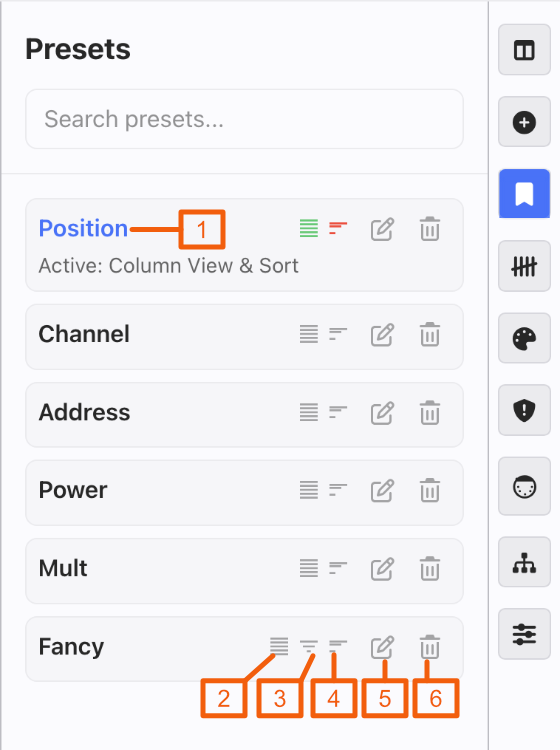
The Presets Side Tab is viewable by clicking it. All Presets are present here.
Blue color indicates active Preset.
Equal dashed line indicates Columns are in the Preset.
Triangle Diminishing Lines indicate Filters are in the Preset.
Left Justified Diminishing Lines indicate Sorting is in the Preset.
Pencil opens a popup to change the Long and Short Name for the Preset.
Garbage Can deletes the Preset.