Appearance
Paperwork
When it's time to produce some paperwork, touch the paperwork icon  in the upper right.
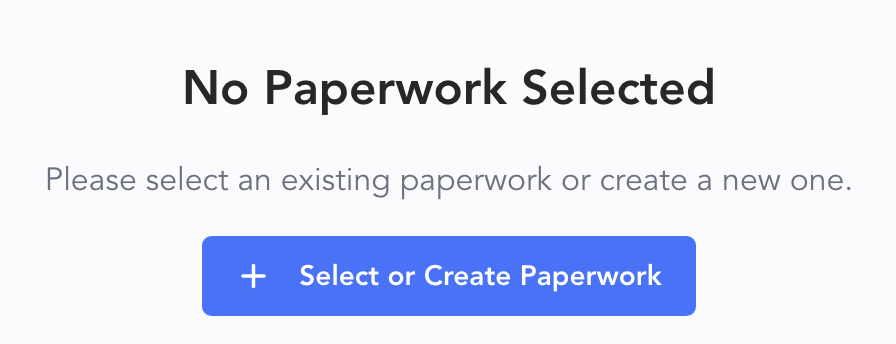 Touch the + Select or Create Paperwork button and a slide-over panel appears on the left.
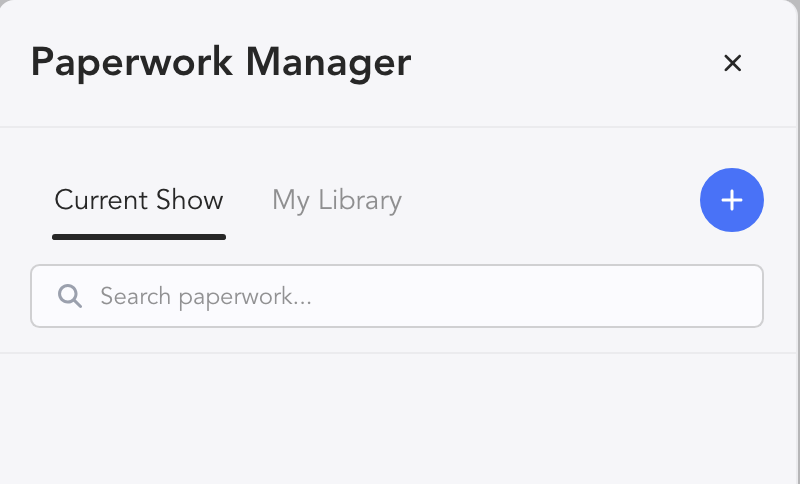
Notice the two tabs-- Current Show and My Library. Touch the blue + to add a template.
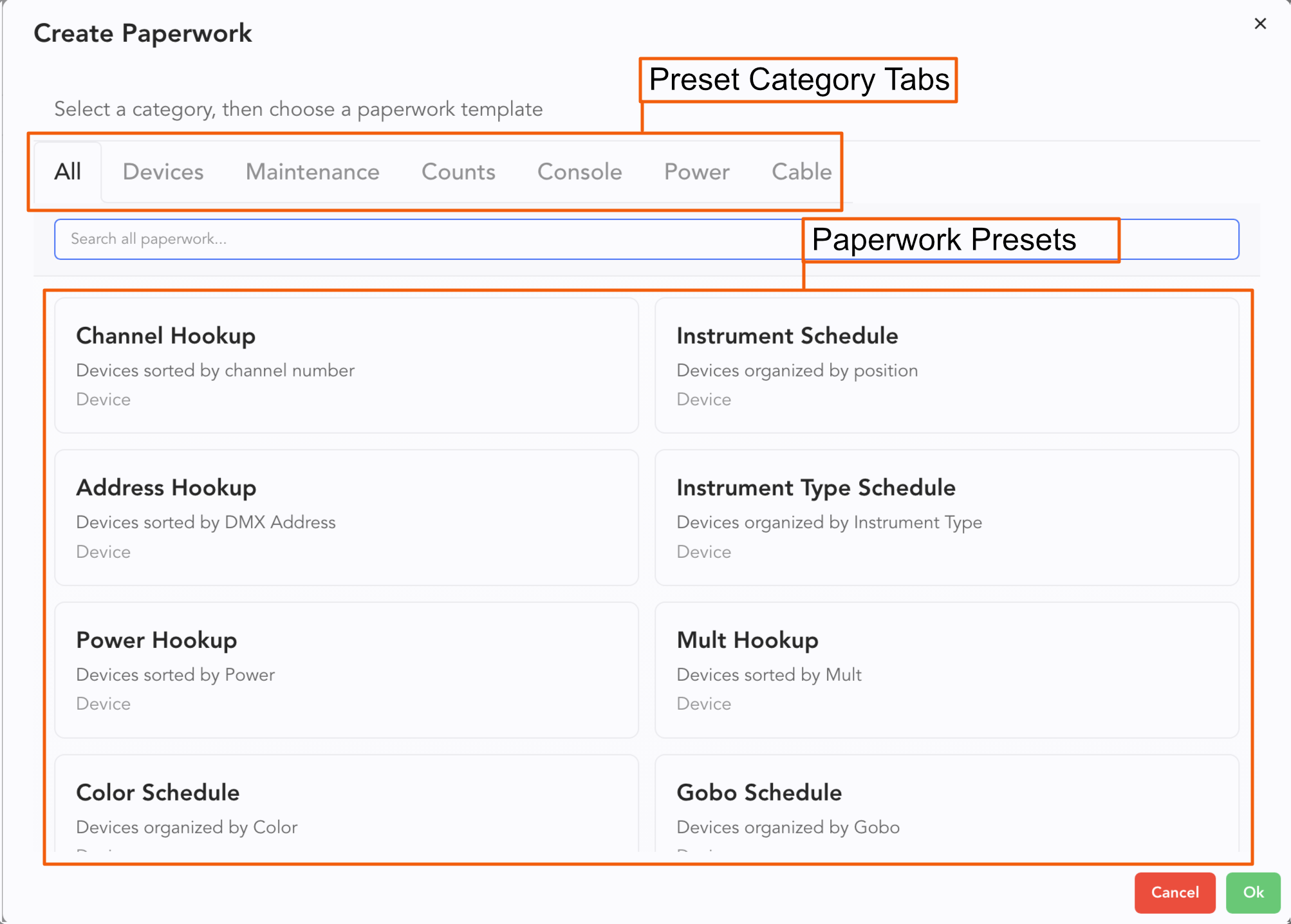
INFO
This list is far more extensive than is shown here. Scroll down below to see all the options. You can use the tabs to filter by category.
For an example, select Default Instrument Schedule. A page configuration popup opens.
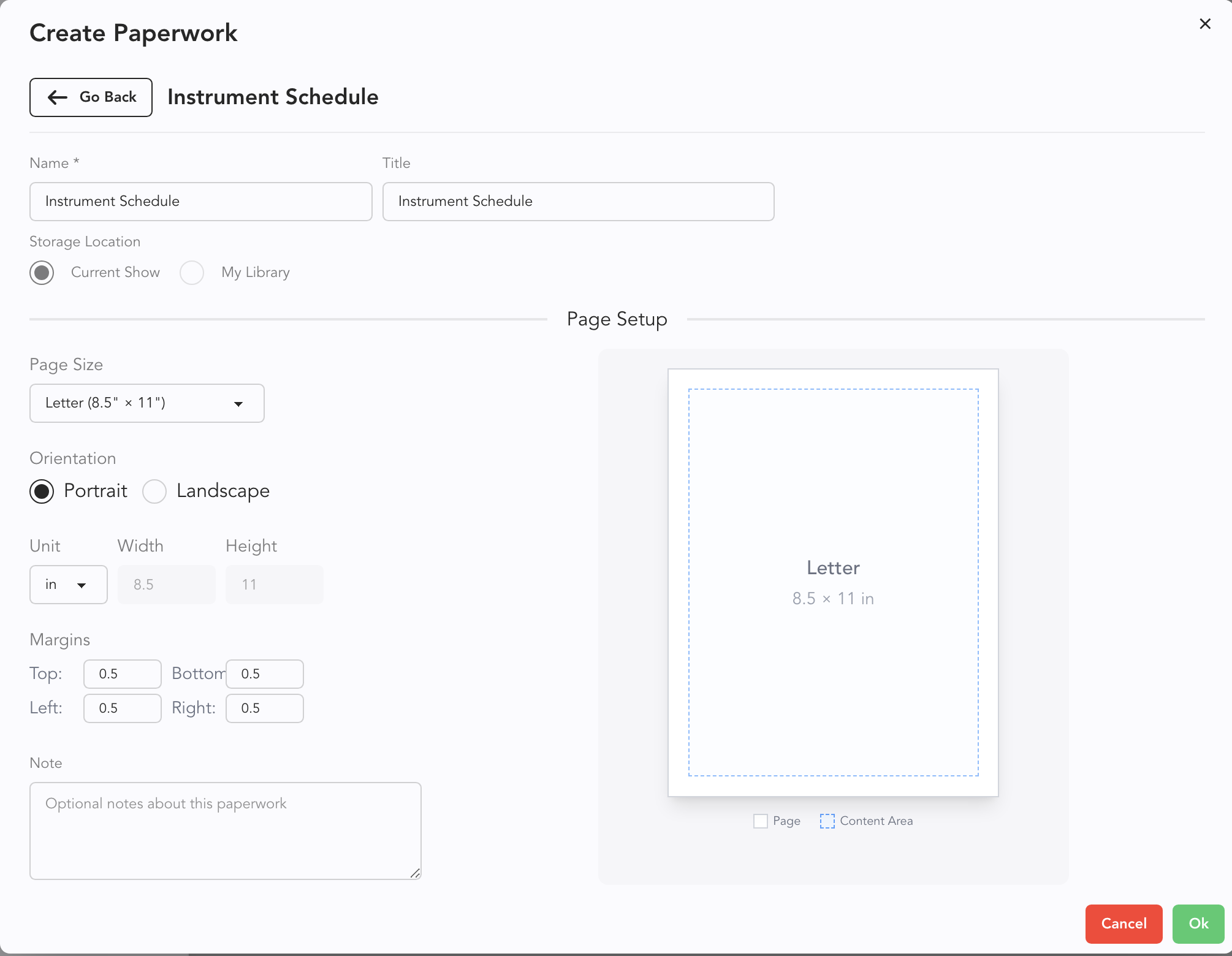
Adjust settings if needed and click Ok.
The paperwork profile now exists in the Paperwork Manager, but you must select it to view and edit.
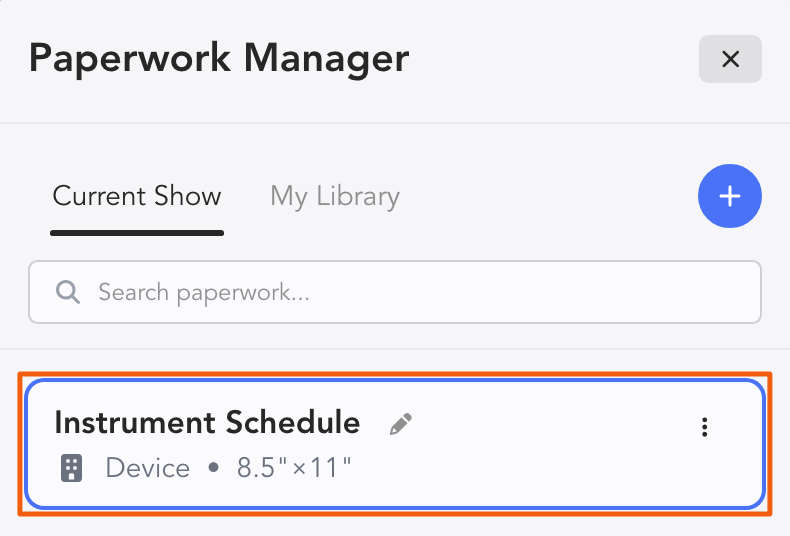
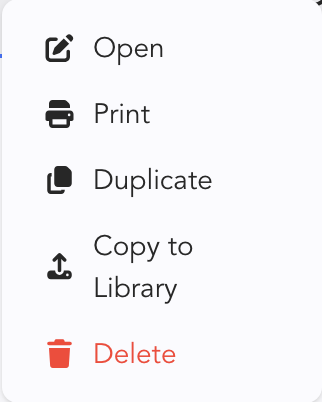
Notice the pencil icon to rename, as well as the three dots. Touching the three dots opens a menu of options.
TIP
Copying paperwork templates to your Library make them available across all your shows.
Once you have chosen a Template to edit, there are many options new and familiar to explore in the Template Editor. Conversely, if you create your Paperwork only in your Library, it will not be shared with others.