Appearance
Import MVR to MA3
On Export, save or copy your MVR file in the appropriate MA3 folder.
On a console, you place your file on a USB drive in GrandMA3>gma3_library>mvr.
On an OnPC, go to C:\ProgramData\MALightingTechnology\gma3_library\mvr.
On Mac OnPC, go to users/<your user>/MALightingTechnology/gma3_library/mvr.
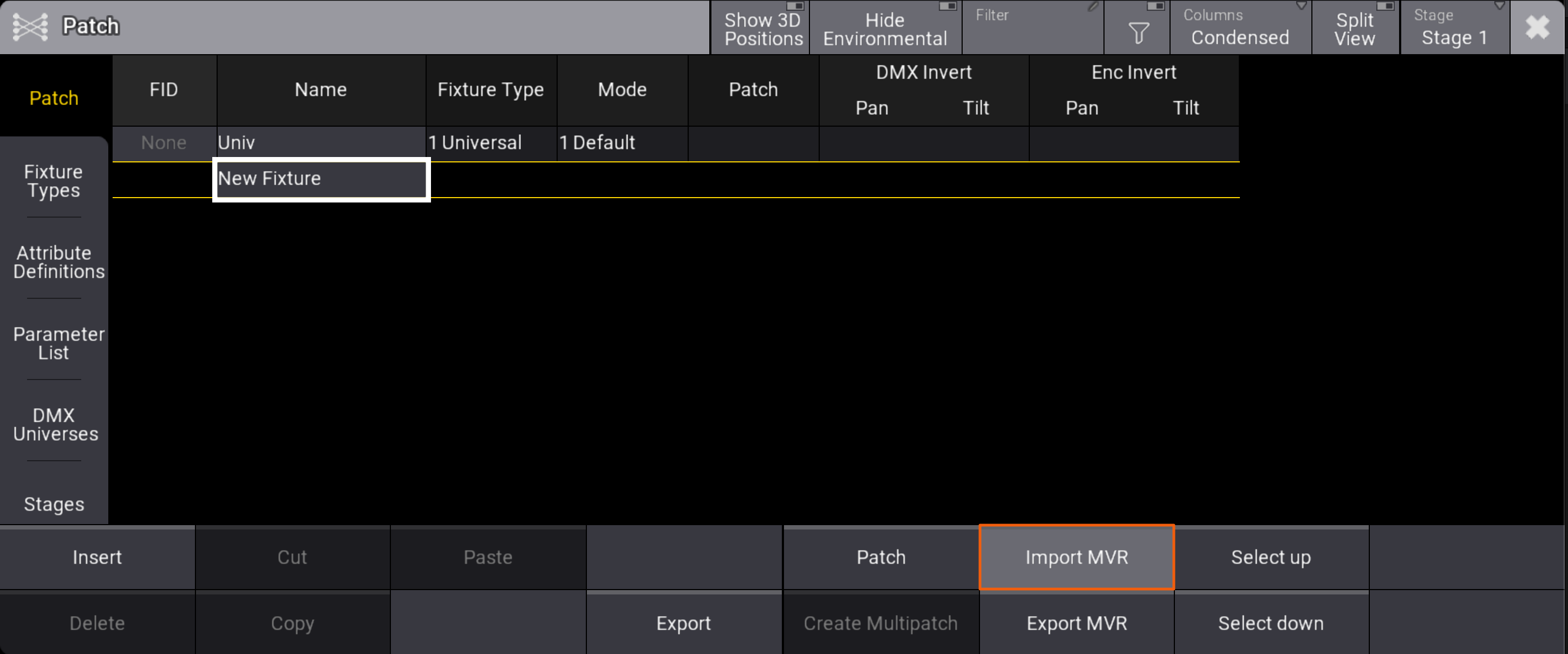
Open MA3 and go to Patch. Touch Import MVR.
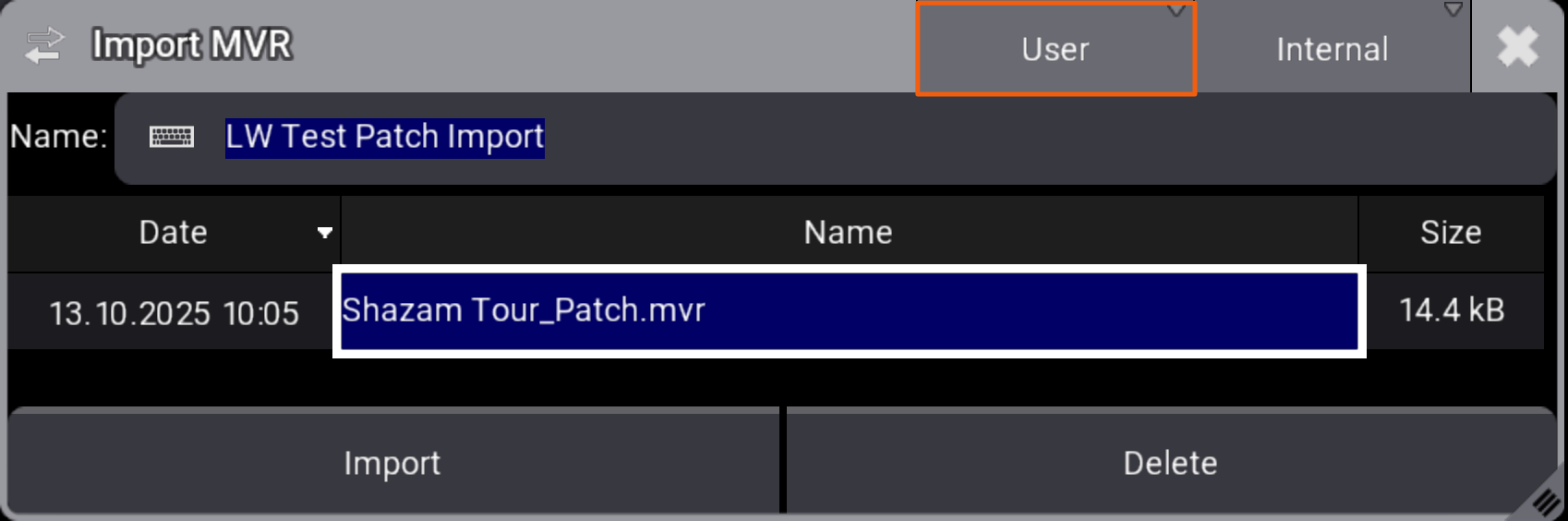
Direct MA3 to your file. If you don't see it, make sure you are set to User, not Demo. Also make sure you are set to Internal or External, as appropriate. Touch Import to confirm.
A popup opens listing what MA is about to do. Confirm by touching Import MVR.
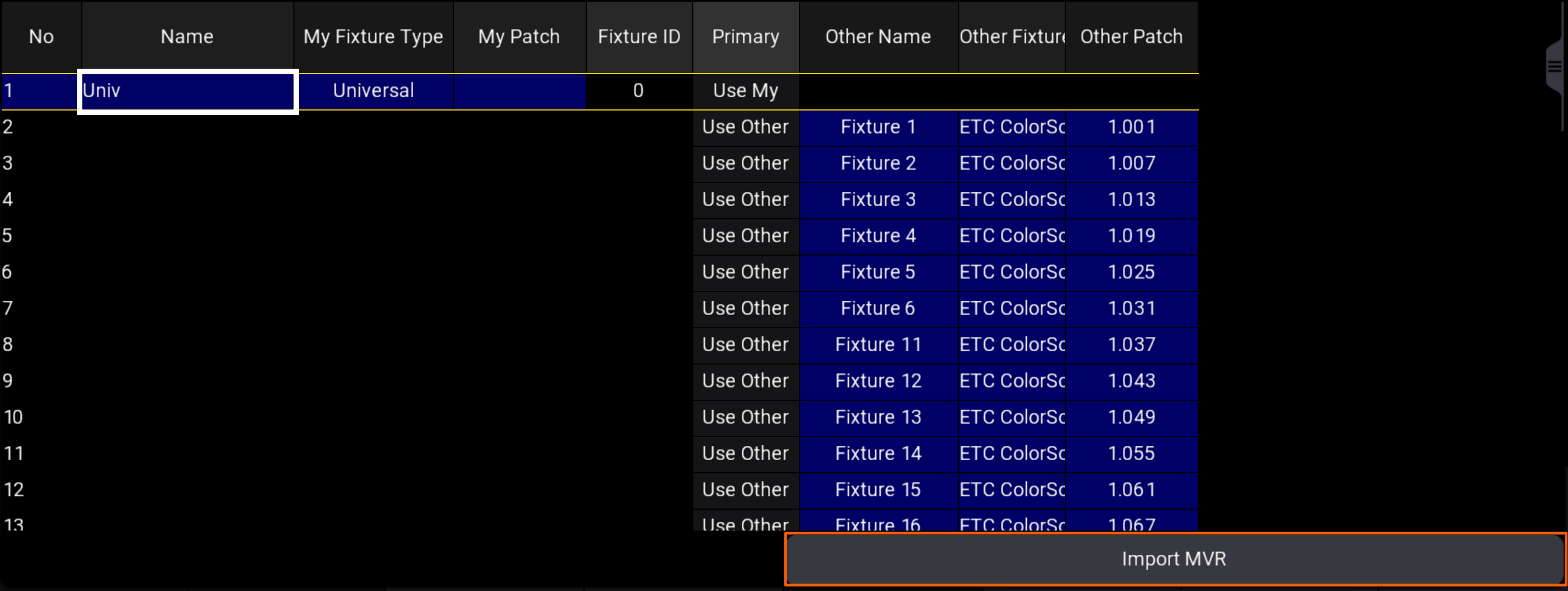
Scroll through your list to make sure things look good, then touch Import MVR.
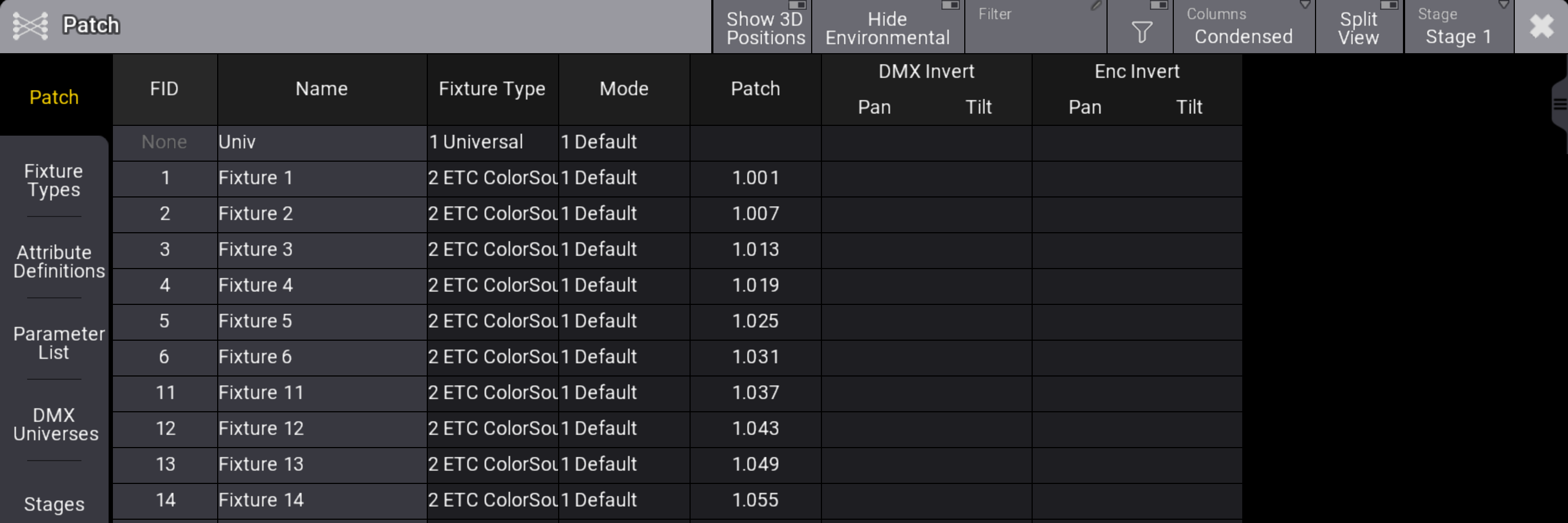
Your next action is to go through each set of lights and replace them with functioning profiles from the MA3 library. We'll show one example in case you're not already familiar.
Lasso the column for your fixture type- Colorsource Spot Jr fixtures in this example.
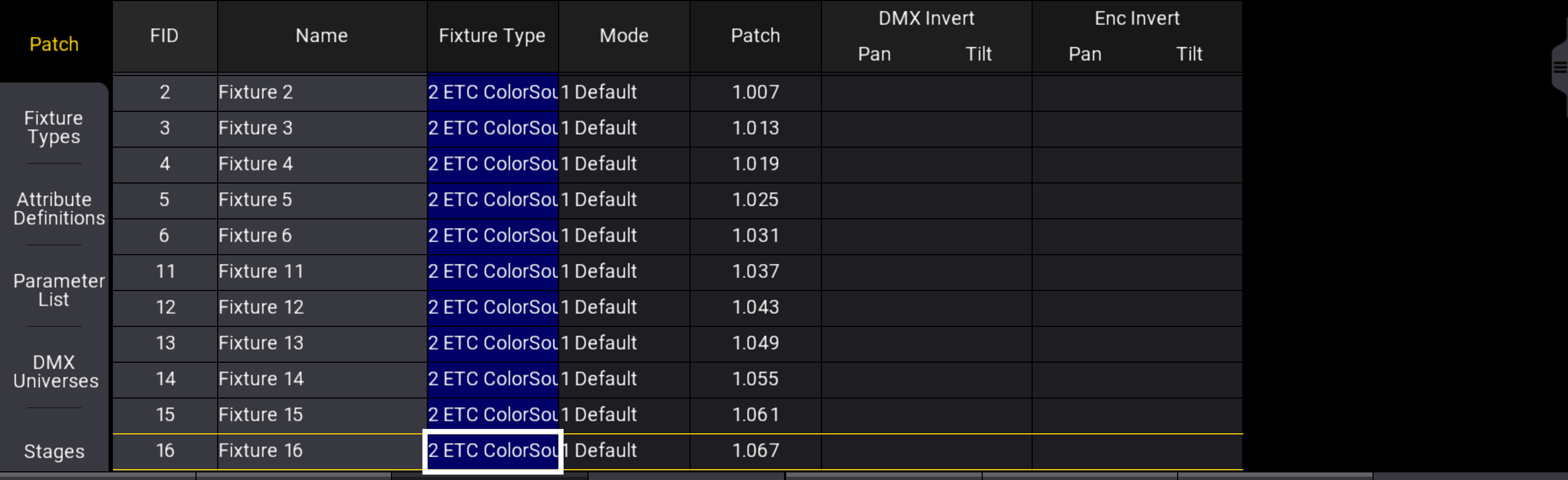
Right click and a popup opens. Make sure you are selected on the right source tab- Show (if you have a template with the profiles already in it) or Library if you need to import the profiles. We are selected on Library to import. Now type the fixture profile you are looking for into the search box, choose the right fixture then your preferred Mode.
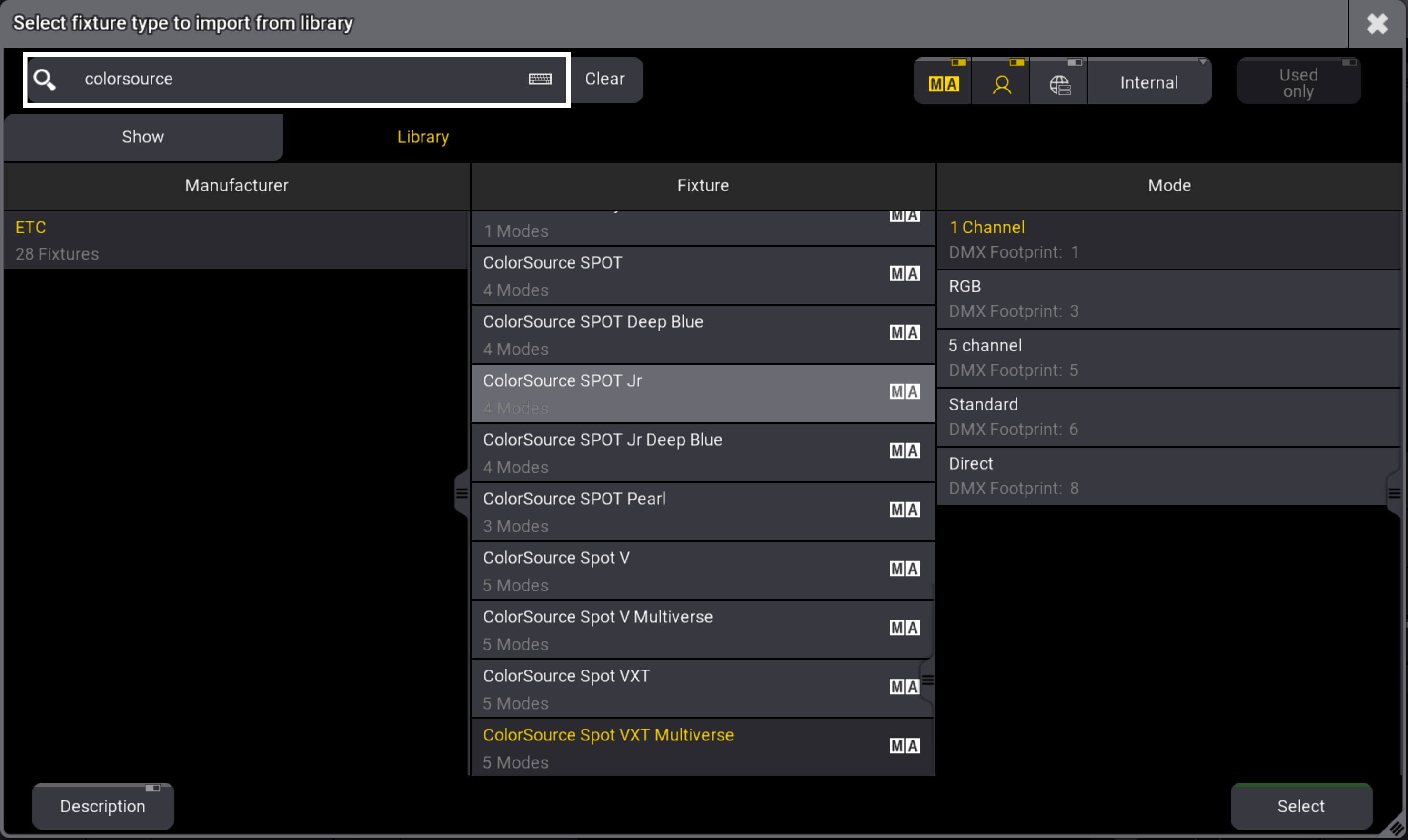
Touch Select when done.
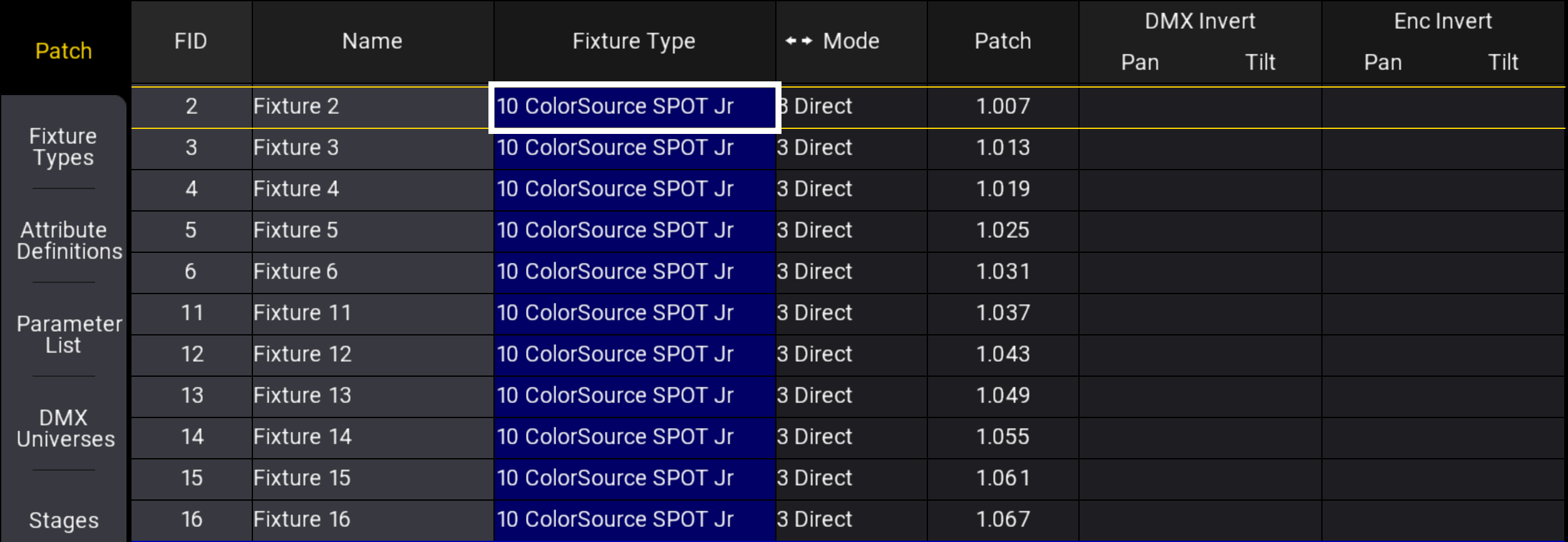
Continue through the rest of your fixture types.
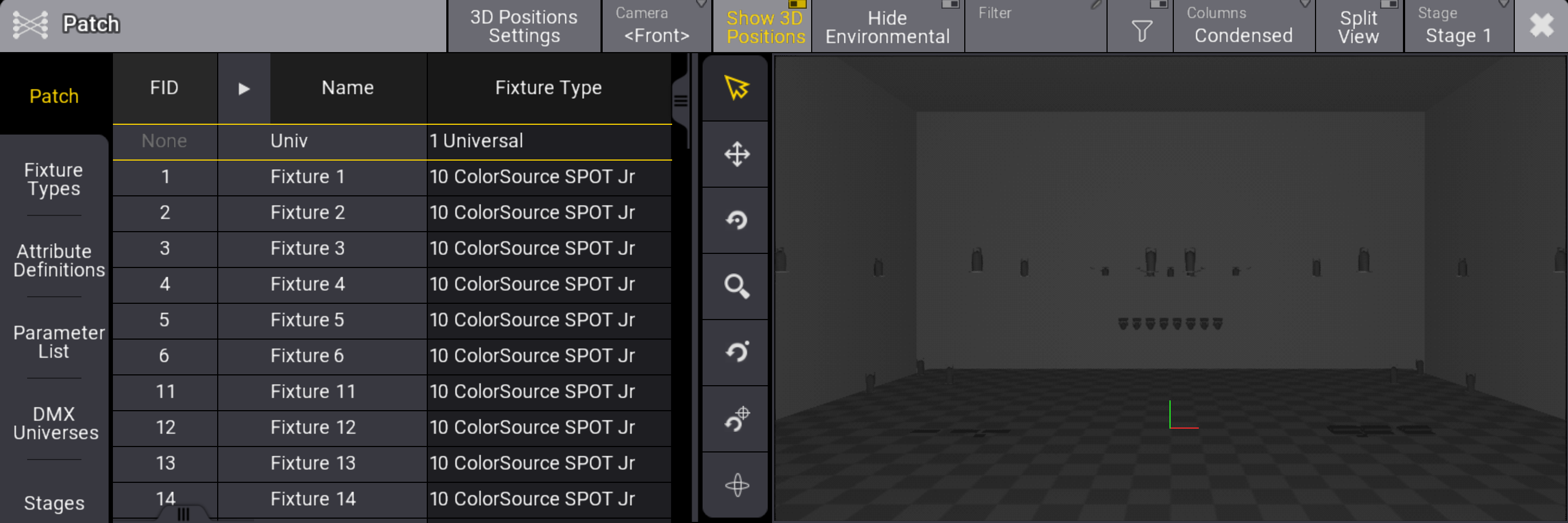
Positioning data is included on import, as you can see. (The units on the floor reflect both actual choices and the challenges of drafting vertical positions in 2D.)