Appearance
Format
Touch the Format icon on the Sidepanels. 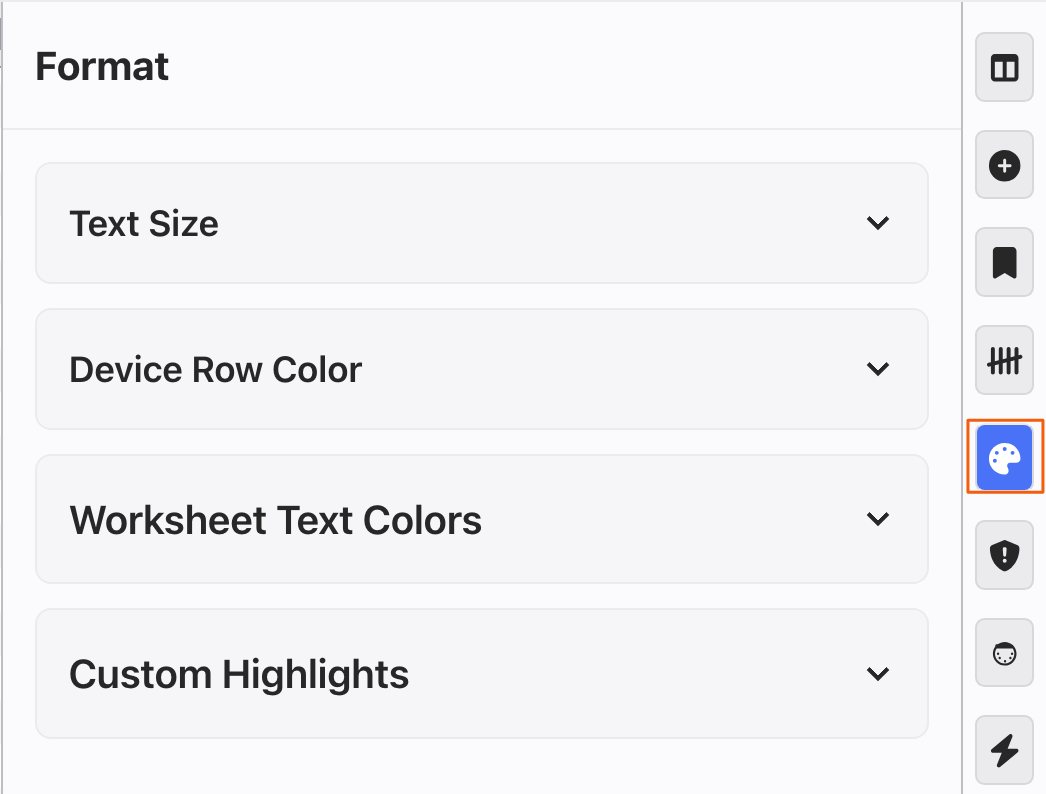
Text Size: Allows users to set the font size in the Worksheet.
Device Row Color: Where you can attach colors to Devices in the Worksheet to help you keep organized.
Worksheet Text Colors: Central point for managing colors of changes in the Worksheet.
Custom Highlights: Where you can create rules that color code your Devices for you.
TIP
When a Custom Highlight rule colors a row's background, Lightwright automatically picks light or dark text for that row, whichever gives the best legibility against the background, in either the Light or Dark Theme.
Device Row Color
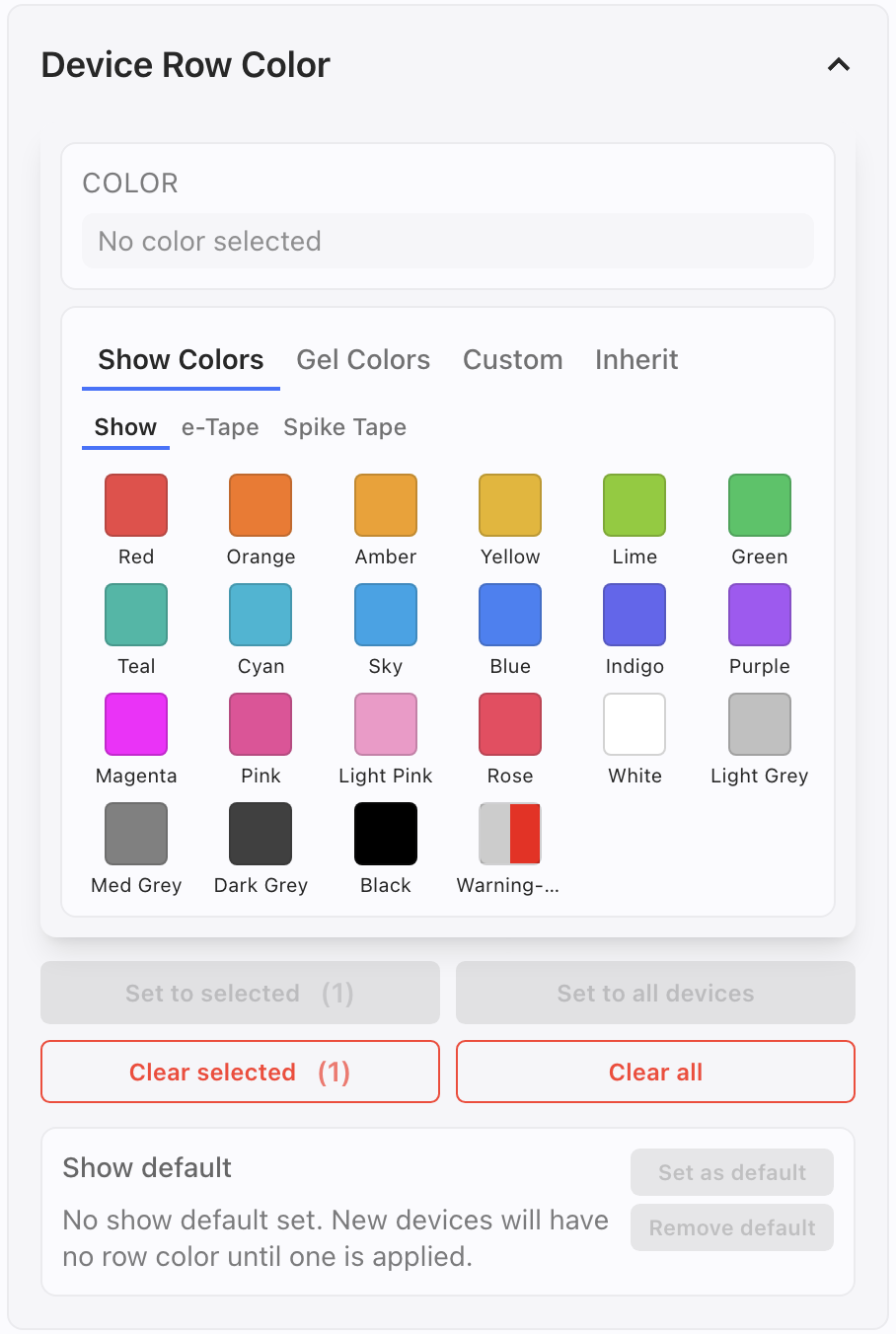 Populated with a wide variety of color tabs and color options, this tab allows you to assign colors to Devices in your Worksheet.
Select your Devices in the Worksheet. 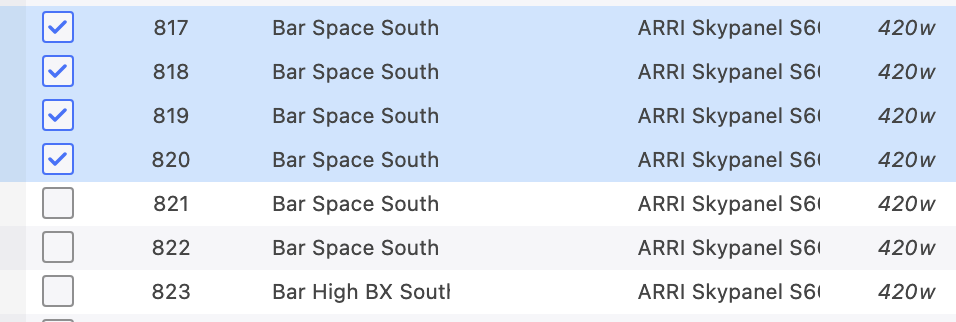
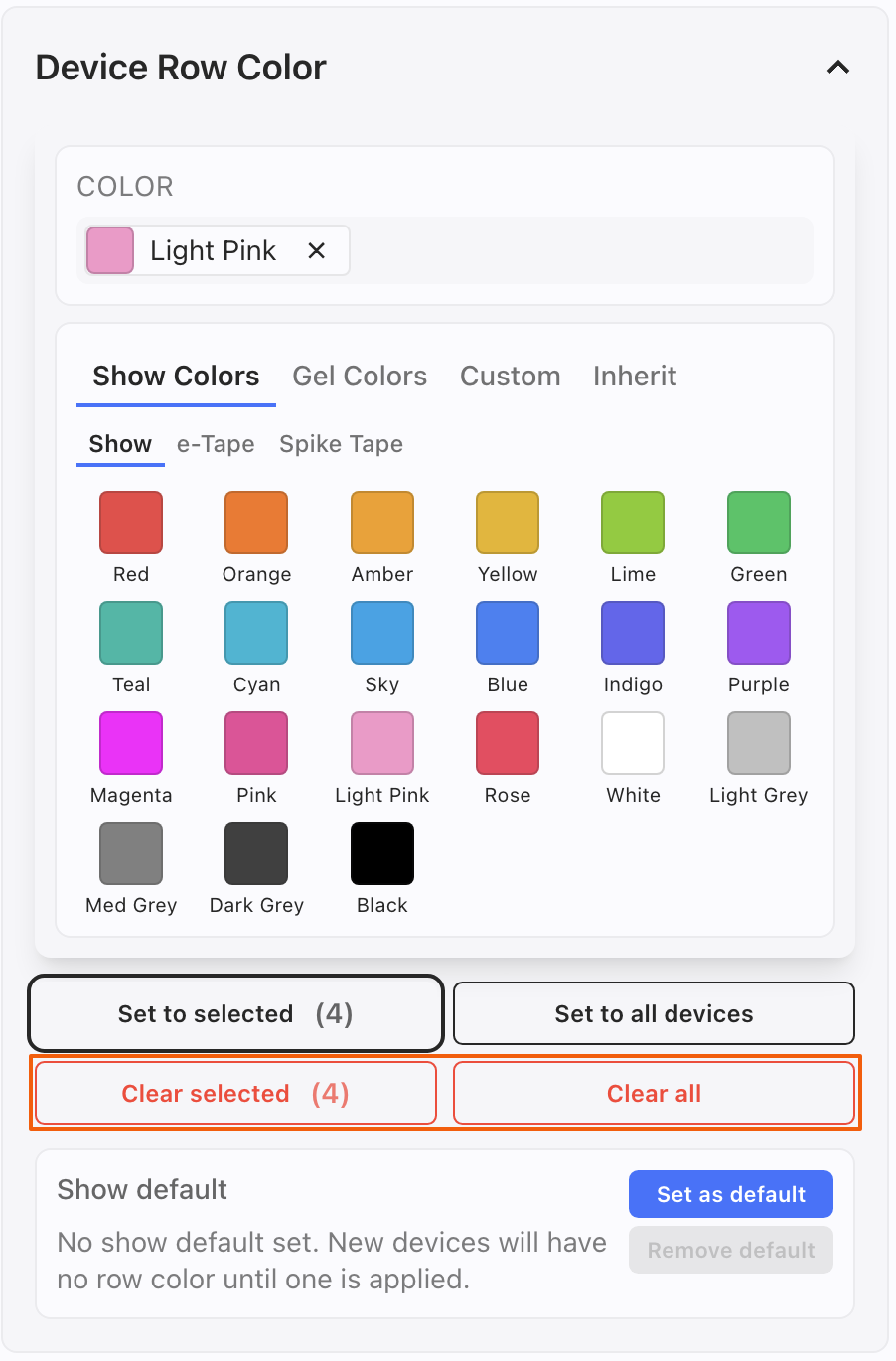
Select a color in Device Row Color. It appears at the top of the tab, while options appear at the bottom.
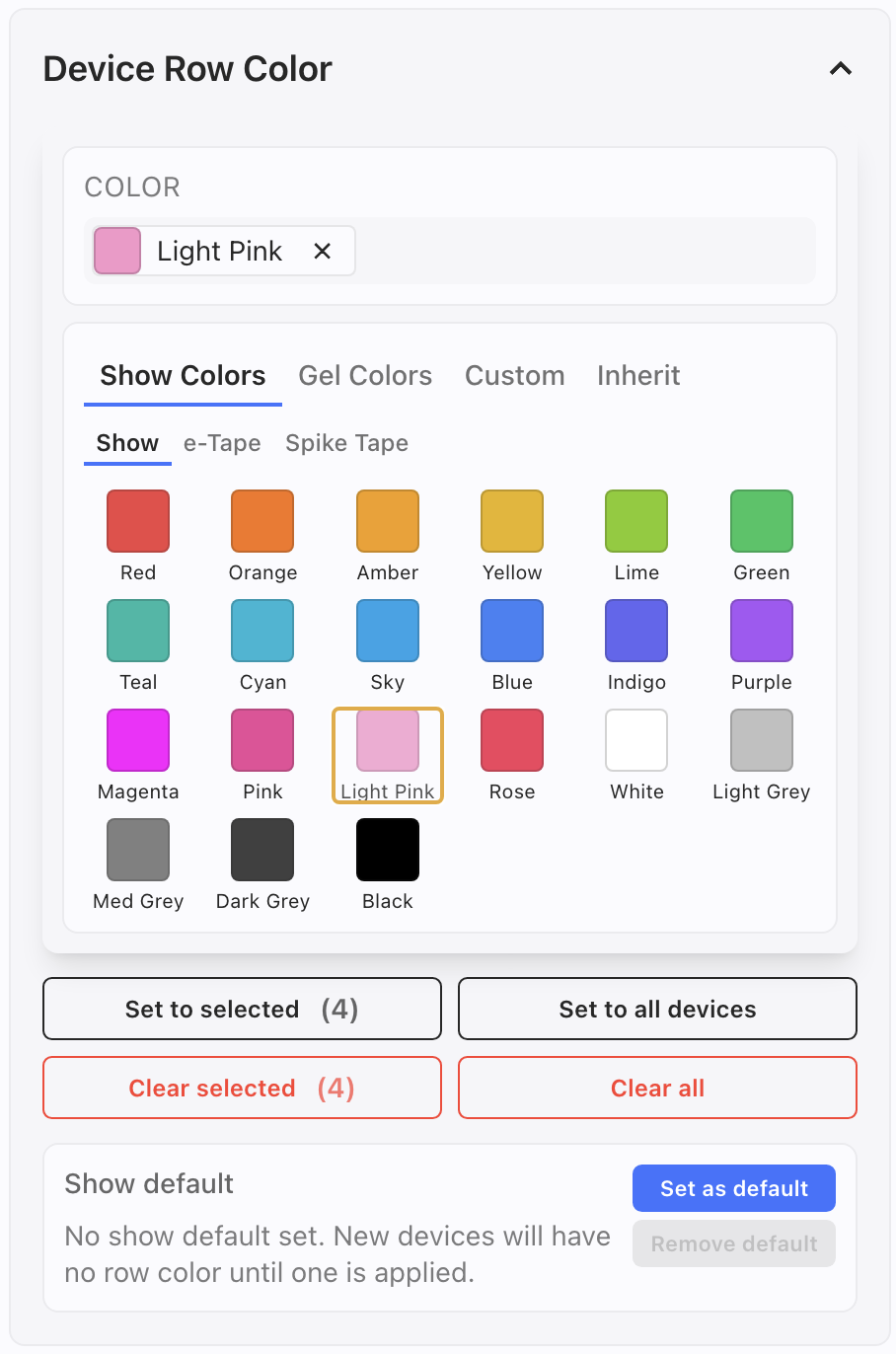
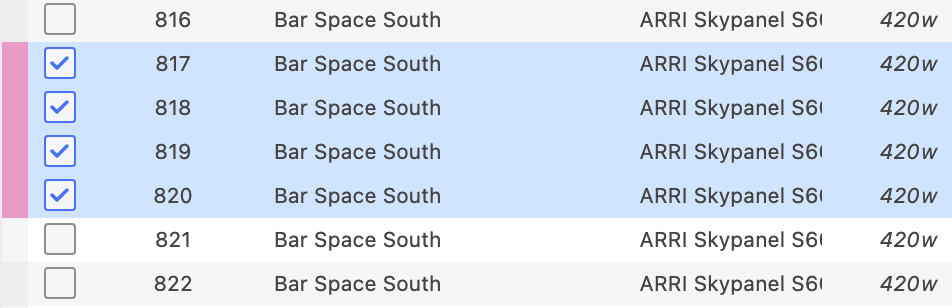
At this point, decide whether to Set the color to all devices in the Worksheet or just the selected devices. Here is an example of Set to selected.
INFO
Device Row Colors are accessible to you in Paperwork>Style!
Removing Device Row Colors
Select your devices in the Worksheet. 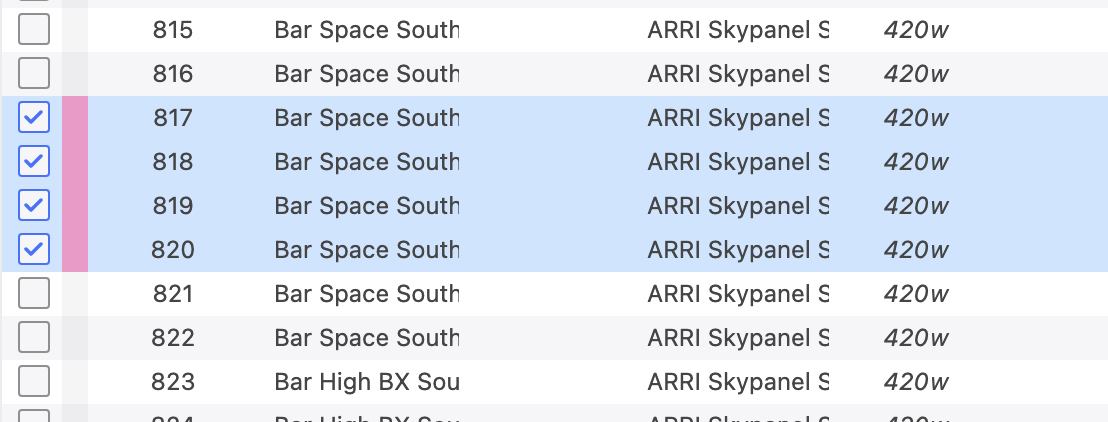
Select at the bottom of the Sidepanel- Clear Selected or Clear All.
Worksheet Text Colors
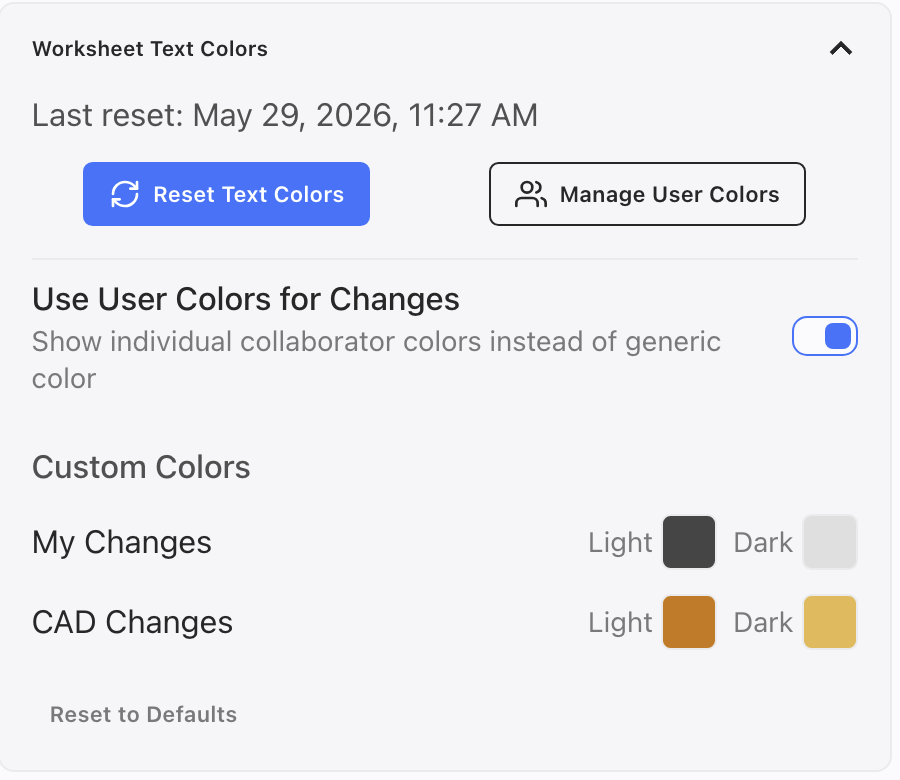
Reset Text Colors: This resets all colors in your Worksheet (whether created by Vectorworks or Collaborators) only for your view. Meaning-- your reset does not affect the colors for others.
Manage User Colors: This is a shortcut to the Collaborators Tab in Settings. You can touch a circle next to a name to assign colors for your collaborators.
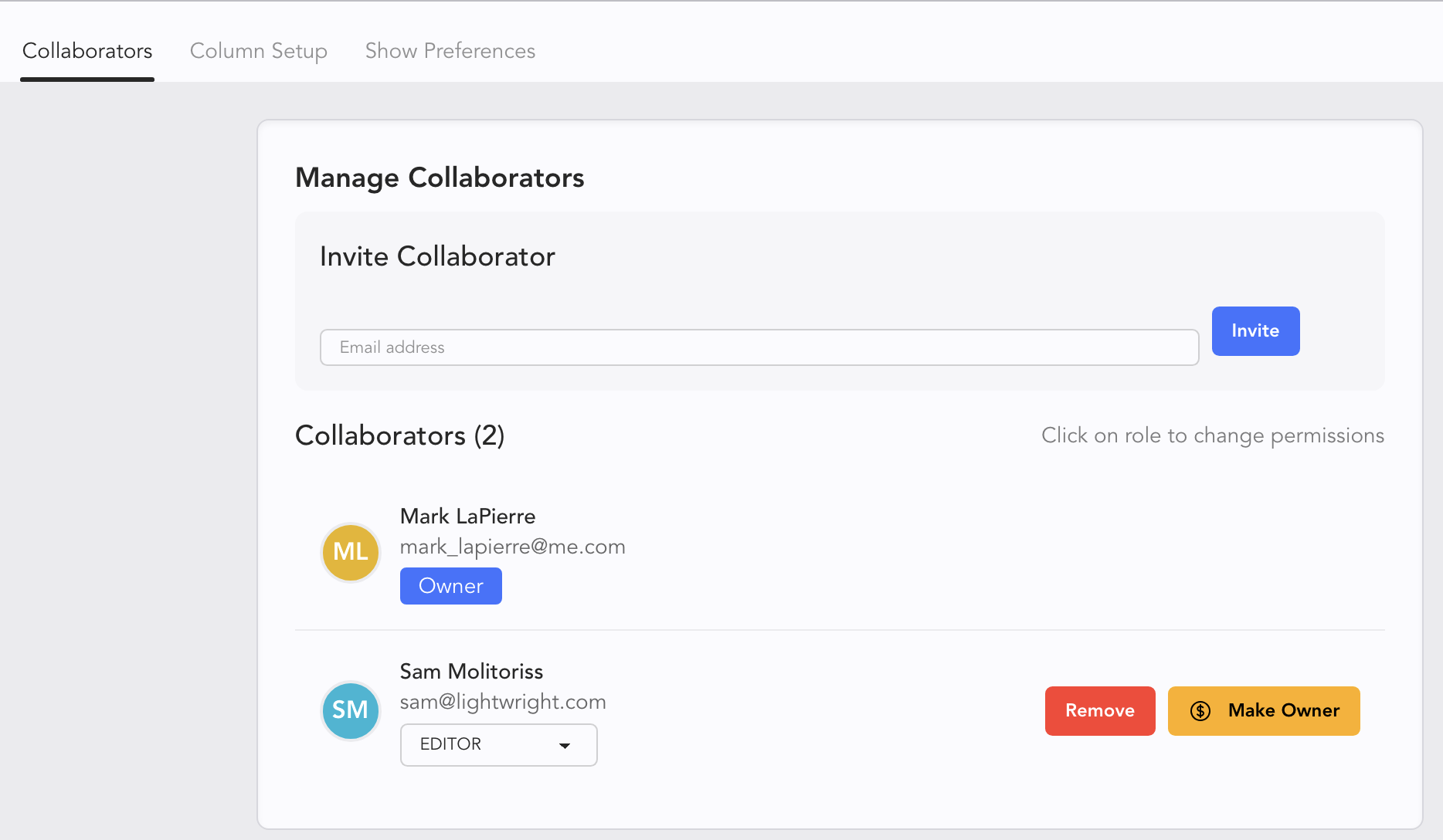
Use User Colors for Changes: Toggled on by default, this option allows users to color code changes in the Worksheet by source. Turning off will restore to default colors.
Custom Colors: Allows you to specify colors for your own changes as well as CAD changes. Light and Dark refer to Light Mode or Dark Mode for the interface.
Custom Highlights
Highlighting is a function that can use conditions and color to visually code your worksheet. They are found on the side tab. Touch Format to open the Side Tab.
Press + Add Custom Rule to create a Highlight.
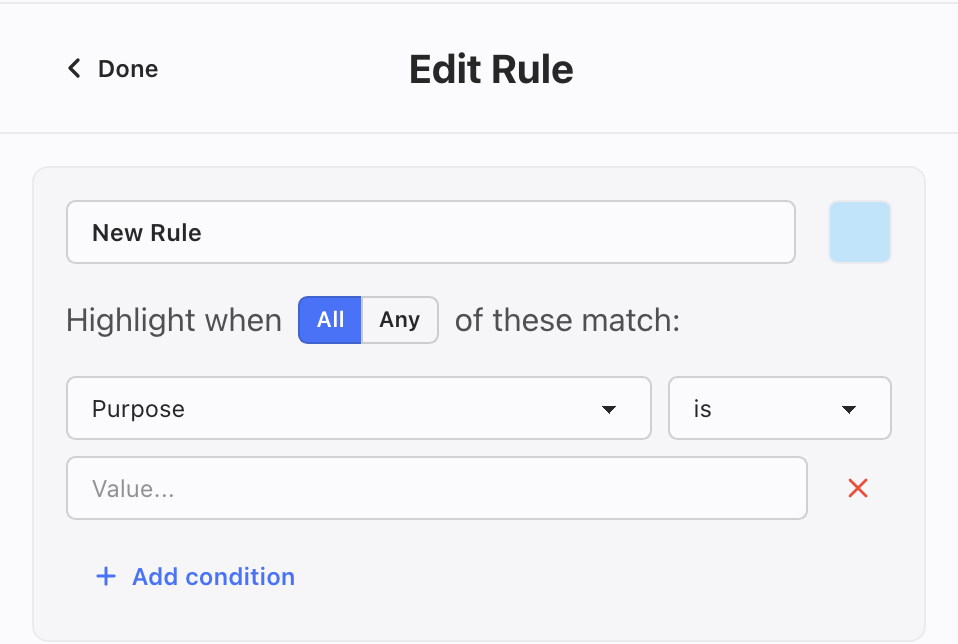
Name your Rule by replacing the text the currently says New Rule.
Touching the pale blue square opens a popup that allows you to choose any color.
Notice the toggle of All or Any. All is to filter for results that meet ALL conditions. Any filters for results that meet ANY conditions.
Purpose is a pull down of all Columns in your file.
"is" is a pull down where you can choose "is", "is not", "contains", "does not contain".
Type in any value.
Add Condition allows you to add another condition to your Rule.
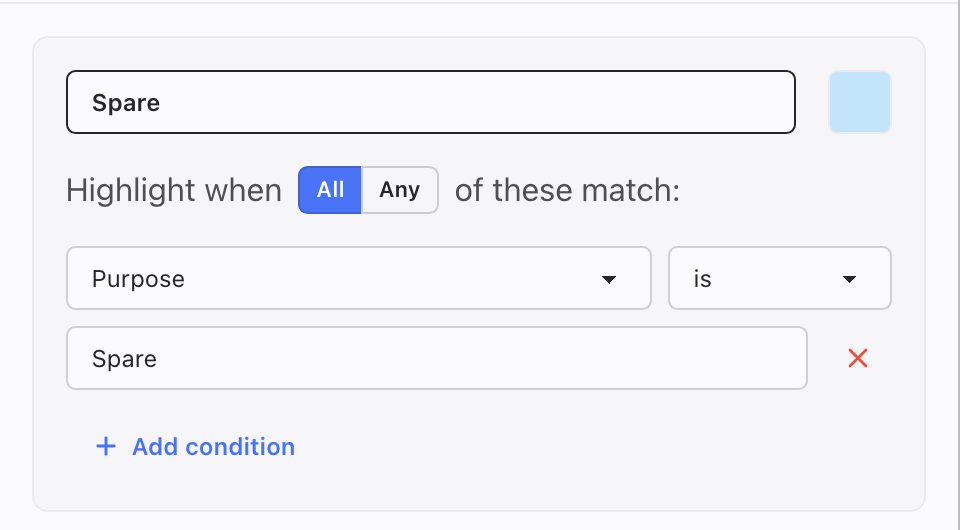
An example is a Highlight that calls attention to any Spare fixtures. That rule could look like this:
When your Highlight is complete, touch Done at the top of Rule interface.

Your Highlight is toggled on and shows in your Worksheet.

Touch the toggle switch to turn off the Highlight.