Appearance
Mult and Power Features in Worksheet
Bulk Edit Mult Popup
Inputting Mult data just got much faster. Select the cells for your lights that you wish to add a Mult by clicking and dragging and then type in the name of your Mult.
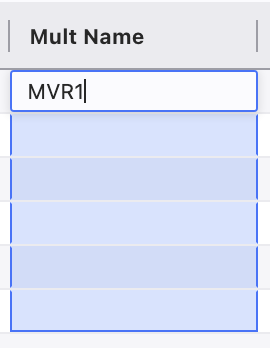
When you press Enter, a popup opens.
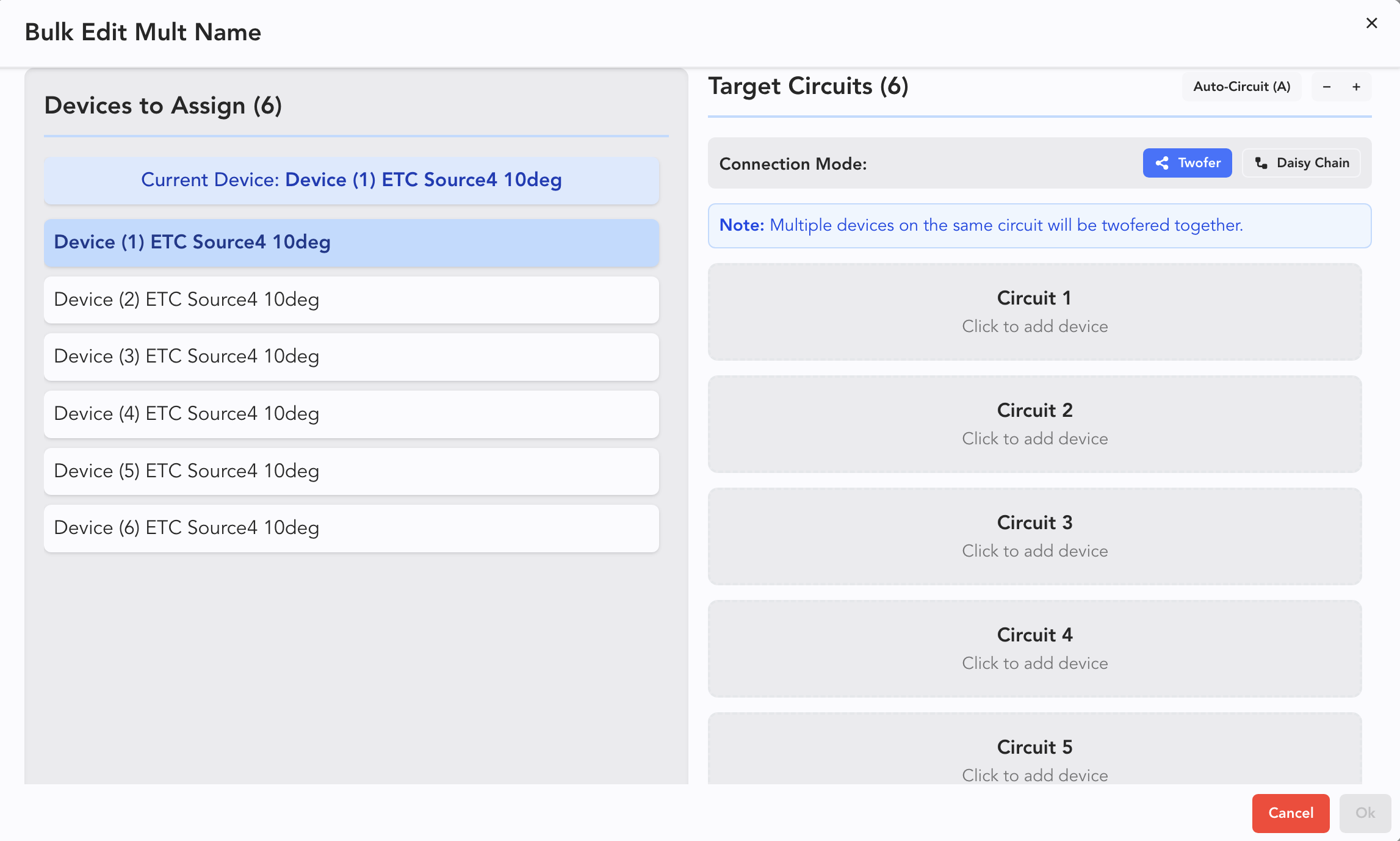
If you want to assign circuits in the order of the selected fixtures on the left, press A and it's automatically done.
If you wish to assign circuits in a custom order, select a light on the left, then select the circuit on the right. You may also press a number 1-6 to assign one circuit at a time to the selected light. Lightwright automatically selects the next light in the original selection order.
If you want to remove a light from a circuit, hover over the fixture and press the red X.

To add more than one light to the same circuit, select the new light to add and either press the number of the circuit or touch the circuit on the right.

INFO
You can change the order of the fixtures within the circuits using the arrows on the right in each circuit. This can help clarify where the circuit starts and what device it continues on to.
To add or remove circuits, press the + or - in the upper right of the popup.
When finished, press Ok to complete and exit the popup.
Power Icons
When the Power Column is visible in the Worksheet, there are some new icons to help you stay organized.
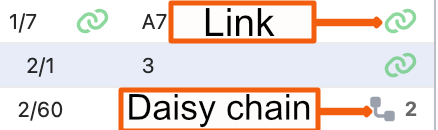
- Link indicates a device is connected to a Power Distro via a Mult.
- Daisy Chain indicates the devices are daisy-chained. The 2 indicates two connections.