Appearance
First Launch
This guide covers launching Lightwright for the first time, signing in to your account, and selecting your license.
Opening the Application
On macOS
- Open Finder and navigate to your Applications folder
- Double-click the Lightwright icon
- The application window will open displaying the login screen
On Windows
- Double-click the Lightwright desktop shortcut
- Or find Lightwright in the Start Menu under Lightwright
- The application window will open displaying the login screen
Sign In Process
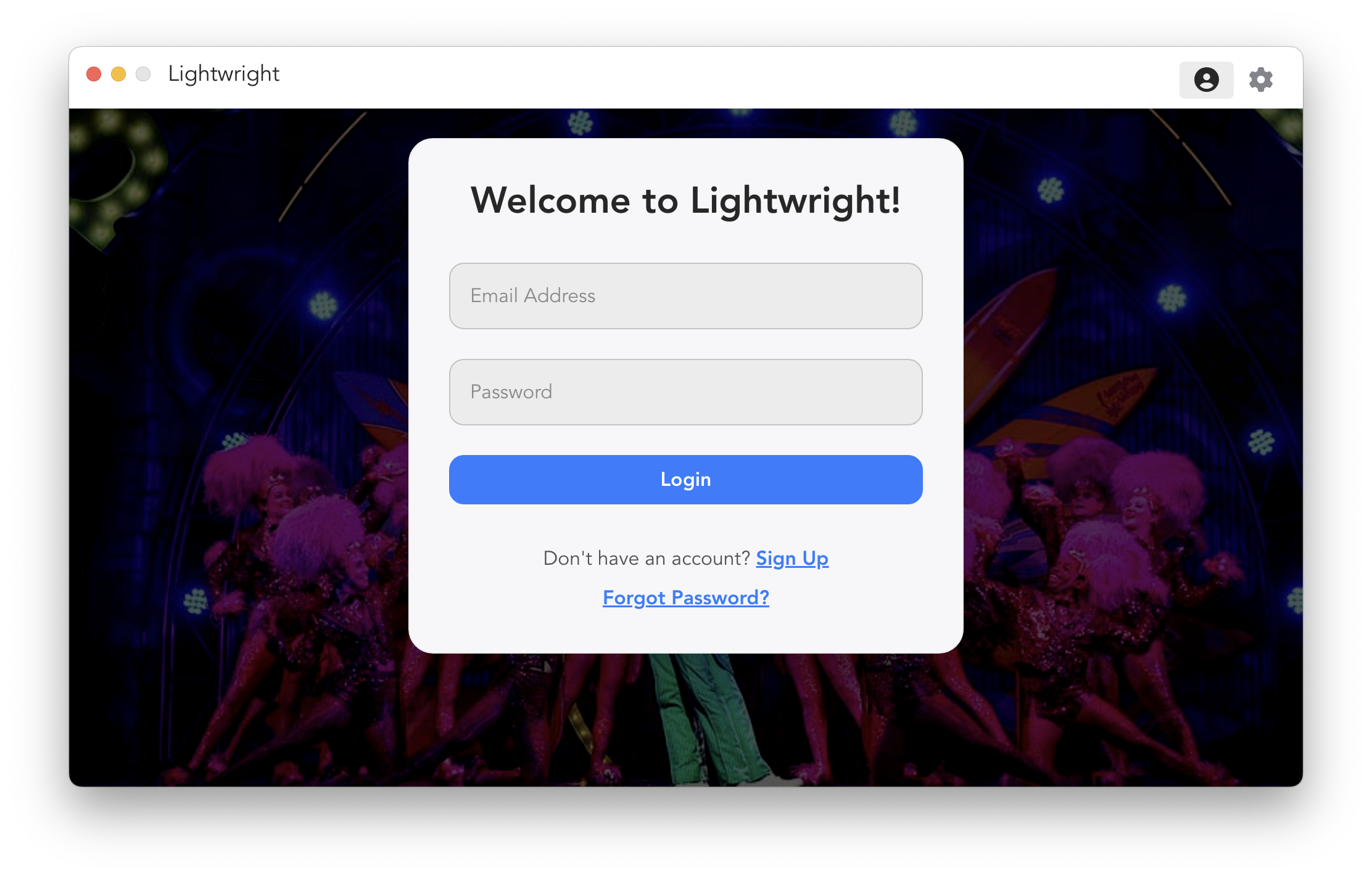
When Lightwright opens for the first time, you'll be greeted with a login screen.
Welcome to Lightwright!
Step 1: Enter Your Credentials
The login form contains two fields:
- Email Address: Enter the email associated with your existing Lightwright account
- Password: Enter your account password
- Click the Login button to sign in
Account Options
Below the login button, you'll find two helpful links:
Forgot Password?
If you've forgotten your password:
- Click Forgot Password?
- Enter your email address
- Click Send Reset Link
- Check your email for password reset instructions
- Follow the link to create a new password
Account Dashboard
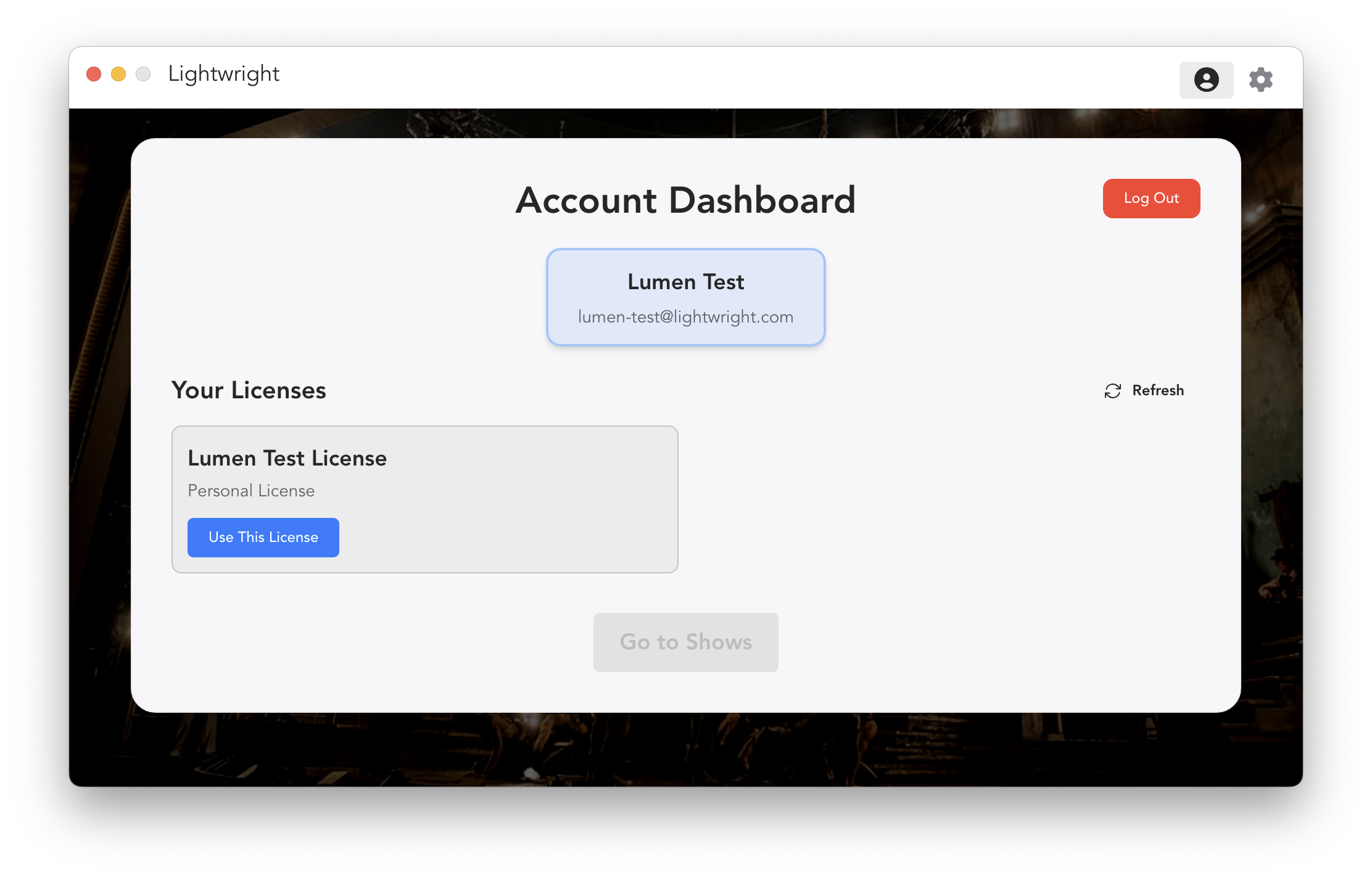
After successful sign-in, you'll be taken to the Account Dashboard where you can manage your account and select a license.
User Information
At the top of the dashboard, you'll see your account details displayed in a blue-bordered card:
- Name: Your display name (e.g., "Barbara Smith")
- Email: Your registered email address
Your Licenses
Below your user information, the "Your Licenses" section displays all available licenses for your account.
Important Required Step
You will need an account to activate the free Viewer mode.
License Limits
You can use a single user license of Lightwright on up to two devices at a time. If you need to add your license to a third computer, Lightwright will ask which of the two current licenses can be deauthorized.
Selecting and Activating Your License
You must complete these steps to proceed:
- Review the available licenses displayed in your dashboard
- Click the blue "Use This License" button on the license you want to use
- Wait for the activation process:
- The system will authorize your device
- A loading indicator may appear briefly
- Your license will be activated for this device
- Observe the "Go to Shows" button at the bottom become enabled (changes from gray to active)
- Click "Go to Shows" to proceed to the main application and access your shows
Important: You cannot access the main application or your shows until you've selected and activated a license. This is a one-time setup for each device.
Dashboard Actions
Refresh Licenses
- Click the Refresh button (top right of licenses section) to update your license list
- Useful if a new license was recently added to your account
Go to Shows
- Initially disabled: This button appears grayed out when you first arrive at the dashboard
- Becomes active: After successfully activating a license, the button becomes clickable
- Click to proceed: Once enabled, click "Go to Shows" to enter the main application
- Required step: You cannot skip this - a license must be activated to continue
Log Out
- The red "Log Out" button in the top right corner signs you out
- Returns you to the login screen
Next Steps
After selecting your license and clicking "Go to Shows", you'll proceed to the main application where you can:
- View your shows - See all your existing shows in a organized list
- Create a new show - Start a fresh project
- Import from Lightwright 6 - Bring in your existing LW6 files
- Open shared shows - Access shows others have shared with you
For detailed information about the main application interface, see the Interface Navigation guide.
Troubleshooting Sign-In
Common Issues
"Invalid Credentials"
- Verify email is correct
- Check caps lock
- Try password reset
"No License Available"
- Check license expiration
- Contact administrator (institutional)
- Purchase or renew license
"Device Limit Reached"
- Deauthorize unused devices
"Network Connection Failed"
- Check internet connection
- Verify firewall settings
- Try again later
Security Notes
- Use a strong, unique password
- Don't share account credentials
- Sign out on shared computers